Colorize Image tint & colour-grade, not AI restoration
Shift a photo toward one colour you pick while keeping its detail, entirely in your browser. This is a tint and colour grade, not AI restoration. To turn a genuine black and white photo into realistic scene colour, use the free AI photo colorizer below.
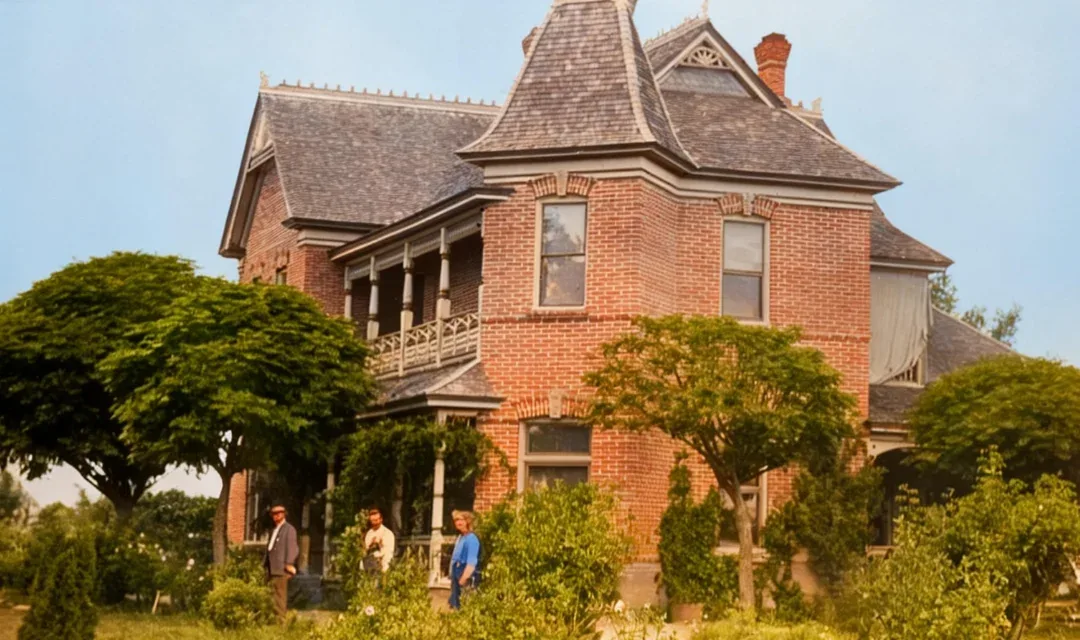
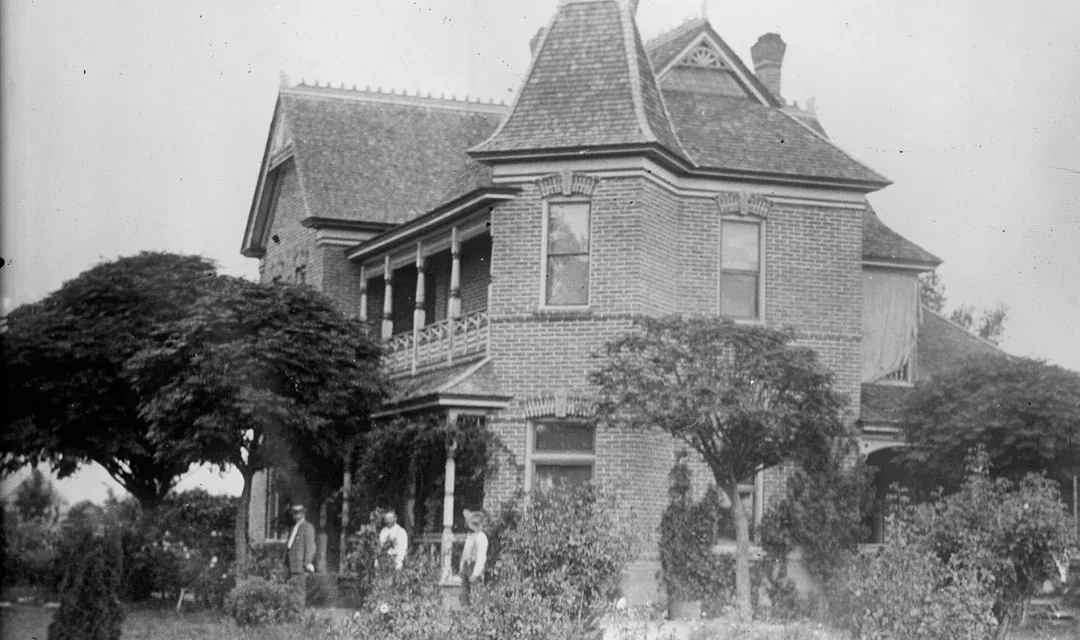
Neutral vs tinted — drag to compare.
Upload an image
Drop image here
or click to browse
or press Ctrl+V to paste an image
No image? Try one of these:
Options
Want AI colorization of black & white photos?
This tool tints and colour-grades toward one colour you choose. To turn a genuine black-and-white photo into realistic, scene-aware colour, use our free AI photo colorizer.
Luminance-preserving tint
The pixel's original brightness is preserved — the tint colour scales with luminance, so bright areas take more colour and dark areas stay dark. The result looks more natural than a flat overlay.
100% private
Your image is processed entirely in your browser using the Canvas API — nothing is ever uploaded to a server.
Free and unlimited
No signup, no watermark, no daily limit. Process as many images as you like.
How to colorize a photo
Upload your image
Drag and drop or click to select a JPG, PNG, or WebP image.
Pick a tint colour
Click the colour picker and choose any hue — warm orange, cool blue, brand colour, or anything you like.
Set the intensity
Drag the intensity slider from 0% (original) to 100% (fully tinted) until the look is right in the live preview.
Download
Click download to save the colourized image to your device.
Frequently asked questions
What is the difference between colorize and hue rotate?
Hue rotate shifts every colour in the photo around the colour wheel — reds become greens, blues become reds, and so on. Colorize tints the image toward a single chosen colour while preserving its luminance structure, giving a more controlled, monochromatic-style result.
Is the colorize tool free?
Yes — completely free and unlimited. No signup, no account, no watermark, no daily limit.
Are my files uploaded to a server?
No. The tint is applied entirely in your browser on your device. Your image never leaves your computer, so it stays fully private.
What intensity should I use?
For a subtle grade, 20–40% keeps the original colours visible with a warm or cool cast. At 60–80% the tint becomes prominent. At 100% the image is a fully colourized grayscale where all colour comes from the chosen hue.
Colorize another image
Drop in a new photo to apply a colour tint — free and unlimited, no signup required.
Choose The Right Tool
Why this page exists
Use colorize to tint a photo toward any colour while preserving its luminance — great for colour grading, warming or cooling a shot, and brand-consistent social assets.
Best for
- Colour grading portraits and product shots with a warm or cool tint
- Brand-consistent social media image treatments
- Quick monochromatic toning without complex editing software
Related tools people usually need next
AI Photo Colorizer
Colorize black and white photos with AI
Genuinely black and white photo? The AI colorizer predicts real scene colour instead of one tint.
Duotone Image
Map a photo to two colours for a bold graphic look
Map shadows and highlights to two distinct colours instead.
Hue Rotate
Shift every color around the wheel
Shift all colours around the hue wheel for a different look.
Image Filters
Apply photo effects and filters
Combine the colour tint with other photo effects in one place.