
Summarise this article with:
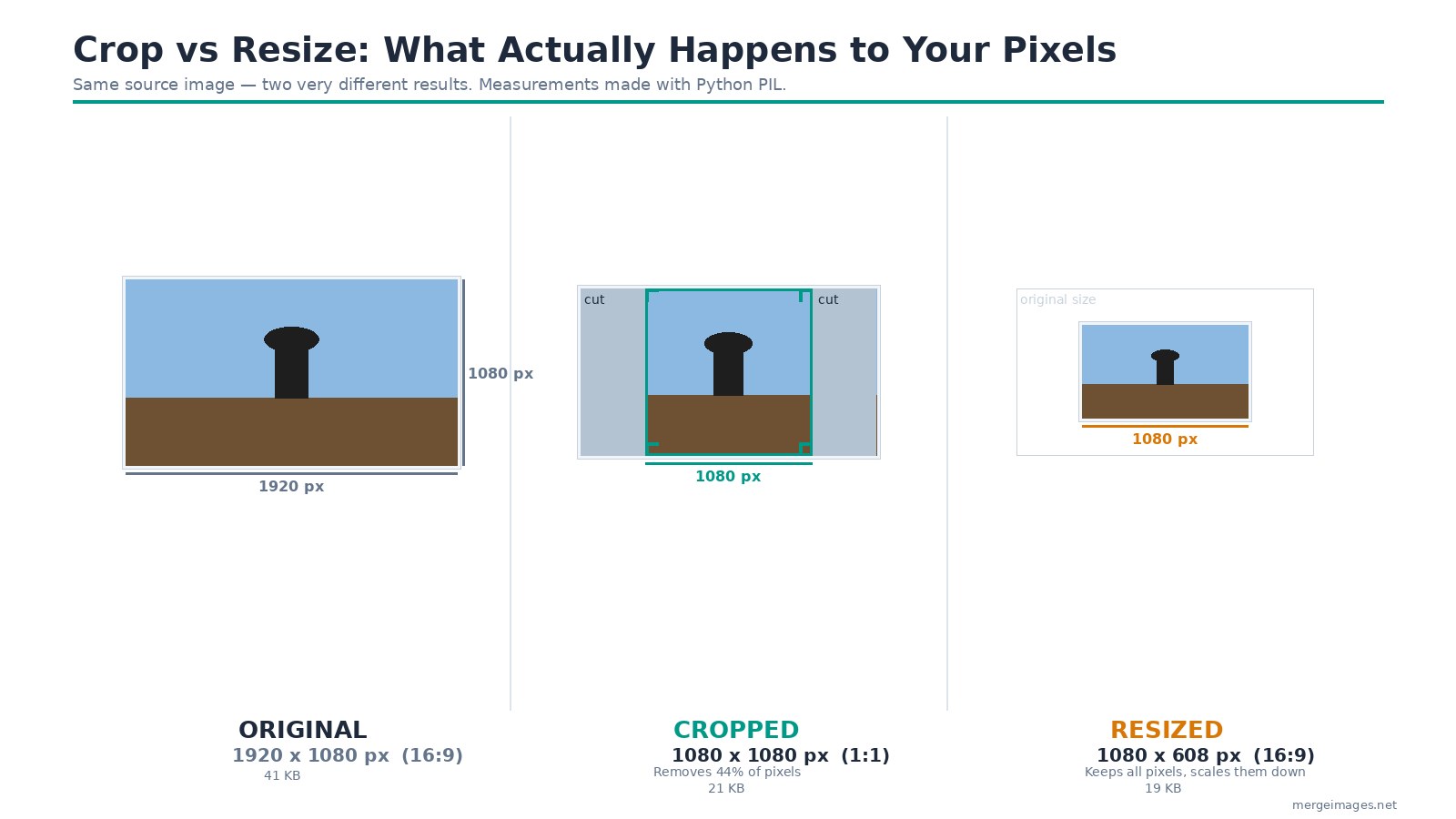
To crop an image to specific dimensions, you remove pixels from the edges to reframe the canvas. Cropping an Instagram portrait from a landscape shot means going from 1920x1080 px down to 1080x1350 px, cutting away 44% of the original pixels to lock in a 4:5 ratio. That is different from resizing, which scales every pixel proportionally without removing anything.
Cropping vs Resizing: The Core Distinction
Cropping changes what the image shows. Resizing changes how large the image is.
Cropping removes content. You select a region and discard everything outside it. The result has fewer pixels, a new aspect ratio, and tighter focus on the kept subject.
Resizing scales content. Every pixel stays, but all are made smaller or larger. The aspect ratio stays the same if you maintain proportions. Nothing gets cut.
I ran both operations in Python PIL on the same 1920x1080 source image:
| Operation | Output size | File size | What changed |
|---|---|---|---|
| Original | 1920 x 1080 px | 41 KB | Baseline, 16:9 |
| Cropped to 1:1 | 1080 x 1080 px | 21 KB | Removed 44% of pixels from sides |
| Resized (aspect-correct) | 1080 x 608 px | 19 KB | All pixels kept, scaled down |
| Resized to 1:1 (forced) | 1080 x 1080 px | 28 KB | All pixels kept, proportions distorted |
The forced 1:1 resize preserves every pixel from the wide shot but squishes them horizontally. Cropping is what you actually want when a platform requires a specific aspect ratio.
Use the Image Cropper to change aspect ratio or cut to exact pixel dimensions, and Resize Image To when you need a smaller or larger version of the same framing.
Aspect Ratio Cheat Sheet
The ratio determines the shape; the pixel count determines the quality. Every platform accepts images above a minimum resolution, but uploading at the recommended size avoids platform-side resampling loss.
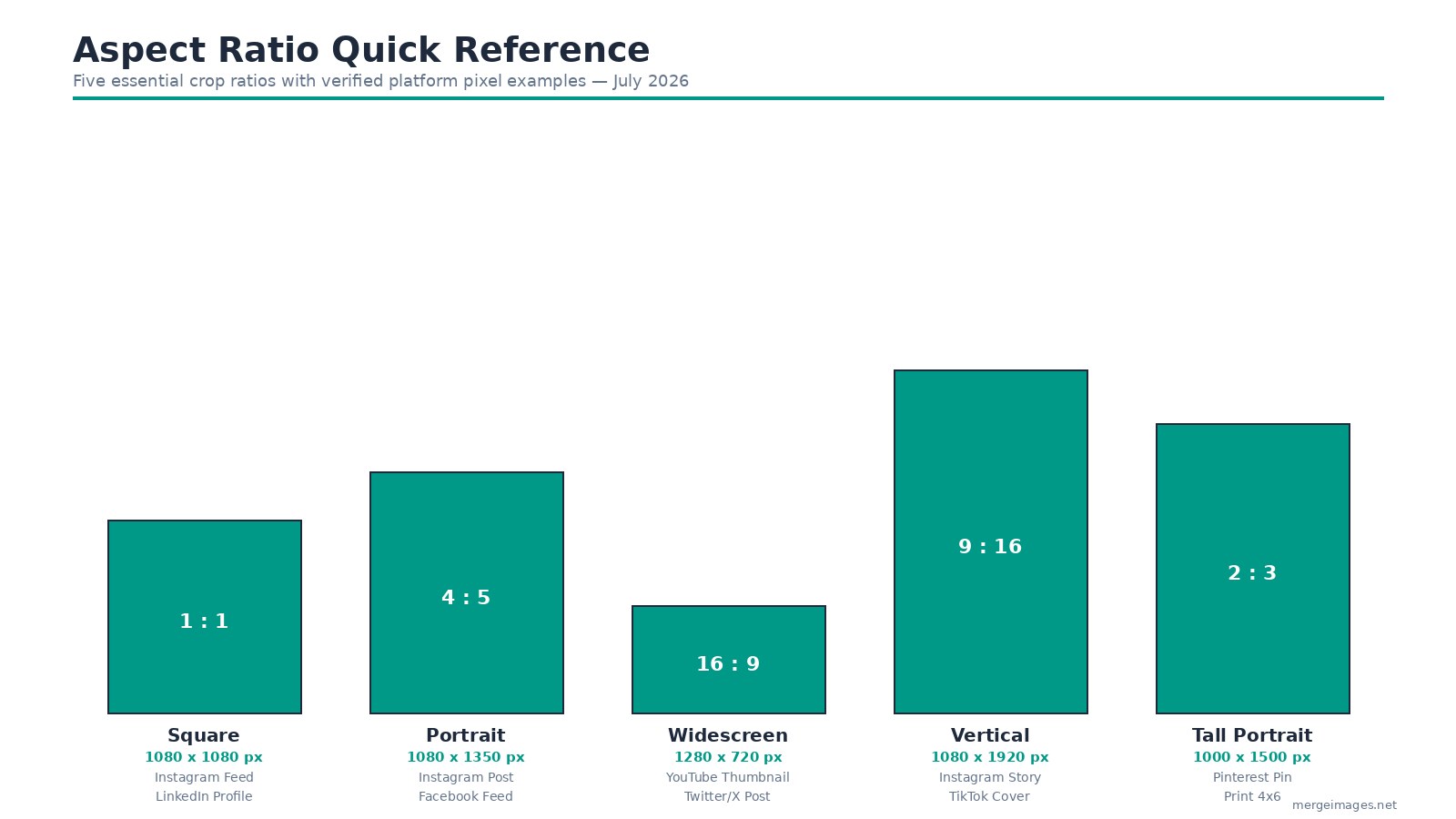
1:1 Square (1080 x 1080 px)
Square is the safest universal format. Instagram, Facebook, LinkedIn, and WhatsApp all display 1:1 without any cropping.
4:5 Portrait (1080 x 1350 px)
At 4:5 the image takes up more vertical screen space than any other feed format. Instagram and Facebook both support this ratio without cropping. Instagram introduced a 3:4 option (1080x1440 px) in 2025, but 4:5 remains the standard recommendation checked July 2026.
16:9 Widescreen (1280 x 720 px)
YouTube thumbnails and Twitter/X in-stream posts use 16:9. YouTube's baseline thumbnail spec is 1280x720 px (max 2 MB on mobile). Twitter/X displays in-stream images best at 1200x675 px, the same ratio. Start from a 16:9 crop and both platforms display it without re-cropping.
9:16 Vertical (1080 x 1920 px)
Instagram Stories, Reels, and TikTok covers are all 9:16. Keep critical content away from the bottom 15% of the frame where platform UI overlays appear.
2:3 Tall Portrait (1000 x 1500 px)
Pinterest's recommended pin size is 1000x1500 px (max 20 MB). Pins taller than 1:2.1 get cropped in-feed, so keep the bottom content visible at a 1:2 ratio before adding extra height.
Platform Crop Dimensions Reference
Specs verified July 2026 from platform documentation and aggregators including Hootsuite and Buffer.
| Platform | Format | Dimensions | Ratio |
|---|---|---|---|
| Square feed | 1080 x 1080 px | 1:1 | |
| Portrait feed | 1080 x 1350 px | 4:5 | |
| Landscape feed | 1080 x 566 px | 1.91:1 | |
| Story / Reel | 1080 x 1920 px | 9:16 | |
| Feed post | 1200 x 630 px | 1.91:1 | |
| Cover | 820 x 312 px | ~2.63:1 | |
| Feed image | 1200 x 627 px | 1.91:1 | |
| Banner | 1584 x 396 px | 4:1 | |
| Twitter/X | In-stream | 1200 x 675 px | 16:9 |
| Twitter/X | Header | 1500 x 500 px | 3:1 |
| Standard pin | 1000 x 1500 px | 2:3 | |
| YouTube | Thumbnail | 1280 x 720 px | 16:9 |
| TikTok | Video cover | 1080 x 1920 px | 9:16 |
| Amazon | Main product | 2000 x 2000 px rec | 1:1 |
For a full breakdown, see image sizes for every social media platform.
Print Crop Dimensions
Print sizes at 300 DPI follow fixed arithmetic: multiply each inch measurement by 300.
| Print size | Pixels at 300 DPI | Aspect ratio |
|---|---|---|
| 4 x 6 in | 1200 x 1800 px | 2:3 |
| 5 x 7 in | 1500 x 2100 px | 5:7 |
| 8 x 10 in | 2400 x 3000 px | 4:5 |
| 11 x 14 in | 3300 x 4200 px | 11:14 |
Notice that an 8x10 print (4:5) and an Instagram portrait post (also 4:5) share the same aspect ratio. A single 4:5 crop at 2400x3000 px serves both with no second crop needed.
The print preparation guide covers resolution, color space, and bleed areas in detail.
Composition Rules Worth Applying at Crop Time
Rule of thirds. Place your subject at the intersection of imaginary lines that divide the frame into thirds. Position crop handles so the subject lands on a third line, not dead center.
Leading space. If a face or object points left or right, leave space in the direction it faces. Cropping flush against the direction of movement compresses the image.
Headroom in portraits. Aim to position the eyes on the upper third line. Leave a margin above the head. Cropping at the top of the skull feels claustrophobic on small screens.
Avoid cropping at joints. Cutting off a hand at the wrist or a leg at the knee creates unnatural visual tension. Move the crop edge either above or below the joint.
Multi-Platform Workflow
When one photo needs to work across Instagram (1:1), Facebook (1.91:1), and Pinterest (2:3):
- Identify the core subject area that must appear in all three versions before opening any editor.
- Start the widest crop first. The 1.91:1 Facebook format is most restrictive vertically, so crop it first.
- Crop the 1:1 and 2:3 versions, adjusting position around the core subject each time.
- Save each file with a descriptive name like
product-instagram-1080x1080.jpgandproduct-pinterest-1000x1500.jpg.
The image compression guide covers safe quality settings for each platform.
Passport Photo Cropping
Passport photos follow ICAO standards: specific head-height ratios, eye-position requirements, and forehead clearance measured in millimeters. Manual cropping is error-prone because a crop that looks correct on screen can fail government scanning.
The Passport Photo Maker handles ICAO-compliant cropping for 149 countries automatically.
The Rule That Beats All Others
Always crop from the highest-resolution file you have. Start with the full-size original, crop to the target ratio, then resize down to the platform's recommended dimensions. You can make a large image smaller, but you cannot recover detail that was discarded during an earlier resize.
For a related angle on quality, resizing without losing quality covers the resampling algorithms and settings that matter most.
Frequently Asked Questions
What is the difference between cropping and resizing?
Cropping removes pixels from the edges to change the aspect ratio and reframe the subject. Resizing scales all pixels up or down without removing any. Cropping changes what the image shows; resizing changes how large the image is.
Does cropping reduce image quality?
Cropping itself does not reduce the quality of the pixels that remain. It only removes pixels outside the crop area. If you crop a large image down to a small region, the result may look low-resolution because fewer total pixels are spread across the same display size. Always crop from a high-resolution original.
What size should I crop for Instagram?
Use 1080x1350 px (4:5 portrait) for maximum feed presence, 1080x1080 px (1:1 square) for grid consistency, and 1080x1920 px (9:16) for Stories and Reels. All three specs were verified against current platform documentation in July 2026.
How do I crop to an exact pixel size in the browser?
Use the Image Cropper to lock an aspect ratio and position your subject, then use Resize Image To to output at a precise pixel dimension like 1200x675 px or 1280x720 px.
Can I crop a photo without losing the original?
Yes. The Image Cropper runs in your browser, so your original file is never uploaded to a server or modified. Download the cropped file and keep the original separately.
Why do platforms auto-crop my images after upload?
Platforms enforce their own display dimensions. If your uploaded image does not match the platform's aspect ratio, it gets cropped automatically, often cutting off faces or text near the edges. Cropping to the target ratio before upload puts you in control of exactly what gets kept.

Bello builds useful software and writes thoughtful content to make sense of it all. He tests the tools himself and checks the facts before any of it goes in a guide.
Try Our Free Image Tools
Ready to Try It?
Put these tips into practice with our free online image merger. No signup required.
Merge Images Now


