
Summarise this article with:
Every image format trades file size, quality, and features differently. For a 1880x1253 photograph tested in July 2026: JPEG at quality 85 = 200 KB, WebP at quality 80 = 90 KB (55% smaller), AVIF at quality 60 = 80 KB (60% smaller). Use WebP for the web, JPEG for print and email, PNG for transparency.
The Seven Formats, Plainly Explained
Most confusion about image formats comes from treating them as interchangeable. They are not. Each format was designed for a specific problem, and using the wrong one costs you either file size or quality.
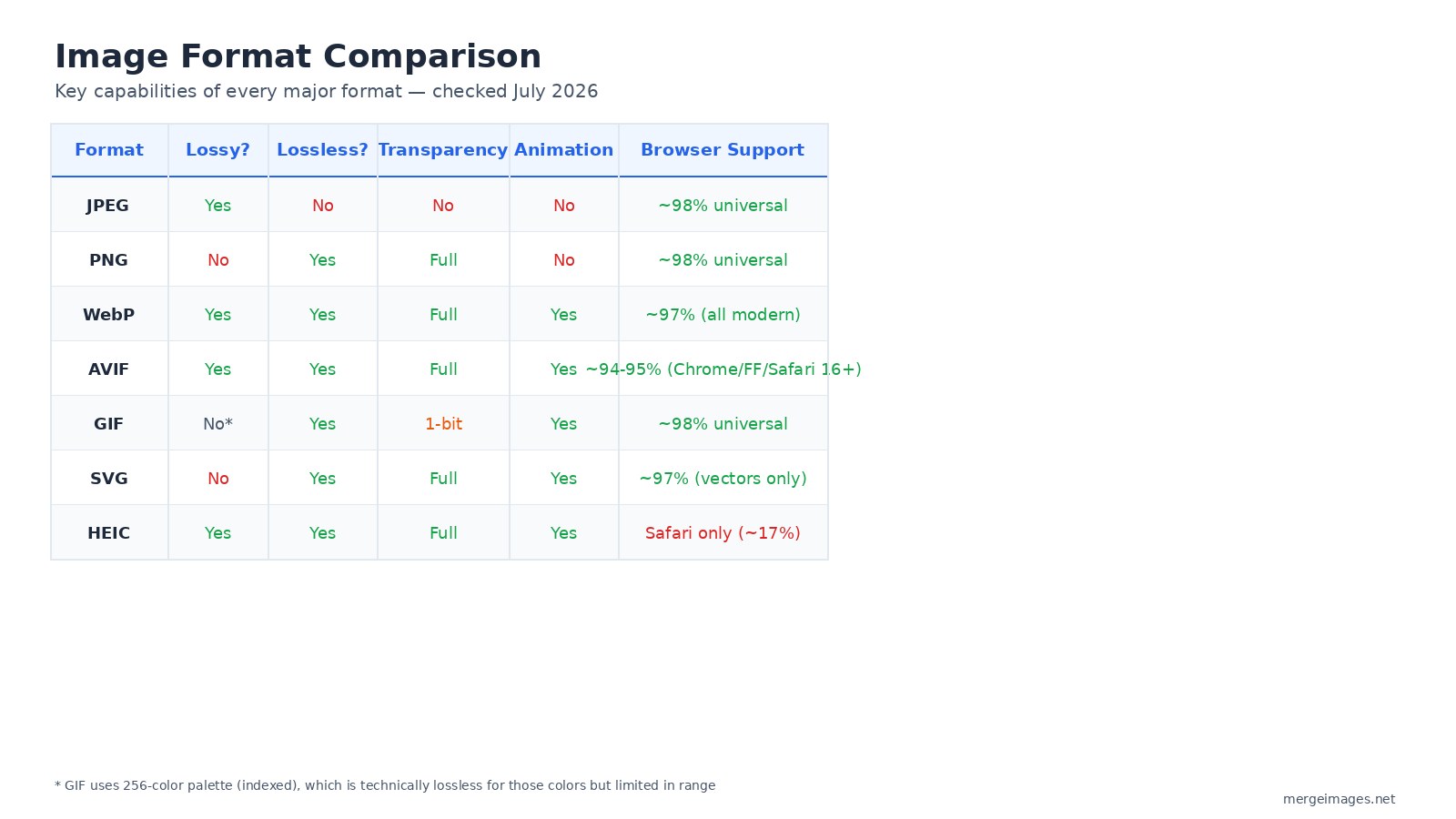
| Format | Lossy? | Lossless? | Transparency | Animation | Browser Support (July 2026) |
|---|---|---|---|---|---|
| JPEG | Yes | No | No | No | ~98%, universal |
| PNG | No | Yes | Full | No | ~98%, universal |
| WebP | Yes | Yes | Full | Yes | ~97% (all modern browsers) |
| AVIF | Yes | Yes | Full | Yes | ~94-95% (Chrome, Firefox, Safari 16+) |
| GIF | No* | Yes | 1-bit | Yes | ~98%, universal |
| SVG | No | Yes | Full | Yes | ~97% (vector only) |
| HEIC | Yes | Yes | Full | Yes | Safari only (~17% of browsers) |
*GIF uses an indexed 256-color palette, which is technically lossless within that palette but throws away color detail at save time.
JPEG is the format the internet runs on. It throws away visual data the eye cannot easily see, high-frequency detail in areas of uniform color, and produces small files from photographs. A quality setting of 80-85 is the standard web default.
PNG keeps every pixel intact and supports 24-bit color plus a full alpha channel for transparency. That makes it ideal for screenshots, UI graphics, and any image you will open again in an editor. The tradeoff is size: our test showed PNG at 7.7x the size of the equivalent JPEG. PNG is a working format, not a delivery format for photographs.
WebP was developed by Google and supports both lossy and lossless compression, full transparency, and animation. At quality 80 on a real photograph, it produced a 90 KB file versus 200 KB for JPEG at quality 85, a 55% reduction. Browser support is around 97% as of July 2026, including all modern versions of Chrome, Firefox, Edge, and Safari.
AVIF is the newest of the major formats. Based on the AV1 video codec, it achieves the best compression of any common format: our AVIF at quality 60 came in at 80 KB versus 200 KB for JPEG, a 60% reduction. Browser support reached approximately 94-95% as of July 2026 (Chrome 85+, Firefox 93+, Safari 16+). The tradeoff is slightly slower encoding compared to WebP and a small gap in support on older devices.
GIF was designed in 1987 for 256-color graphics over slow connections. Its animation support made it culturally sticky, but animated WebP files are typically 60-90% smaller at the same frame count. GIF remains universally supported but is now a legacy format.
SVG is the right choice for anything that needs to scale without pixelation: logos, icons, charts, diagrams. An SVG is a text file of drawing instructions, so it stays sharp at any screen size. Convert simple raster art to vector format using an image-to-SVG tool if you only have a raster version.
HEIC (High Efficiency Image Container) is Apple's default camera format since iOS 11. It compresses photos more efficiently than JPEG while preserving more detail, and Safari renders it natively. Chrome, Firefox, and Edge do not render HEIC natively in 2026, because the underlying HEVC codec requires licensing fees those vendors have not paid. If your iPhone photos show as blank thumbnails on a website, that is why. Before uploading to any website, convert to JPEG or WebP using your system's built-in export or any image editor.
Real File Sizes From a Single Photograph
I ran each format against the same 1880x1253 photograph using Pillow 12.2.0, July 2026. These are the actual numbers:
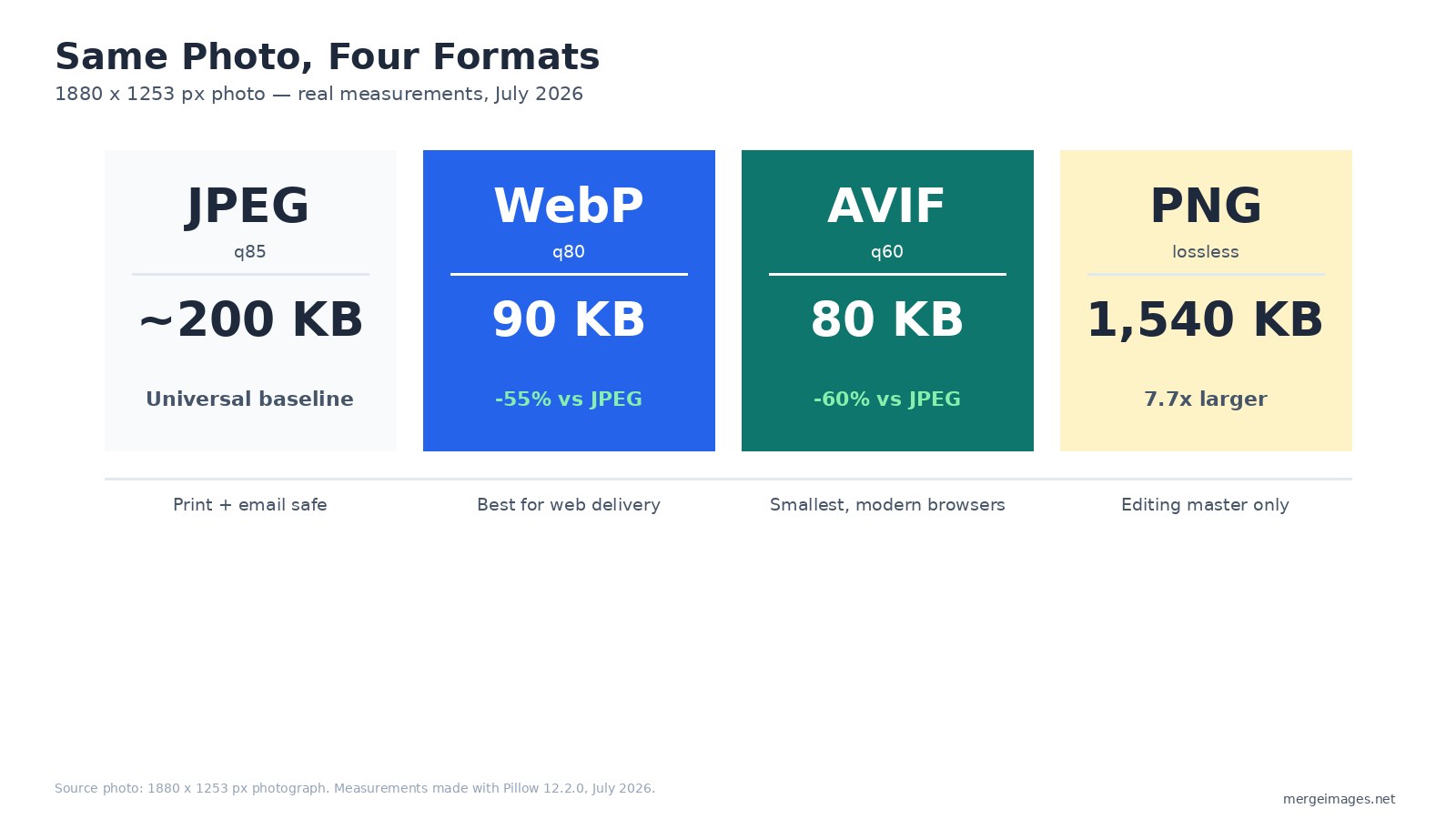
- JPEG q85: 200 KB, the universal baseline
- WebP q80: 90 KB, 55% smaller than JPEG at a visually matched quality
- AVIF q60: 80 KB, 60% smaller; encoding takes longer
- PNG lossless: 1,540 KB, appropriate only as an editing master
One honesty note: JPEG quality 85 and WebP quality 80 are not identical perceptual quality levels, the encoder algorithms differ. The 55% figure is consistent with Google's published research range of 25-34%, and in this real test it came in higher because WebP's encoding is particularly efficient on photographic content with smooth tonal gradients. Your own images will vary.
The practical takeaway for web delivery: if your CMS or workflow serves JPEG by default, switching to WebP with a JPEG fallback is the single highest-impact image optimization you can make. An image compressor tool in the browser lets you convert and compress without installing software.
The Format Decision Guide
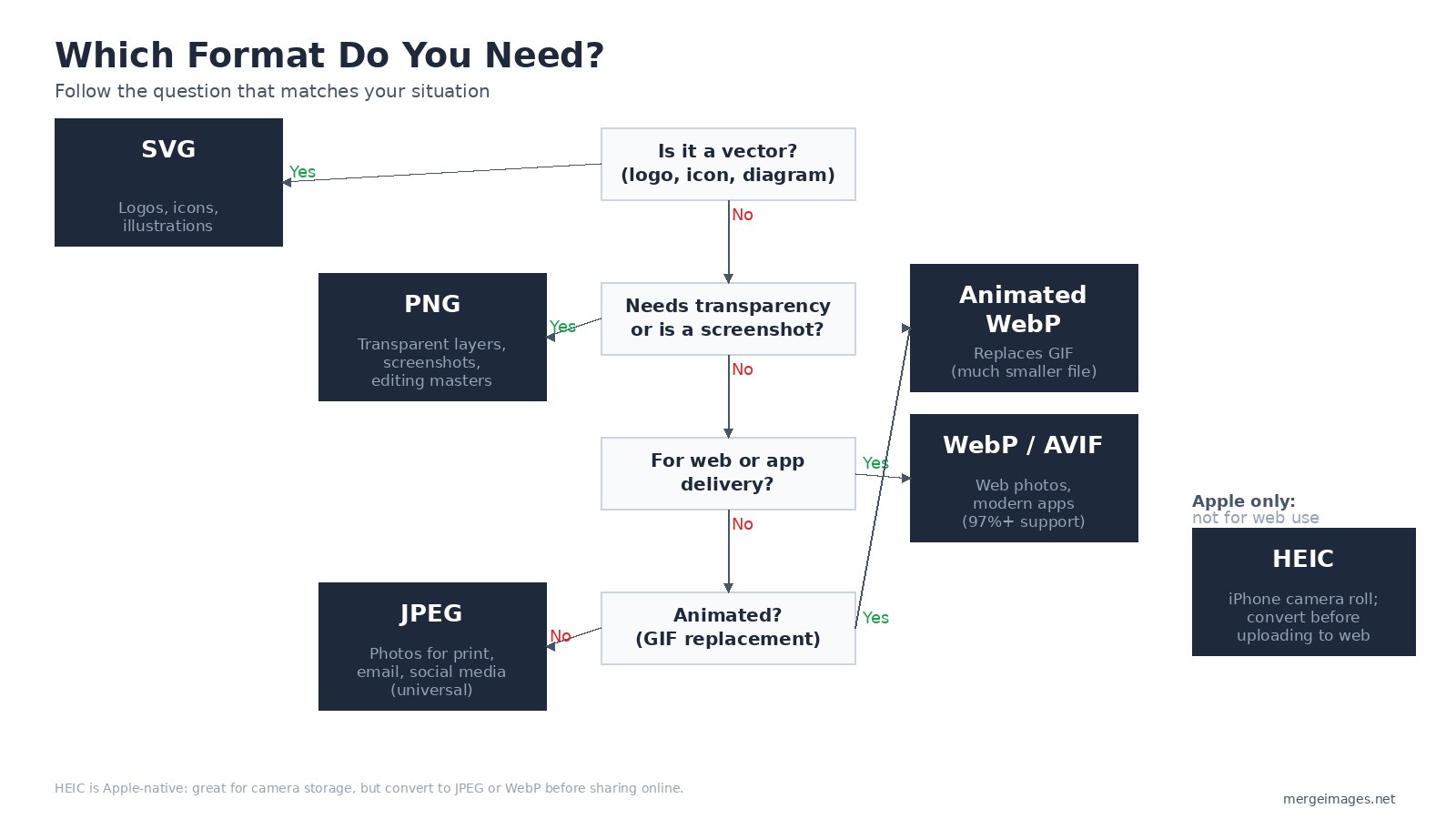
Start with your use case, not the format:
Logos, icons, charts, or diagrams? Use SVG. If you only have a raster version, convert it to SVG to get sharp edges at any scale.
Screenshots, UI elements, or images with transparent backgrounds? Use PNG. Transparency in JPEG is impossible, the format has no alpha channel. Any tool that claims to save a transparent JPEG is actually embedding it in a white background.
Photographs going on a website or app? Serve WebP with a JPEG fallback. AVIF is worth considering if your audience skews Chrome or modern Safari, it compresses further but adds a small encoding overhead. The avif-vs-webp deep dive covers when AVIF is worth the extra step.
Photographs for email, print, or social media uploads? JPEG. Nearly every print lab, email client, and social platform accepts JPEG reliably. PNG works too, but the file sizes are often rejected or auto-recompressed anyway.
Short looping animations? Animated WebP replaces GIF in modern workflows. Use GIF only if you need support on very old devices or in contexts where WebP is not accepted (some email clients, certain CMS platforms).
Photos from an iPhone that you want to keep at full quality? HEIC is fine for local Apple storage. Before uploading to any website, convert to JPEG or WebP.
Lossy vs Lossless: What Actually Gets Thrown Away
Lossy compression identifies visual information the human eye is less sensitive to and removes it permanently. JPEG, for example, averages color information across blocks of pixels (DCT compression), which is why heavily compressed JPEGs show blocky artifacts at edges.
Lossless compression finds redundancy in the data without discarding anything. A sky with a uniform blue region compresses extremely well losslessly because the encoder can say "these 400 pixels are all the same value" rather than storing each one. A photograph with fine random texture compresses less well because there is less redundancy to exploit.
This is also why PNG of a photograph comes out much larger than JPEG: photographs have enormous per-pixel variation, so lossless compression cannot find the same shortcuts it would with a flat graphic.
The practical rule: use lossless (PNG, lossless WebP) for images you are still editing, and lossy (JPEG, lossy WebP, AVIF) for delivery to end users.
What MergeImages Exports
MergeImages exports merged images as PNG by default, which preserves maximum quality for further editing. I find this is the right call: you are usually taking a merged result into another tool, and re-compressing a lossy JPEG creates a second generation of quality loss. After you have finished editing, compress the final version to WebP or JPEG before uploading to your site or sending it out.
Frequently Asked Questions
What is the best image format for websites in 2026?
WebP is the practical answer for most sites. It has around 97% browser support and reduces file sizes by 25-55% compared to JPEG at matched quality. AVIF is worth considering if your analytics show a predominantly Chrome and modern Safari audience, it compresses further but adds a small encoding overhead.
Can I use HEIC images on a website?
Not directly. Safari renders HEIC natively, but Chrome, Firefox, and Edge do not, because the HEVC codec requires licensing fees those browsers have not paid. Convert HEIC to JPEG or WebP before uploading. Most image editing tools and the built-in Mac Photos export will handle this automatically.
When should I use PNG instead of JPEG?
Use PNG when your image needs transparency, when it contains text or sharp graphic elements (logos, screenshots, diagrams), or when you plan to open and re-save the file multiple times. JPEG degrades a little more with each re-save. PNG adds no further quality loss after the first save.
Does converting JPEG to PNG improve quality?
No. Converting from JPEG to PNG does not recover detail that JPEG already discarded. You get a larger file at the same visual quality. The only reason to convert is if you need to add an alpha channel (transparency) to the image for compositing.
What is the difference between lossy and lossless compression?
Lossy compression permanently removes visual data the eye is less sensitive to, resulting in smaller files but some quality reduction. Lossless compression reorganizes data so it takes less space, with no quality loss at all. JPEG is lossy; PNG is lossless; WebP and AVIF support both modes.
Is SVG an image format?
SVG is a vector format: instead of storing pixel values, it stores drawing instructions (paths, shapes, curves). That means it stays sharp at any resolution, a 100x100 px SVG and a 4000x4000 px SVG are the same file. SVG is the right choice for logos and icons but cannot represent photographs.

Bello builds useful software and writes thoughtful content to make sense of it all. He tests the tools himself and checks the facts before any of it goes in a guide.
Try Our Free Image Tools
Ready to Try It?
Put these tips into practice with our free online image merger. No signup required.
Merge Images Now


