
Summarise this article with:
JPEG q85 cuts a photograph from 253 KB to 142 KB with no visible quality loss, a 44% saving over q95, measured on a real landscape photo with Python's PIL in July 2026. Picking the right format and quality setting is the single cheapest performance win on any image-heavy page.
Lossy vs. Lossless: The Only Distinction That Matters
Every image format reduces file size through one of two strategies.
Lossless compression rearranges pixel data more efficiently without discarding any of it. Open the file 100 times, save it 100 times: the pixels are identical each time. PNG works this way. So does WebP in its lossless mode.
Lossy compression permanently throws away information the eye is unlikely to notice, subtle high-frequency detail, tiny colour differences between adjacent pixels. The result is a smaller file that looks nearly identical to the original, provided you do not compress too aggressively.
The important word is "permanently." Once you save a JPEG at q60 and close the original, the discarded detail is gone. Re-saving from that JPEG compounds the loss. This is why you should always keep a lossless source file (PSD, PNG, or original RAW) and export from it each time you need a compressed web version.
How JPEG Compression Works (Without the Maths)
JPEG divides your photo into 8-by-8-pixel tiles, analyses how much detail varies within each tile, and discards the detail that varies rapidly (fine texture, subtle gradients). Smooth areas, clear skies, solid walls, compress extremely well. Photographs with a lot of sharp edges or text compress less cleanly, and you will see blocky "artefacts" along those edges at lower quality settings.
The quality slider in any export dialog controls how aggressively this throwing-away happens.
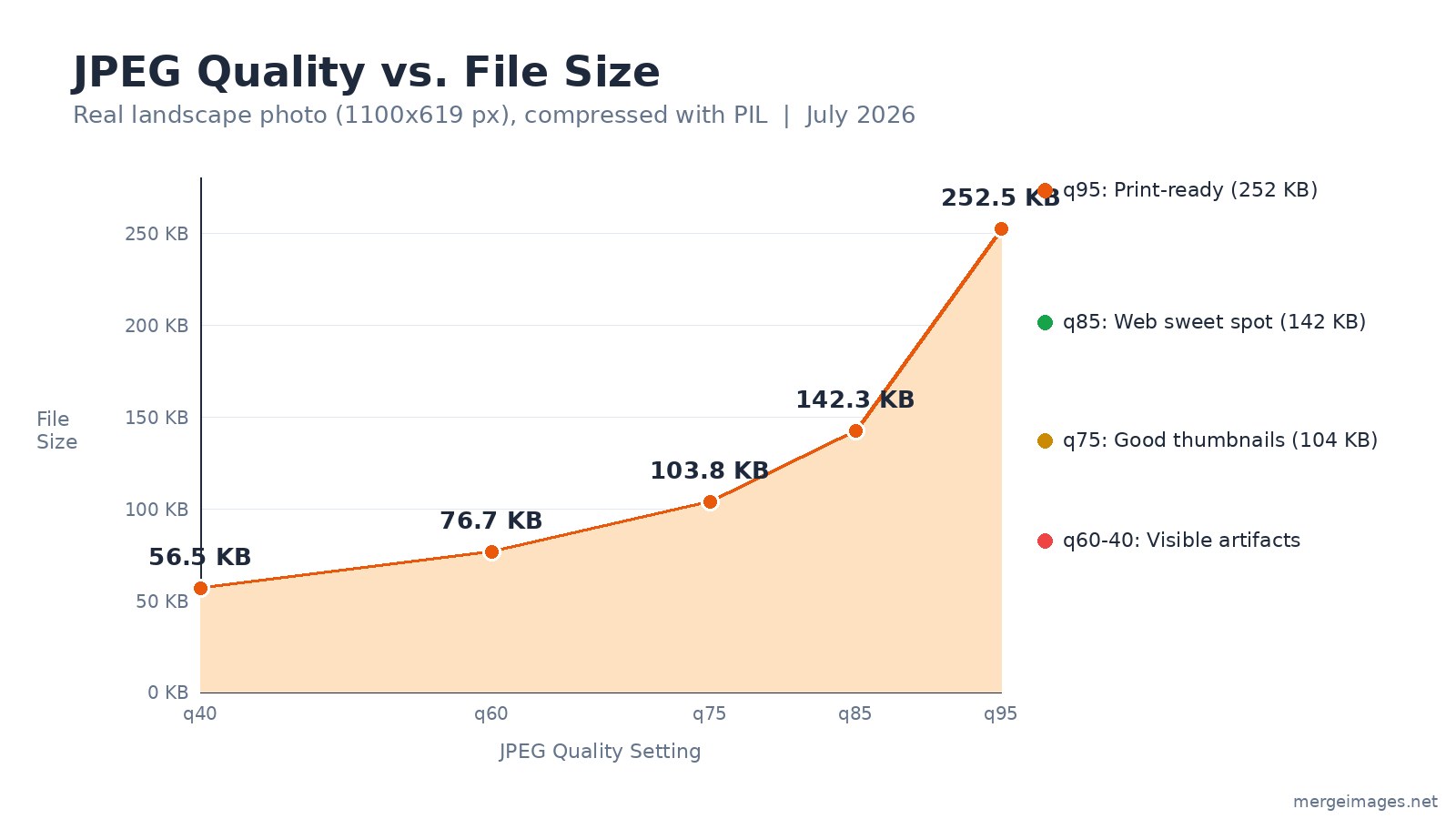
Here are the exact numbers from compressing the same landscape photo at each quality level (PIL, July 2026):
| Quality | File Size | Notes |
|---|---|---|
| q95 | 253 KB | Print-ready. Overkill for web. |
| q85 | 142 KB | Web sweet spot. Negligible quality loss. |
| q75 | 104 KB | Fine for thumbnails and cards. |
| q60 | 77 KB | Compression artefacts become visible. |
| q40 | 57 KB | Noticeably degraded. Emergency use only. |
q85 is the practical web default. You get 44% smaller files compared to q95, and the difference is invisible at normal viewing distances. Drop below q60 only when file-size constraints are severe and image quality is secondary.
PNG: When You Cannot Afford to Lose a Pixel
PNG uses DEFLATE compression, the same algorithm behind ZIP files, to find and eliminate repeated patterns in image data. No pixels are discarded. No artefacts. The trade-off is file size: that same landscape photo reached 955 KB as a PNG versus 142 KB as JPEG q85. That is a 6.7x difference.
PNG belongs wherever the image content has sharp edges, transparency, or text:
- UI screenshots and app mockups
- Logos and icons
- Images with text overlaid at the source level
- Anything that needs a transparent background (PNG-32 supports an alpha channel; JPEG does not)
- Working source files you will edit and re-export repeatedly
The moment you are dealing with a photograph, smooth gradients, millions of colour shades, no hard edges, PNG's lossless advantage stops justifying its size premium.
WebP: Smaller Than JPEG, With Transparency Built In
WebP is Google's format, released in 2010 and now supported by roughly 98% of browsers globally (checked July 2026, caniuse.com). It offers both a lossy mode and a lossless mode, and it consistently beats JPEG on file size.
The same landscape photo at WebP q85 came in at 117 KB, 18% smaller than JPEG q85 at comparable visual quality. Google's own compression study puts the typical WebP saving at 25-34% versus equivalent-quality JPEG; the gap varies by image content, and photographic images with a lot of smooth gradients tend toward the lower end of that range.
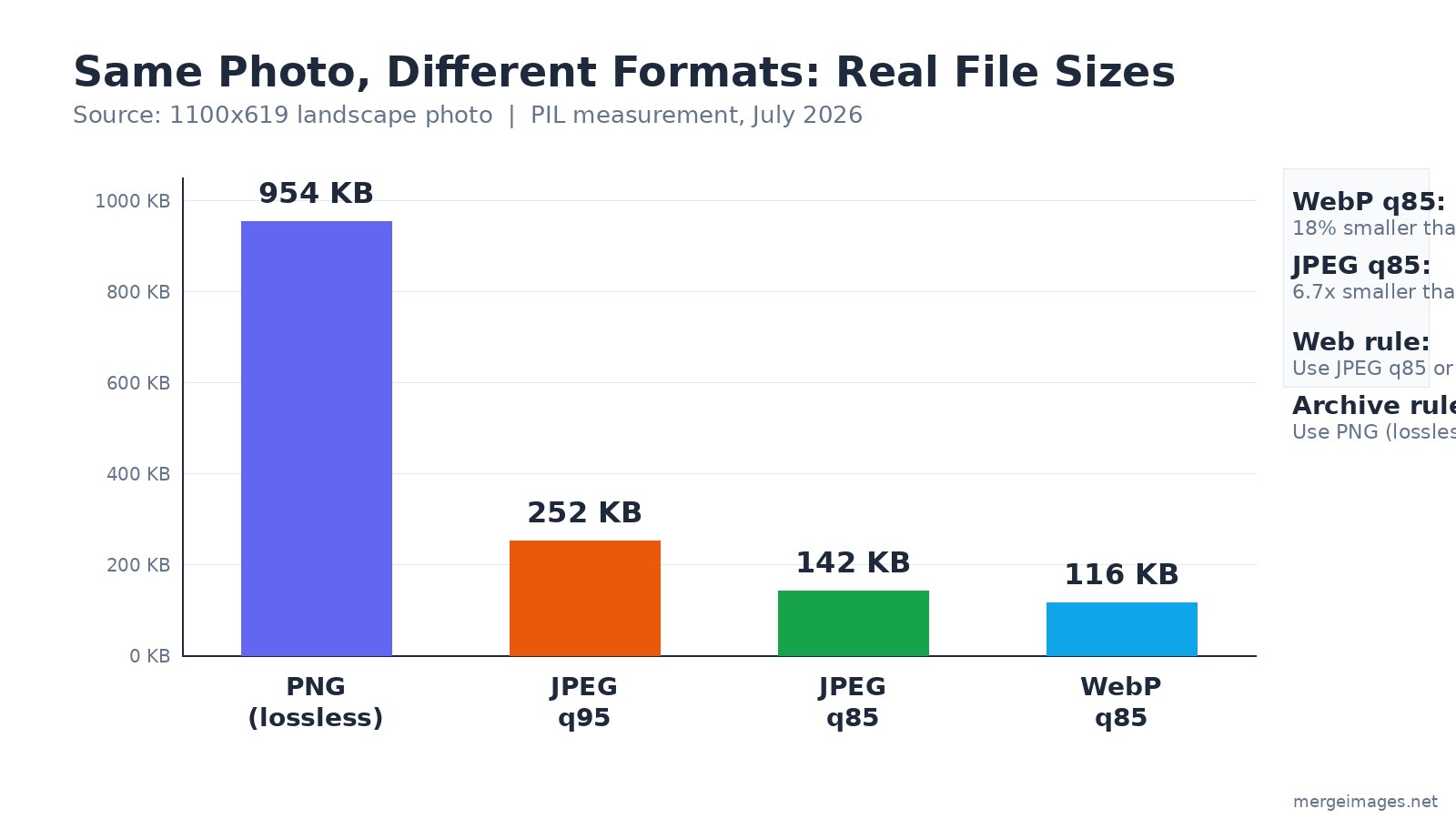
WebP also supports transparency, animation, and lossless mode, effectively replacing both JPEG and PNG for web delivery. The practical limitation: some image editors still do not open WebP natively, and most print labs reject it. For anything staying on screen, WebP is the rational upgrade from JPEG.
For a full comparison of these formats including AVIF, see Image Formats Explained and AVIF vs. WebP: Which Format Should You Use in 2026.
The Newer Formats: AVIF and JPEG XL
Two formats are becoming more relevant in 2026.
AVIF is based on the AV1 video codec and typically compresses 20-30% better than WebP at equivalent quality. Browser support is now broad, Chrome, Firefox, Safari, and Edge all render AVIF by default, covering roughly 94% of global traffic (caniuse.com, July 2026). It is safe to serve AVIF with a WebP or JPEG fallback using the HTML <picture> element.
JPEG XL is still arriving. Safari supports it natively (since Safari 17). Chrome has decoding behind a flag as of mid-2026 with default support expected later this year. Firefox is not yet at default. Wait for broader default support before serving JPEG XL as a primary format.
Which Format to Use: A Quick Decision
Reach for JPEG q85 for any photograph going on the web. Use PNG when transparency is required or the image contains sharp text. Use WebP when you can control the delivery environment and want smaller files without quality sacrifice. Serve AVIF via <picture> if you care about squeezing every kilobyte.
The image compressor on MergeImages applies server-side compression and lets you export as JPEG, WebP, or PNG, each outputting at sensible defaults without you having to guess quality numbers.
Practical Compression Decisions
For social media uploads: Export as JPEG q85. Platforms re-compress on ingest anyway, so starting at q95 just means the platform discards the extra quality you paid for in file size.
For e-commerce product photos: If the image has a white or solid background, JPEG q85 is fine. If you need a transparent cutout, export as PNG after removing the background.
For web page performance: Use WebP q85 as your primary export. Keep a JPEG fallback for older environments. Right-size images to their display dimensions first, uploading a 4000px-wide photo for an 800px slot wastes bandwidth regardless of format.
For print: PNG or maximum-quality JPEG. Print labs work at 300 DPI, and any lossy compression applied to a print file will show on paper.
For archiving and editing: Always keep your source as PNG or a lossless format. Export compressed copies as needed. Never use a re-saved JPEG as your working file.
For more on hitting print specifications, see How to Prepare Images for Printing.
Frequently Asked Questions
What JPEG quality setting should I use for websites?
q85 is the standard recommendation and the setting I use in practice. It delivers files roughly 44% smaller than q95 with no visible difference at normal screen viewing distances. Drop to q75 only for thumbnails or gallery previews where you need to serve many images quickly.
Does saving a JPEG multiple times degrade quality?
Yes. Each save at a lossy quality setting discards a fresh round of detail from whatever was saved before. After several re-saves the artefacts become noticeable. Always keep a lossless PNG or original RAW as your source and export a fresh JPEG from that each time.
When does PNG make sense over JPEG for a photograph?
When you are archiving the photo, editing it repeatedly, or need pixel-perfect accuracy. For web delivery of a photograph where no transparency is needed, JPEG q85 or WebP q85 will be 6 to 7 times smaller than lossless PNG with no meaningful quality difference on screen.
Is WebP safe to use in 2026?
Yes. Roughly 98% of browsers support WebP as of July 2026 (caniuse.com). The small gap is mostly older Internet Explorer and very old mobile browsers. For web delivery, WebP is effectively universal. For email attachments or print labs, stick with JPEG or PNG.
What is the difference between lossy and lossless compression?
Lossy compression permanently discards image data to reach a smaller file size, JPEG is the main example. Lossless compression reorganises data without discarding any pixels, PNG is the main example. WebP supports both modes. The choice depends on whether the image needs to survive repeated editing (lossless) or just looks good on screen (lossy).
Should I upload WebP to social media platforms?
Most platforms accept WebP but convert it to JPEG internally. You will not see a size benefit on the delivered image. For social uploads, JPEG q85 keeps things predictable. Save WebP for images you control the delivery of directly, your own website or app.

Bello builds useful software and writes thoughtful content to make sense of it all. He tests the tools himself and checks the facts before any of it goes in a guide.
Try Our Free Image Tools
Ready to Try It?
Put these tips into practice with our free online image merger. No signup required.
Merge Images Now


