
Summarise this article with:
Facebook profiles and Pages live or die by first impressions. The cover photo spans the full width of the page. It is unavoidable, unmissable, and the single largest visual asset you control. Getting the dimensions right is the baseline. Designing something that actually works on both desktop and mobile takes a bit more thought.
Facebook Cover Photo Dimensions for 2026
The official recommended size for a Facebook cover photo is 820 × 312 pixels for desktop displays. On mobile, Facebook crops your cover to 640 × 360 pixels, showing a taller, narrower slice of your image centered horizontally.
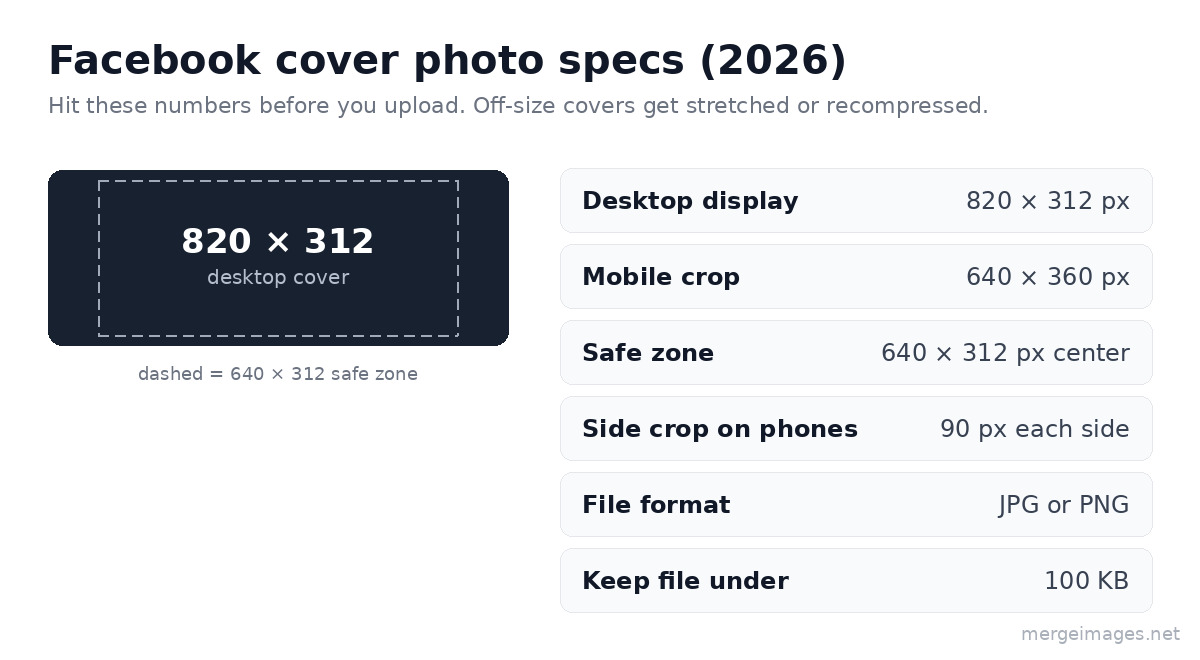
The safe zone, the area guaranteed to show on every device, sits roughly within the central 640 × 312 pixels of your image. Treat the outer 90px on each side as bleed: include background color or texture, but nothing critical.
| Asset | Recommended Size | Minimum Upload | Mobile Crop |
|---|---|---|---|
| Personal/Page Cover | 820 × 312px | 400 × 150px | 640 × 360px |
| Group Cover Photo | 1640 × 856px | 820 × 428px | 1640 × 856px |
| Event Cover Photo | 1920 × 1005px | 1200 × 628px | 1920 × 1005px |
| Profile Photo | 400 × 400px upload | 180 × 180px | 128 × 128px display |
| Page Profile Photo | 400 × 400px upload | 180 × 180px | 128 × 128px display |
Facebook accepts JPG and PNG files. For photographs, JPG keeps file sizes manageable. For graphics containing text, logos, or hard geometric edges, PNG preserves crispness better. Keep your cover file under 100KB. Facebook recompresses anything larger, and its compression is aggressive enough to noticeably degrade quality on photos with fine detail.
The Mobile Safe Zone You Cannot Ignore
The most common Facebook cover photo failure comes from designing only for desktop. Roughly 60% of Facebook usage happens on mobile, and the mobile crop is both taller and narrower than the desktop view.
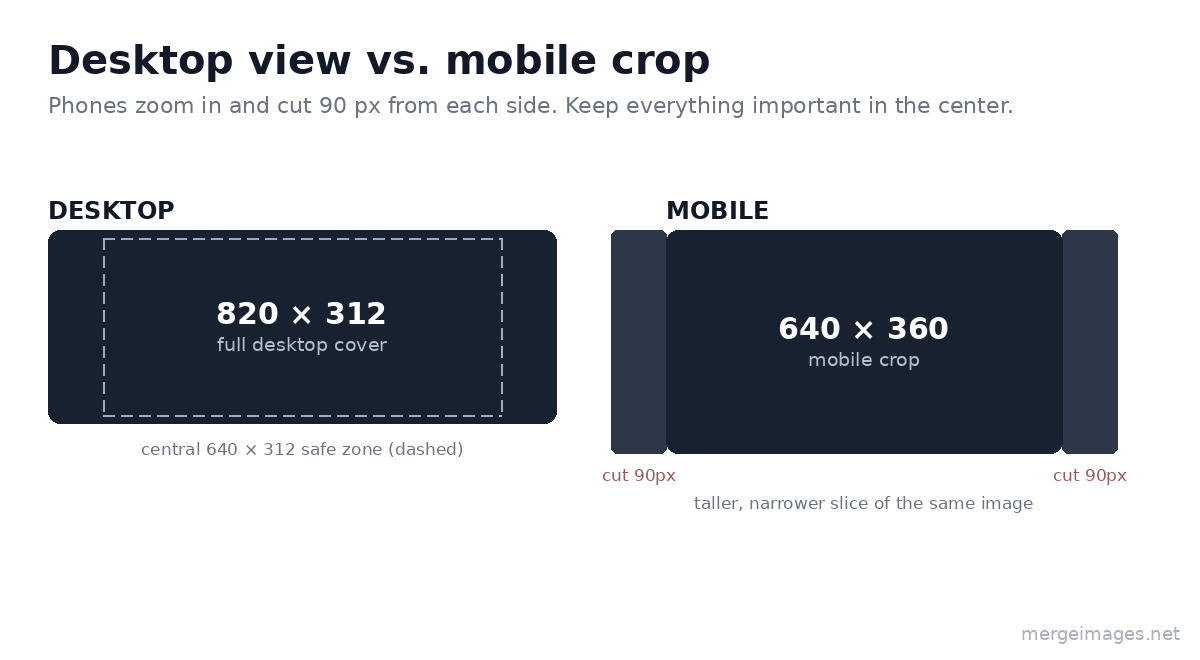
On desktop, your 820 × 312px image shows in full. On mobile, Facebook zooms in to show 640 × 360px: the center of the image, with 90px cut from each side and a taller vertical display.
What this means in practice:
- Place your headline, tagline, or logo within the central 640px horizontally
- Keep critical text away from the very top and bottom 20px, which can clip on some devices
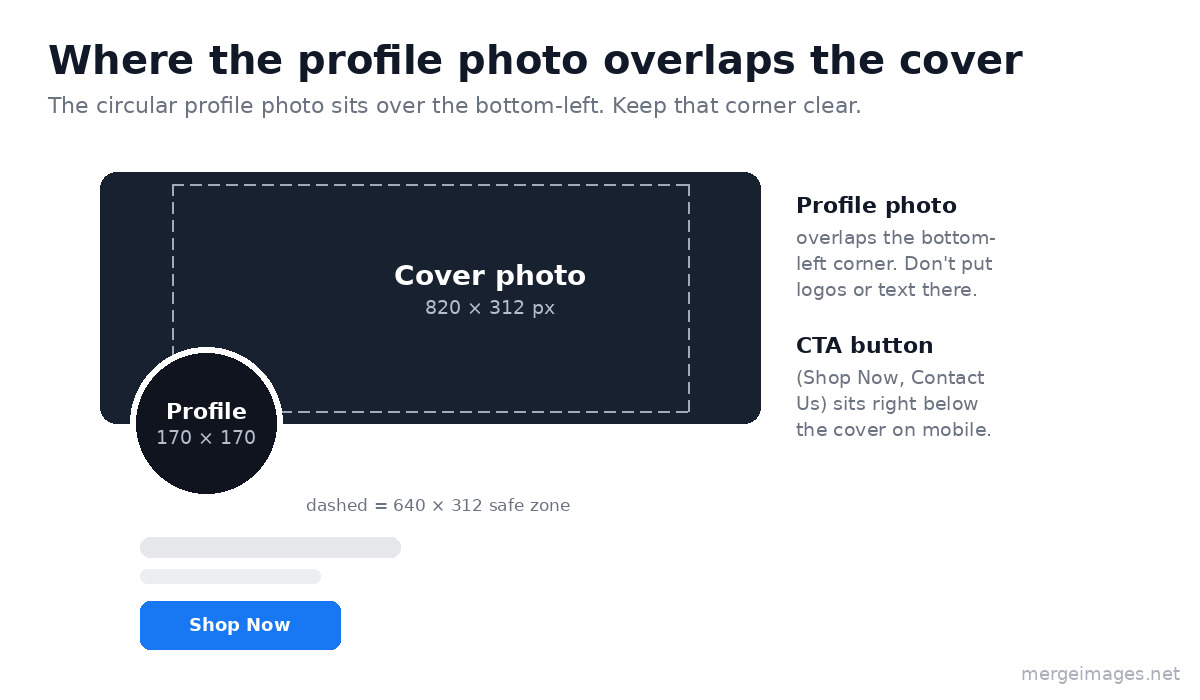
- The profile photo (a 170 × 170px circle on desktop) overlaps the bottom-left corner of your cover, so design around that collision zone
- Always view your design on a real phone before publishing
The image resizer lets you crop to the exact 640 × 360px mobile view so you can verify your design before committing to it.
Facebook Profile Photo Requirements
The profile photo sits in the bottom-left corner of your cover on desktop, overlapping the two. On mobile, it appears above your name. Facebook crops it to a circle at 170 × 170px on desktop and 128 × 128px on mobile.
What to upload:
- Minimum 180 × 180px (Facebook's hard floor for uploads)
- Recommended 400 × 400px or larger for sharp rendering on high-DPI displays
- Subject centered, away from the corners (which are cropped by the circle mask)
- Avoid text smaller than 18px, since it disappears at 128px display size
For business Pages, your profile photo is almost always your logo. Give it visual breathing room. Padding of at least 15% on all sides prevents the circle crop from eating into the logo mark. Use the profile picture maker to preview exactly how your image will look after the circular crop.
Design Principles That Make Facebook Covers Work
Center Your Key Message Horizontally and Vertically
Given both the mobile crop and the profile photo overlap, the safest place for your most important content is the center-top area of the image. Placing your main headline or logo at roughly 30% from the top of the image keeps it clear of the profile photo overlap at the bottom and within the mobile crop on all sides.
Use High-Contrast Text
Cover photos often compete with visually complex backgrounds. If your design includes text, use a semi-transparent dark panel behind light text, or place text against a solid color section of your background image. Thin fonts below 24px look blurry on mobile, so go bolder and bigger.
Keep Brand Consistency
Your cover photo should feel immediately connected to your other branded materials. Consistent color palette, consistent font style, consistent overall aesthetic. When users arrive from an ad or a share, the Page should feel familiar, not like a different brand entirely.
Avoid Cluttered Compositions
A single clear focal point beats five competing elements every time. Whether that is a product image with one supporting line of copy, or a lifestyle photograph with a logo watermark, restraint reads as confidence. Use the background remover to isolate your subject against a clean backdrop if your source image is too busy.
Facebook Cover Photos for Business Pages
Business Pages have a few extra considerations beyond personal profiles:
Call-to-action integration. Facebook Pages have a CTA button (Shop Now, Contact Us, Learn More) that sits directly below the cover photo on mobile. Design your cover so it visually flows into this button placement rather than competing with it.
Category badge. Pages display a category label (Restaurant, Clothing Store, and similar) near the top of the profile section. If you are using text on your cover, make sure it does not visually clash with this badge.
Event promotion. The cover photo is prime real estate for time-sensitive promotions. A large-format "Summer Sale, 30% Off" message with clean typography and a deadline works harder than a generic lifestyle photo during a sale period.
Seasonal rotation. Brands that update their cover photo monthly see measurably higher Page engagement. A fresh cover signals to existing followers that the Page is active. Keep a template at 820 × 312px with locked brand elements and swappable campaign text to make updates fast.
Combining Images for Cover Photos
Some of the strongest Facebook cover photos use a combined image: a product shot layered over a brand color background, or a before-and-after comparison showing your service results. The photo merger tool lets you combine and position multiple images on a single canvas, then export at exactly the right dimensions.
For e-commerce Pages, putting two or three product images side by side on a clean background using the horizontal image merge tool creates a visually rich cover that showcases range without looking chaotic.
For a full breakdown of image dimensions across all major platforms, the social media image sizes guide covers every major platform in one reference. If you are updating your LinkedIn at the same time, the LinkedIn profile photo and banner guide covers the specific banner dimensions and safe zones for that platform.
Common Mistakes That Ruin Facebook Cover Photos
Uploading the wrong size. Any image smaller than 820 × 312px gets stretched, and stretching introduces blur. Use the image resizer to hit the exact target before uploading.
Forgetting the profile photo overlap. The circular profile photo sits in the bottom-left corner of the cover. For personal profiles, that is roughly a 170 × 170px circle. For Pages, the circle is slightly repositioned. Either way, design so your cover background fills that area without putting critical content there.
Text at the edges. Mobile crops 90px from each side. Any text within 90px of the left or right edge vanishes on phones.
File too large. Facebook aggressively recompresses images over 100KB. Pre-compress using the image compressor and upload a clean JPG under that threshold.
Reusing the same cover for years. A cover photo from three years ago signals a neglected Page. Even a simple seasonal update, like a new background color or an updated tagline, keeps your Page looking current.
Frequently Asked Questions
What is the ideal Facebook cover photo size in 2026?
Upload at 820 × 312 pixels for desktop. For a design that survives the mobile crop cleanly, keep critical content within the central 640 × 312px area. For retina displays, you can upload at 1640 × 624px (double resolution) and it will render sharper on high-DPI screens.
Why does my Facebook cover photo look stretched or blurry?
Stretching happens when the uploaded image is smaller than 820 × 312px. Blurring after upload usually means Facebook's compression is degrading the file. Upload at the correct size, keep the file under 100KB, and use the proper format (JPG for photos, PNG for graphics).
Where should I put text on my Facebook cover photo?
Keep text within the central 640px horizontally (90px from each side) and away from the bottom-left corner where the profile photo overlaps. Centering text slightly above the vertical midpoint works well for both desktop and mobile views.
How often should I change my Facebook cover photo?
For active Pages, monthly or seasonally works well. For personal profiles, change it whenever your life or professional situation significantly changes. The cover photo is the first thing visitors see, so keeping it relevant to what you are currently doing or promoting makes your Page more compelling.
Can I use a collage as my Facebook cover photo?
Yes, and it works well for showcasing multiple products, services, or moments. Use the photo collage maker to arrange your images at the right aspect ratio, then size the result to 820 × 312px.
Conclusion
The Facebook cover photo is one of the most visible pieces of brand real estate on the internet: millions of pages with a 820 × 312px canvas that most owners never fully optimize. The technical requirements are straightforward. The strategic layer is knowing that mobile crops 90px from each side and that your profile photo overlaps the bottom-left corner.
Use the image resizer to hit the exact dimensions, the profile picture maker for a clean circular crop on your profile photo, and the background remover to create clean subject-forward images. And if you are updating across multiple platforms, check the Instagram image sizes guide to get them all done in one session.

Bello builds useful software and writes thoughtful content to make sense of it all. He tests the tools himself and checks the facts before any of it goes in a guide.
Try Our Free Image Tools
Ready to Try It?
Put these tips into practice with our free online image merger. No signup required.
Make your social images, free


