
Summarise this article with:
Picking an image merger sounds trivial until you actually need one. Combine two screenshots for a bug report, build a before-and-after for a listing, or stitch three product shots into a single frame, and suddenly the differences between tools matter a lot: who keeps your originals, who slaps on a watermark, and who makes you sign up before you can download. This guide compares the most-recommended free options in 2026 on the things that decide whether a tool is worth your time: speed, privacy, output quality, and how little it gets in your way.
How We Compared Them
The comparison below is based on each tool's published specs, how it actually processes your images (in your browser or on a server), and hands-on use of the common jobs people run: a horizontal merge of two photos, a grid of several product shots, and a vertical stack of screenshots. Here are the five things that actually decide whether you come back.
- Speed. How long from "open the page" to "file in my downloads folder"?
- Privacy. Does the tool upload your images to its servers, or do the pixels stay on your machine?
- Output quality. Are the seams clean, the alignment correct, and the file free of recompression mush?
- Ease of use. Can a first-timer merge two images in under 60 seconds without reading a help doc?
- Cost. Free in name, or free until the export button asks for a card?
The prices below are the vendors' published 2026 rates in USD. We list them so you know exactly where the "free" line sits before you invest time in a tool.
1. MergeImages.net, Best Overall
MergeImages.net finished first because it removes every step that the other tools add. There is no signup wall, no watermark, and nothing to pay for. Your images are processed on our own servers, deleted automatically within 7 days, and never shared or used to train models. There is no queue, so the merge happens as soon as you arrange your images, and the download is immediate.
It is built specifically for combining images rather than as a side feature of a design suite. You drop your files in, pick a horizontal or vertical layout (or a grid in the photo collage maker), nudge the spacing, and export as PNG, JPEG, or WebP at full resolution.
What we liked:
- Drag-and-drop merging with instant preview, no page reloads
- Horizontal, vertical, and grid layouts plus a freeform collage maker
- 100% client-side processing, so files stay on your device
- Full-resolution export as PNG, JPEG, or WebP with no watermark, ever
- A connected toolkit on the same site: background remover, image upscaler, image resizer, and profile picture maker
Where it stops:
- No cloud accounts, so there are no saved "projects" to reopen later
- It is a merging and editing tool, not a full template-driven design app
Verdict: For merging images quickly, privately, and for free, this is the one to bookmark.
2. Canva
Canva is a full design platform that includes merging as one capability among hundreds. That breadth is the appeal and the catch: it can do far more than combine photos, but it asks for an account and an upload before you can do anything at all.
Strengths:
- Thousands of templates and a deep library of fonts, shapes, and stock assets
- Real layout control with text, filters, and effects
- Team collaboration and brand kits on paid tiers
Trade-offs:
- Requires a free account before you can export
- Your images upload to Canva's servers (cloud processing)
- The free tier locks many premium elements behind Canva Pro at $15/month (Business is $20/user/month)
- Heavier to load and slower for a quick two-image merge
Best for: People who want a design suite and will use the templates, not just the merge.
3. Adobe Express
Adobe Express brings Adobe's polish to a lighter, browser-first editor. The free plan is genuinely usable for basic merges, and the output looks clean.
Strengths:
- Professionally designed templates and the Adobe Fonts library
- Solid quick-action tools and AI-assisted suggestions
- Familiar if you already live in Creative Cloud
Trade-offs:
- Account required to save or export
- The strongest features sit behind Premium at $9.99/month
- Cloud-based processing, so files leave your device
- More menus to learn than a single-purpose merger
Best for: People already in the Adobe ecosystem who want consistent branding.
4. PhotoJoiner
PhotoJoiner is a focused online tool built around joining photos, and it does not ask you to sign up. It is genuinely free.
Strengths:
- Simple, single-purpose interface with grid and strip layouts
- No account and no software install
- Free with no paywall on the core merge
Trade-offs:
- Ad-supported, and the ads can crowd the workspace
- Fewer export controls than the editors above
- Server-side processing, so your images are uploaded
Best for: Fast, casual joins where the ads do not bother you and privacy is not a priority.
5. Fotor
Fotor pairs a photo editor with collage and merge features, so you can retouch and combine in one place.
Strengths:
- Editing plus merging plus collage templates in a single app
- A good range of grid layouts to start from
- Batch tools on the paid plan
Trade-offs:
- The free version is limited and nudges you toward Pro at $8.99/month
- Watermarks appear on some premium templates and assets
- An account is needed to save your work
- More features loading means a heavier page than a single-purpose merger
Best for: People who want light photo editing alongside their merging.
See It In Practice
The whole point of a merger is to take separate images and hand back one clean file. Here is the same pair of photos run through MergeImages.net three ways, with no watermark and no quality loss on download.
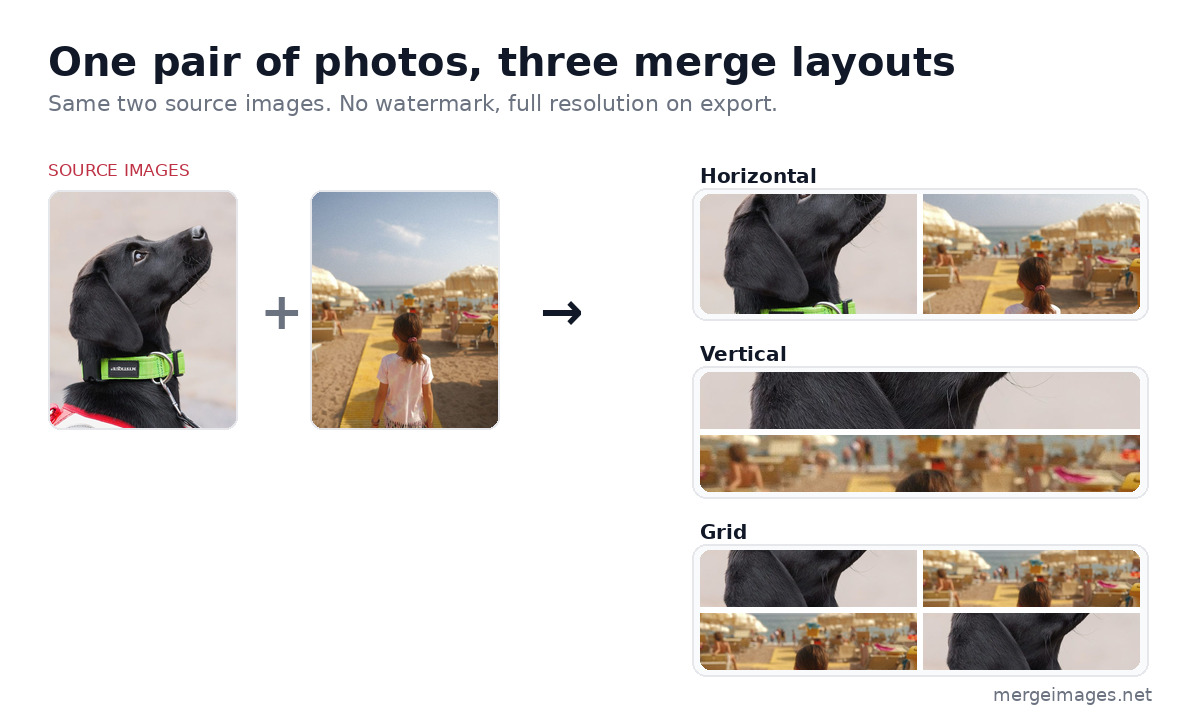
Horizontal puts the images side by side, which suits before-and-afters and comparisons. Vertical stacks them top to bottom, ideal for tall screenshots or step-by-step shots. The grid arranges three or more into a tidy block, perfect for product showcases and mood boards. Every layout lets you set the gap and background color, then export at full resolution.
How the Tools Compare
The fastest way to choose is to look at where each tool draws its free line. Privacy and watermarks are the two columns most people underestimate until a finished image shows up branded with someone else's logo.
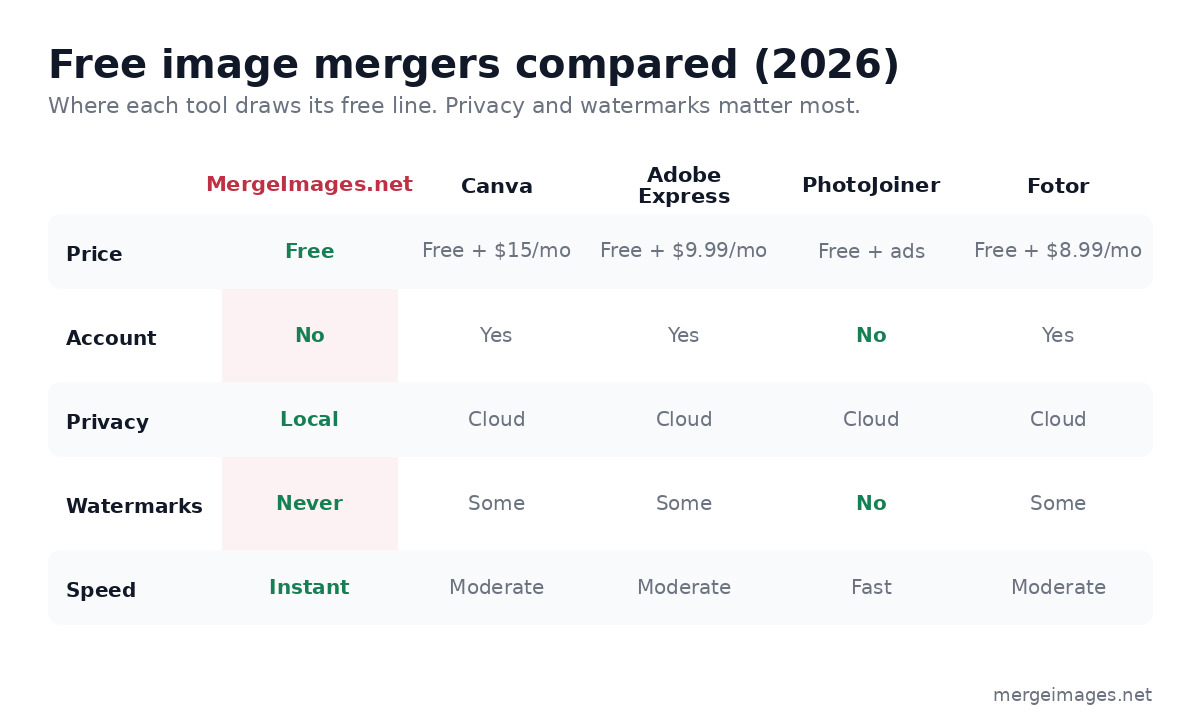
| Feature | MergeImages.net | Canva | Adobe Express | PhotoJoiner | Fotor |
|---|---|---|---|---|---|
| Price | Free | Free + $15/mo | Free + $9.99/mo | Free + ads | Free + $8.99/mo |
| Account | No | Yes | Yes | No | Yes |
| Privacy | Local | Cloud | Cloud | Cloud | Cloud |
| Watermarks | Never | Some | Some | No | Some |
| Speed | Instant | Moderate | Moderate | Fast | Moderate |
How to Merge Two Images in Under a Minute
You do not need design experience to get a clean result. This is the flow that works for almost any merge.
- Open the layout you need. Use horizontal merge for side-by-side, vertical merge for a stack, or the collage maker for a grid.
- Drop your images in. Drag the files onto the canvas, or paste a screenshot straight from your clipboard.
- Match the sizes. If one photo is much larger, run both through the image resizer first so the seam lines up cleanly.
- Set the gap and background. A small white or transparent gap reads more cleanly than edge-to-edge for most comparisons.
- Export. Choose PNG for screenshots and graphics with text, JPEG for photos, or WebP for the smallest file. Download is instant and unwatermarked.
If a source image is low resolution, send it through the AI image upscaler before merging so the combined file stays sharp. For product shots, clear the clutter first with the background remover.
Which Tool Should You Use?
Choose MergeImages.net if you want the fastest, most private way to merge images for free. It does one job and does it without making you sign up or accept a watermark.
Choose Canva if you want a full design toolkit, will actually use the templates, and do not mind an account and an upload.
Choose Adobe Express if you already pay for Creative Cloud and want your merges to match the rest of your brand assets.
Choose PhotoJoiner if you want a no-signup tool for a one-off casual join and the ads do not bother you.
For most people, a dedicated browser merger covers the vast majority of jobs. You can always pair it with the passport photo maker or profile picture maker when a task needs an exact size.
Frequently Asked Questions
What is the best free image merger in 2026?
For pure merging, a browser-based tool that processes locally wins on speed and privacy. MergeImages.net comes out ahead because it requires no account, never watermarks the output, and keeps your files on your device. Canva and Adobe Express are stronger if you also want a full design suite and are willing to create an account.
Do free image mergers add a watermark?
It depends on the tool. Single-purpose mergers like MergeImages.net and PhotoJoiner never watermark the result. Design suites such as Canva, Adobe Express, and Fotor keep their core export clean but tag exports that use premium templates or assets, so read the export screen before you download.
Is it safe to upload my photos to an online merger?
Most online tools upload your images to a server to process them, which is fine for public photos but worth avoiding for anything sensitive. The privacy-safe alternative is a tool that runs entirely in your browser, where the merge happens on your own device and nothing is sent anywhere. That is how MergeImages.net works.
What file format should I export a merged image as?
Use PNG for screenshots, diagrams, and anything with sharp text or transparency. Use JPEG for photographs, where it produces a much smaller file. Use WebP when you want the smallest size for the web while keeping good quality. A good merger lets you pick all three at export.
Can I merge more than two images at once?
Yes. Vertical and horizontal mergers handle several images in a strip, and a collage maker arranges three or more into a grid. For a clean result, resize the images to matching dimensions first so the rows and columns line up.
Final Thoughts
The best image merger is the one that gets out of your way. In 2026 that means fast loading, no signup, no watermark, and no privacy compromise. Single-purpose browser tools like MergeImages.net clear all four bars while the bigger suites keep adding accounts, uploads, and paywalls. Match the tool to the job: a dedicated merger for combining photos, a design suite when you genuinely need templates.

Bello builds useful software and writes thoughtful content to make sense of it all. He tests the tools himself and checks the facts before any of it goes in a guide.
Try Our Free Image Tools
Ready to Try It?
Put these tips into practice with our free online image merger. No signup required.
Try MergeImages, free


