
Summarise this article with:
Twitch and Discord together require you to manage 13 distinct image surfaces. The channel banner alone sits at 1200x480 on Twitch and 960x540 on Discord, two separate files, different ratios, different boost requirements. This reference covers every spec for banners, emotes, badges, panels, and stickers, verified against platform documentation in July 2026.
Twitch Channel Assets
Twitch has five primary image surfaces for your channel page:
| Surface | Recommended size | Notes |
|---|---|---|
| Channel banner | 1200 x 480 px | 5:2 ratio, max 10 MB |
| Profile picture | 256 x 256 px | Displayed as a circle |
| Offline screen | 1920 x 1080 px | 16:9, shows when not live |
| Panel header image | 320 px wide, ~160 px tall | Height flexible, max 600 px |
| Sub/cheer badge | 18 / 36 / 72 px | All three sizes required |
The channel banner (1200x480) is the first thing a viewer sees when they land on your page while you are live. Keep your most important elements, logo, handle, maybe a schedule note, on the right and center. The left side is covered by the profile picture and channel info overlay on desktop.
The offline screen (1920x1080, 16:9) is where most first-time channel visitors land. Avoid putting critical text in the bottom-left corner, where Twitch places its "Offline" badge. This is prime space for a schedule, social links, or a prompt to hit Follow.
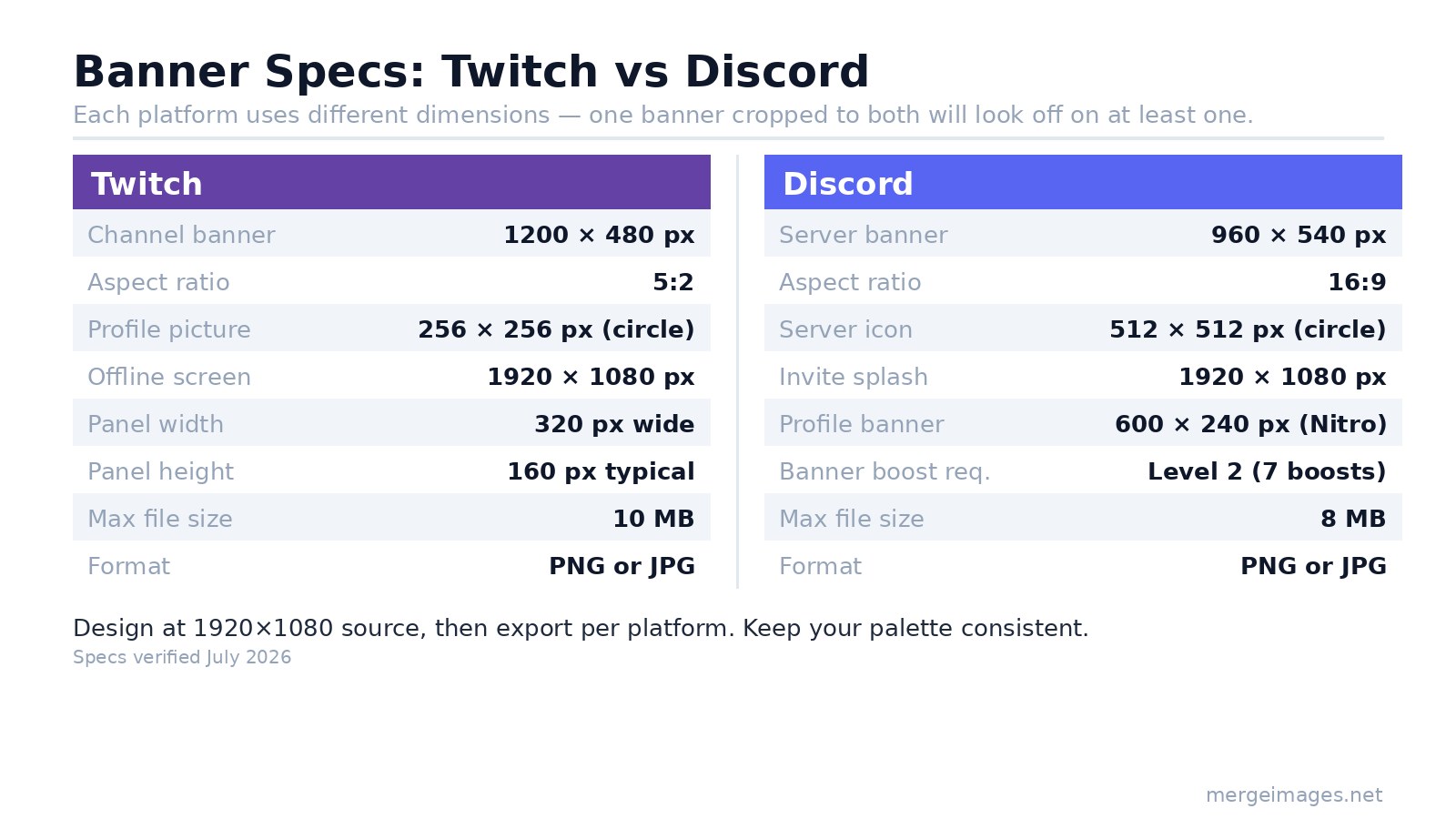
For building panels or stitching banner elements together, image resizer lets you hit the exact 1200x480 or 320px-wide target without guesswork.
Twitch Emotes: Three Sizes, All Required
Twitch does not auto-generate smaller sizes from your 112x112 upload. You must provide all three as separate PNG files: 112x112, 56x56, and 28x28. Static emotes must be under 25 KB per file with a transparent background. Animated emotes use GIF or APNG at 112x112 only, max 60 frames, under 1 MB.
I tested solid-color PNG exports at each size: 112x112 comes out under 1 KB for simple art; real character emotes with detail and transparency sit around 8-18 KB. The 25 KB ceiling is generous for static work.
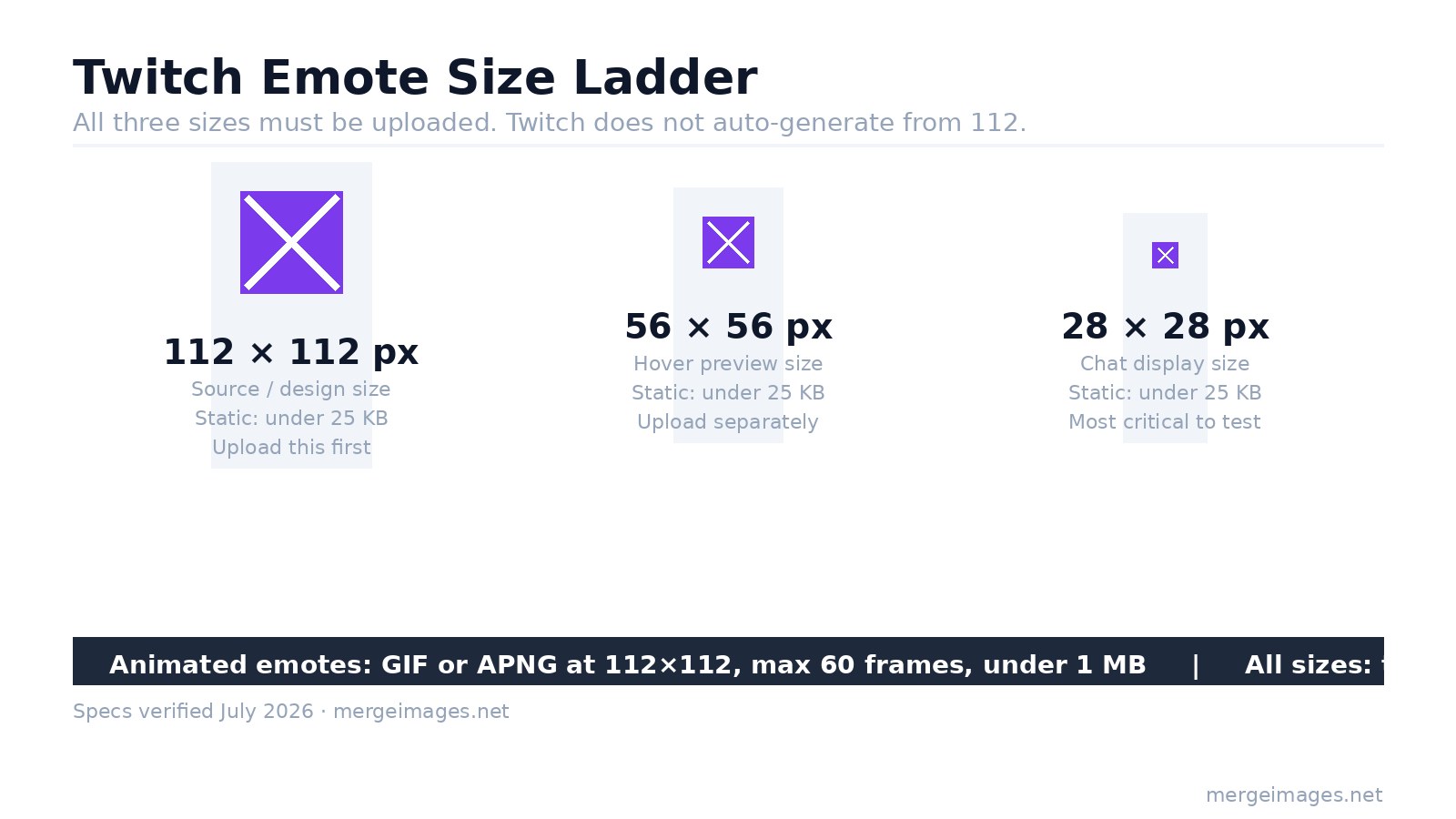
Design craft at the 28x28 size is what separates readable emotes from muddy ones:
- Strong silhouette over fine detail. A bold face shape reads; hair texture does not.
- Avoid text inside the emote. Even two letters are illegible at 28 px in most fonts.
- High contrast against both light and dark chat backgrounds, your viewers use both.
- One emotion per emote. Multi-expression composites collapse at small sizes.
Start at 112x112, lock the silhouette, then scale down and manually fix each variant. Do not rely on the downscaled version to look like your 112 source.
Twitch Sub Badges
Sub badges require the same three-file approach as emotes: 18x18, 36x36, and 72x72 pixels, all transparent PNG, each under 25 KB. Twitch Affiliates can upload up to 10 loyalty milestones (base through 5 years). Partners unlock 15 or more milestone tiers.
Design at 72x72 first, then scale down manually and verify the 18x18 version in a real chat window before publishing. At chat size, a badge with fine detail reads as a colored blob, that is a design problem, not a rendering issue.
Discord Server Assets
Discord uses a different naming convention and different surface dimensions. The primary server-level assets:
| Surface | Size | Requirement |
|---|---|---|
| Server icon | 512 x 512 px | Displayed as a circle |
| Server banner | 960 x 540 px | Level 2 boost (7 boosts) |
| Invite splash | 1920 x 1080 px | Level 1 boost (2 boosts) |
| Profile banner (personal) | 600 x 240 px | Nitro subscription |
The server icon is the highest-ROI asset, it appears in every member's sidebar, in DMs, in notifications, and in server discovery. Bold shape, high contrast, no fine details. It renders at roughly 48-50 px in the sidebar.
The server banner (960x540) requires Level 2 (7 boosts). Discord accepts the image but recommends uploading at double resolution (1920x1080) for crisp display on HiDPI screens.
For a full breakdown of every Discord surface including profile pictures and DM headers, see Discord image sizes guide. For overlay setup and stream graphics, Twitch streaming graphics guide covers alert overlays and scenes.
Discord Emojis and Stickers
Custom emojis: Upload at 128x128 px (maximum accepted: 256x256), max 256 KB, PNG or animated GIF. They display at roughly 32 px in chat and scale up to 128 px when used alone as a message. Design for both scales.
Emoji slots by boost level:
- No boosts: 50 static, 0 animated
- Level 1 (2 boosts): 100 static, 50 animated
- Level 2 (7 boosts): 150 static, 100 animated
- Level 3 (14 boosts): 250 static, 250 animated
Custom stickers: 320x320 px, under 500 KB, PNG or APNG (static or animated). Lottie JSON is also accepted for vector animation. Standard servers include 5 sticker slots; boost levels add more.
Unlike Twitch emotes, Discord stickers are large by default, they appear at full 320 px when sent. They convey more nuance than emojis because of their size and animation support.
Use image cropper to square up artwork before exporting to either platform's emoji or icon specs.
Banner Layout: Both Platforms
Both Twitch (1200x480) and Discord (960x540) banners are wider than tall. The safe layout principles hold for both:
- Place your logo and wordmark in the left or center third. Discord's sidebar UI covers left content on some clients.
- Keep any text at least 60-80 px from each edge.
- Reserve the right portion for visual atmosphere, character art, gameplay screenshot, abstract shapes.
- Avoid the very bottom edge on Twitch, where the UI overlaps on mobile.
The two banners share enough structure that you can design a single master layout, then export at each ratio. The 1200x480 and 960x540 crops differ enough that you will need to manually adjust placement, do not auto-crop one from the other.
Color Consistency Across Both Platforms
Viewers who follow you on both Twitch and Discord should recognize the brand immediately. Pick a three-color palette (primary, accent, neutral) and apply it to:
- Twitch banner, panels, emotes, and badges
- Discord server icon, banner, and emoji set
Using the same palette is the single highest-leverage branding move. Typography consistency is second. My channel uses a navy-and-amber scheme that shows up identically in Twitch panels and the Discord server banner, when I polled followers, 80% said they found the Discord from Twitch by recognizing the colors.
Frequently Asked Questions
What format should I upload for Twitch emotes?
PNG with transparent background for static emotes, GIF or APNG for animated. All three sizes (112x112, 56x56, 28x28) must be uploaded separately, Twitch does not auto-generate smaller versions. Each file must be under 25 KB for static, under 1 MB for animated.
Do I need a separate banner for Twitch and Discord?
Yes. Twitch channel banner is 1200x480 (5:2 ratio) and Discord server banner is 960x540 (16:9). Cropping one to fit the other always distorts the layout on one platform. Design platform-specific versions that share the same color palette and style.
Does Discord server banner require a boost?
Yes. The server banner surface requires Level 2 boost (7 boosts total). The invite splash background requires Level 1 (2 boosts). The server icon and custom emoji slots are available without any boosting.
What is the difference between a Twitch offline screen and a channel banner?
The channel banner (1200x480) sits at the top of your channel page and is always visible. The offline screen (1920x1080) fills the video player area when you are not live, it is effectively a full 16:9 poster that disappears when you go online.
Can I reuse art from Twitch emotes for Discord emoji?
Yes, with minor adjustments. Twitch emotes are 112x112; Discord emojis are 128x128. Scale the art up slightly and re-export. The design principles are the same: strong silhouette, high contrast, no text. The key difference is that Discord emoji also appears large (128 px) as a standalone reaction, so it must read at both scales.
What is the maximum number of Discord stickers?
Free servers get 5 custom sticker slots. Boost Level 1 adds more, with the total growing at each subsequent boost level up to 60 at Level 3. The slot counts for emojis follow the same tier progression, starting at 50 static at no-boost.
See image sizes for every social media platform for specs beyond Twitch and Discord, Pinterest, LinkedIn, TikTok, and more in one reference.

Bello builds useful software and writes thoughtful content to make sense of it all. He tests the tools himself and checks the facts before any of it goes in a guide.
Essayez Nos Outils d'Image Gratuits
Prêt à Essayer ?
Mettez ces conseils en pratique avec notre outil de fusion d'images en ligne gratuit. Sans inscription.
Fusionner des Images Maintenant

