
Summarise this article with:
For single-image tasks, a no-signup browser tool finishes the job faster than Canva's editor. Canva requires an account, a 3-5 second canvas load, and navigation through a feature-dense interface before you export. Dedicated tools like MergeImages.net skip all of that. Here is which free option is faster for the 7 most common image jobs, and where Canva's depth still wins.
How We Compared
We mapped Canva's free-plan capabilities against dedicated browser-based tools across seven common image tasks, checked in July 2026. The criteria: account requirement, watermark policy, free-tier access (not trial), and estimated time-to-download for a standard job. We also checked which Canva features are paywalled behind the $15/month Pro tier.
One measured reference point: merging two 1080x1080 photos side-by-side with PIL produces a 2160x1080 JPEG at 38 KB (q85) - a canvas operation that runs entirely in the browser with no server round-trip in the merge editor.
Canva was checked against canva.com (July 2026). Pro pricing confirmed as $15/month (or $120/year for annual billing) by multiple third-party sources including costbench.com and stylefactoryproductions.com.
Task-by-Task: Canva Free vs. Single-Purpose Tools
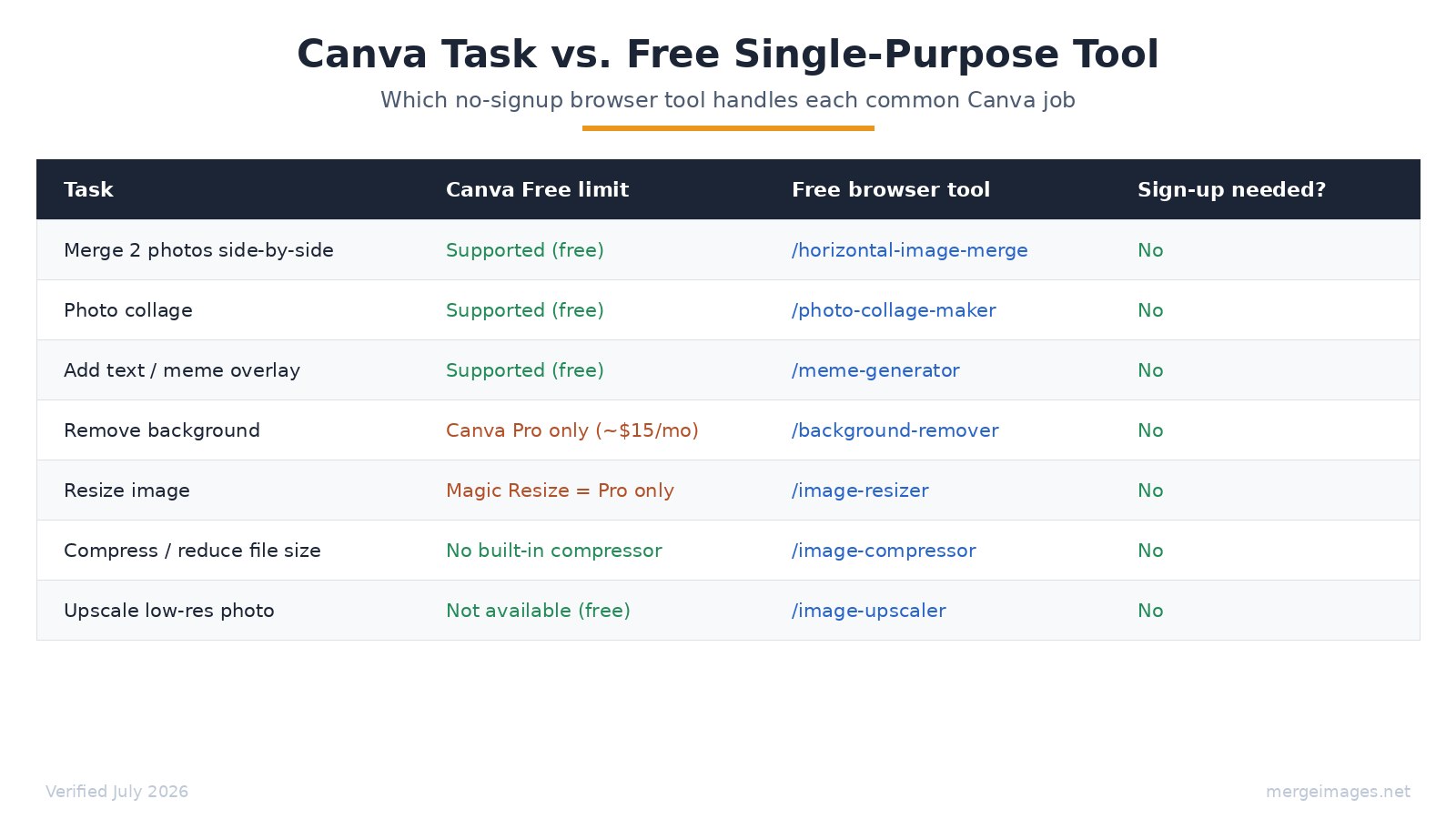
| Task | Canva Free | Free browser tool | Account needed? |
|---|---|---|---|
| Merge 2 photos side-by-side | Supported | /horizontal-image-merge | No |
| Photo collage | Supported | /photo-collage-maker | No |
| Text overlay / meme | Supported | /meme-generator | No |
| Remove background | Pro only (~$15/mo) | /background-remover | No |
| Resize to exact dimensions | Magic Resize = Pro only | /image-resizer | No |
| Compress / reduce file size | No built-in tool | /image-compressor | No |
| Upscale a low-res photo | Not available | /image-upscaler | No |
The pattern is consistent: Canva's free editor handles layout and text well. The moment you need a processing operation (background removal, resizing to an exact pixel dimension, compression), you either hit a Pro paywall or a feature gap.
Merging and Collages: Where Dedicated Tools Are Faster
For combining photos, a single-purpose tool cuts the time from 3-4 minutes to under a minute. In Canva, merging two photos side-by-side means: creating an account (if you do not have one), opening the editor, setting canvas dimensions, uploading two images, dragging them into position, verifying alignment, and exporting. A dedicated merge tool loads at the URL, accepts two image uploads, and outputs the file.
The photo collage maker and horizontal image merge on MergeImages handle the core combine operations without an account. The output is a clean JPEG - no overlaid Canva branding, no "Sign up to download at full resolution" gate.
Worth being clear on limits: the merge and collage editors compose images in your browser. Separate AI tools on the site (background removal, upscaling) make server requests. Core merging is a different workload from AI inference.
See also: best free image merger tools 2026 for a broader tool landscape.
Text Overlays and Memes: A Real Gap in Single-Purpose Tools
Canva genuinely excels at text-on-image work; most dedicated image tools do not do it at all. If your task is adding a caption, a quote card layout, or a social media announcement with multiple text layers, Canva's free editor is the right tool for that job.
The meme generator covers the most common version of this - top and bottom impact text on a photo, which is exactly what the "meme" query needs. For multi-layer typographic layouts with custom fonts and spacing, Canva's free tier is genuinely the better option. I have tried replicating a simple quote card in browser image tools - it always involves more steps than just using Canva.
Background Removal: Clear Win for Free Tools
Background removal is gated behind Canva Pro ($15/month), making free alternatives the only no-cost path. Canva's help center describes background remover as a Pro feature (checked July 2026). The background remover on MergeImages is free (3 removals/day without an account, 15/day signed in) and handles the same task without a monthly subscription.
For product photos, profile images, or anything that needs a clean cutout, the price difference here is real: $0 vs. $15/month.
Resizing and Compression: Canva Has Notable Gaps
Canva's "Magic Resize" - one-click reformatting of a design to a new canvas size - is Pro-only. The free editor does let you manually drag and resize elements, but it does not batch-adapt a layout across dimensions.
For pixel-precise output (say, 800x600 exactly for an email header), /image-resizer and /resize-image-to handle that directly with no canvas setup.
Canva also has no built-in file compressor. When a client says "keep it under 500 KB," you need a separate step. /image-compressor lets you target a file size. See image compression guide for when compression actually matters.
Where Canva Still Wins
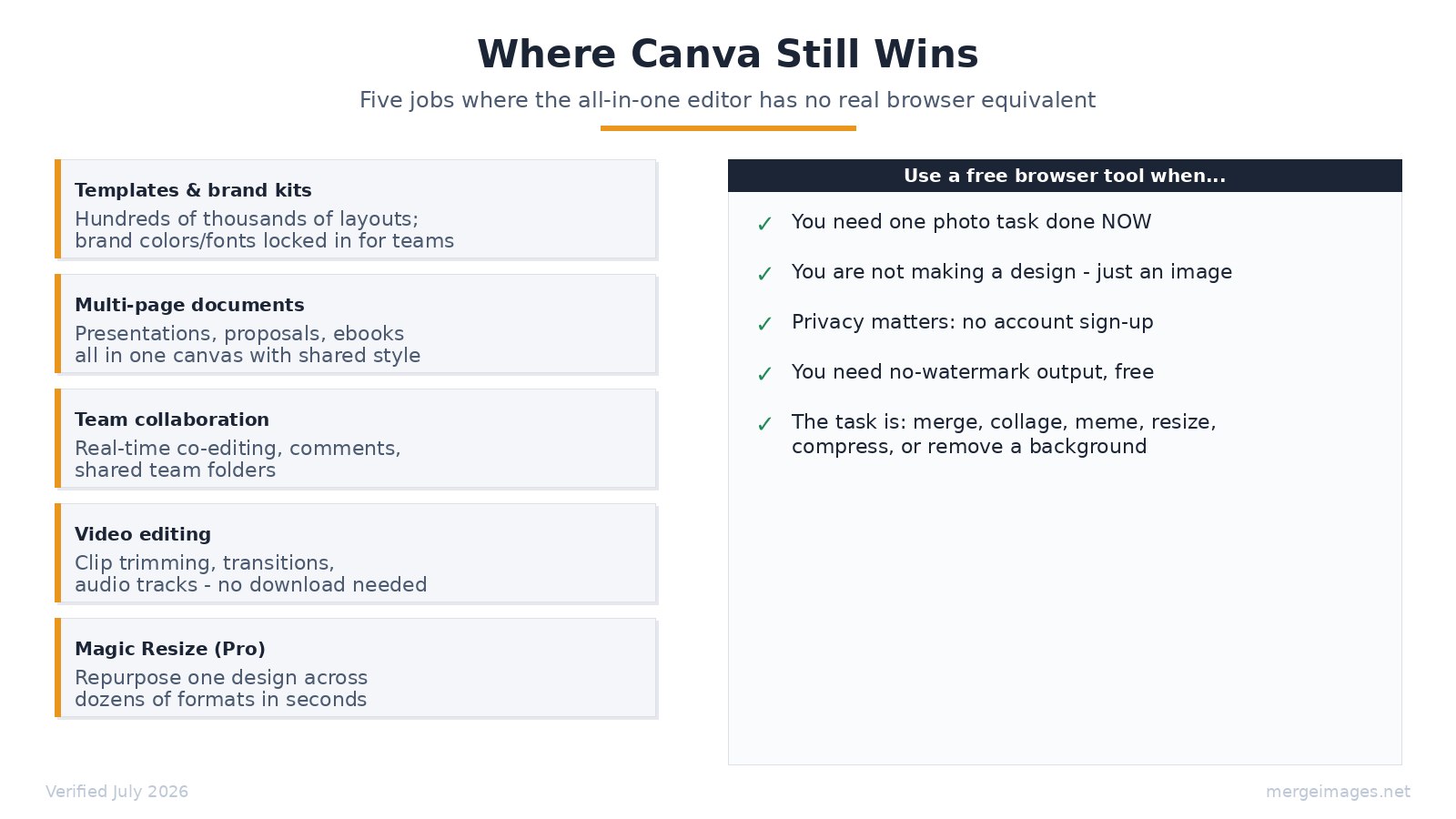
For multi-element design work, Canva's depth has no real browser equivalent. These are the jobs where the full editor is the right tool:
Templates and brand kits. Canva's free tier gives access to hundreds of thousands of layouts - social posts, presentations, flyers - with typography and spacing already done. The Pro tier adds brand kits (locked fonts, colors, logos applied with one click across every design). No single-purpose tool offers this. If you produce consistent branded content, this is the irreplaceable feature.
Multi-page documents. Presentations, pitch decks, and ebooks need consistent styling across many pages. Canva handles this natively. Single-purpose image tools work file by file.
Real-time team collaboration. Multiple people editing the same Canva design simultaneously, leaving comments, sharing a team folder - this is a proper collaboration layer. Browser image tools are solo tools.
Video editing. Canva's free tier includes clip trimming, transitions, and audio track support without a download. Single-purpose image tools do not touch video.
Magic Resize (Pro). Once you have a design, reformatting it from a LinkedIn post to a story to a Twitter header in seconds is a genuine time-saver. The $15/month Pro fee is worth it if you use this regularly.
The honest summary: Canva is a design platform. Single-purpose tools are image processors. They solve different problems.
Other Capable Free Tools
The single-purpose approach is not the only alternative to Canva's interface. A few tools worth knowing about:
Photopea (photopea.com) is a full browser-based Photoshop equivalent. Layer support, masks, PSD import. Free and ad-supported. It is the right tool when you need layer-level editing, not when you need to quickly combine two photos. Steep learning curve is real.
GIMP is the open-source desktop option for complete control. Requires a download and installation. Not appropriate for a quick task.
Pixlr offers a simplified web editor. Some features require an account; images are server-processed. Worth trying for users who want a middle path between canvas complexity and single-tool simplicity.
For a broader survey, best free image merger tools 2026 covers the current landscape with honest tradeoffs.
Frequently Asked Questions
Does Canva's free plan require an account?
Yes. Canva requires account creation before you can open the editor, upload images, or export any file. Single-purpose browser tools like MergeImages.net let you start and finish a task without creating an account.
Is Canva's background remover free?
No. As of July 2026, background removal on Canva requires a Pro subscription at approximately $15/month or $120/year. Dedicated free tools handle this without a subscription.
Can I merge images in Canva for free?
Yes - placing two photos side-by-side or in a collage layout is supported on Canva's free tier. The tradeoff is the full editor workflow (account, canvas setup, export). Dedicated tools skip those steps.
What does Canva Pro cost in 2026?
Canva Pro is priced at approximately $15/month when billed monthly, or around $120/year on annual billing. Key Pro additions include background remover, Magic Resize, brand kits, 100 GB storage, and expanded AI tools.
Are merged images from browser tools watermarked?
For the core merge, collage, and meme tools on MergeImages.net, output has no watermark. AI-powered tools like the upscaler show a watermarked preview for anonymous users; the full result requires signing in. The base image processing tools (merge, collage, resize, compress) are clean output.
Which tool is faster for a quick image combination?
Single-purpose browser tools are faster for a single image task. No account login, no canvas setup, no template selection. Upload, process, download. For designing a recurring branded asset across multiple formats, Canva's editor saves time over the long run.

Bello builds useful software and writes thoughtful content to make sense of it all. He tests the tools himself and checks the facts before any of it goes in a guide.
Essayez Nos Outils d'Image Gratuits
Prêt à Essayer ?
Mettez ces conseils en pratique avec notre outil de fusion d'images en ligne gratuit. Sans inscription.
Try MergeImages, free


