
Summarise this article with:
Answer Capsule The correct YouTube channel art size in 2026 is 2560×1440px, with a guaranteed safe zone of 1546×423px visible across every device. Export your final design as a PNG under 6 MB. Keep text at least ≥32px. Always preview the mobile crop before you hit publish.
The Canvas and the Safe Zone
YouTube treats banner images like a window that changes shape depending on the viewer’s screen. The full canvas measures 2560×1440px. Only a central 1546×423px rectangle is guaranteed to show everywhere. Anything placed outside that rectangle may disappear on tablets or phones. Treat the safe zone as your real estate. Test your export on a phone, a desktop browser, and a TV app before you call it done: the safe zone exists because those three crops disagree.
When a TV displays the banner, it reveals the entire canvas. The peripheral space becomes an opportunity for brand storytelling. Desktops see a thin horizontal strip that spans the full width. Tablets get a middle slice. Mobile viewers get the narrowest view, limited to the safe zone. Designing with these layers in mind prevents accidental cropping of text or logos.
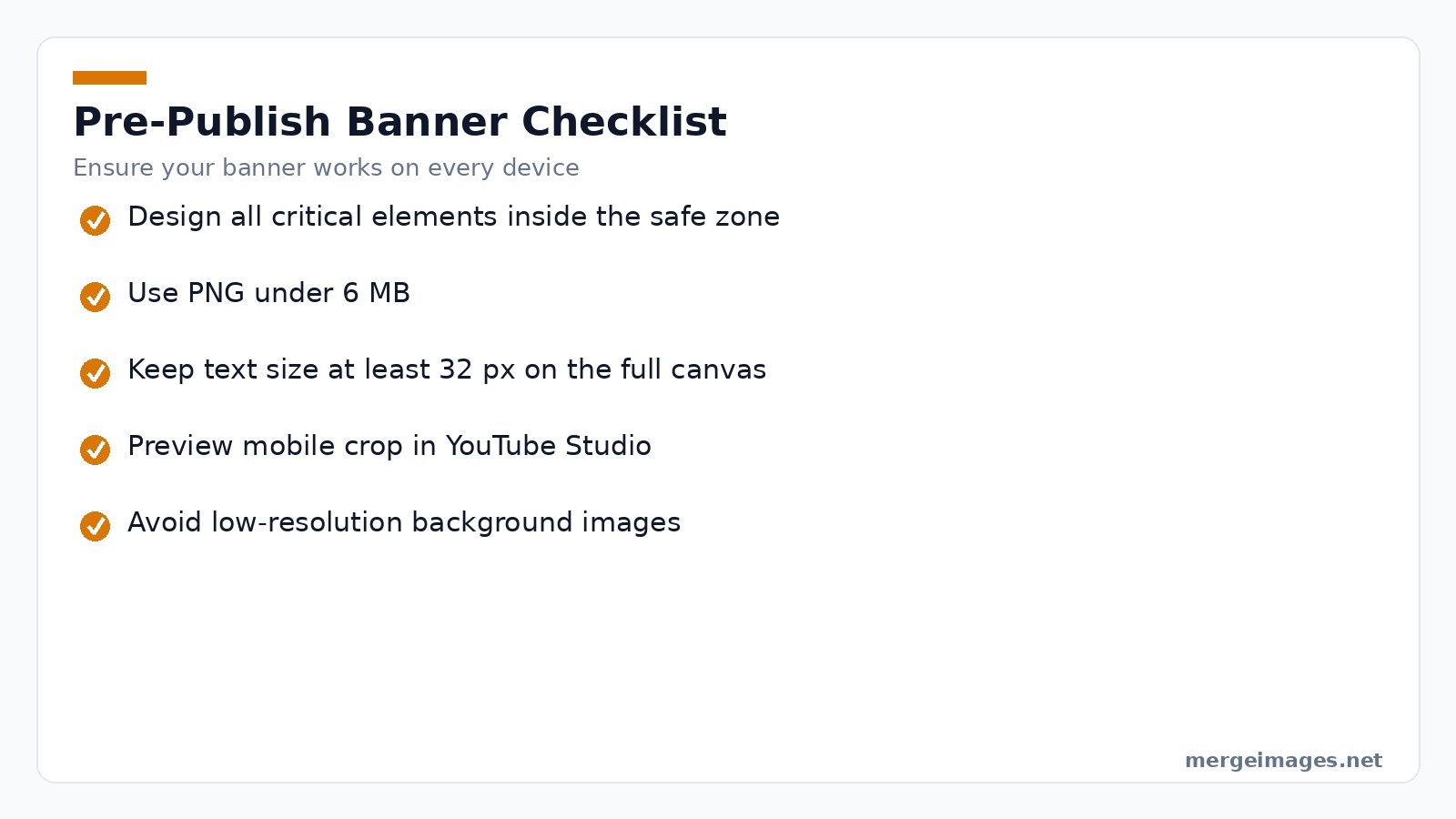
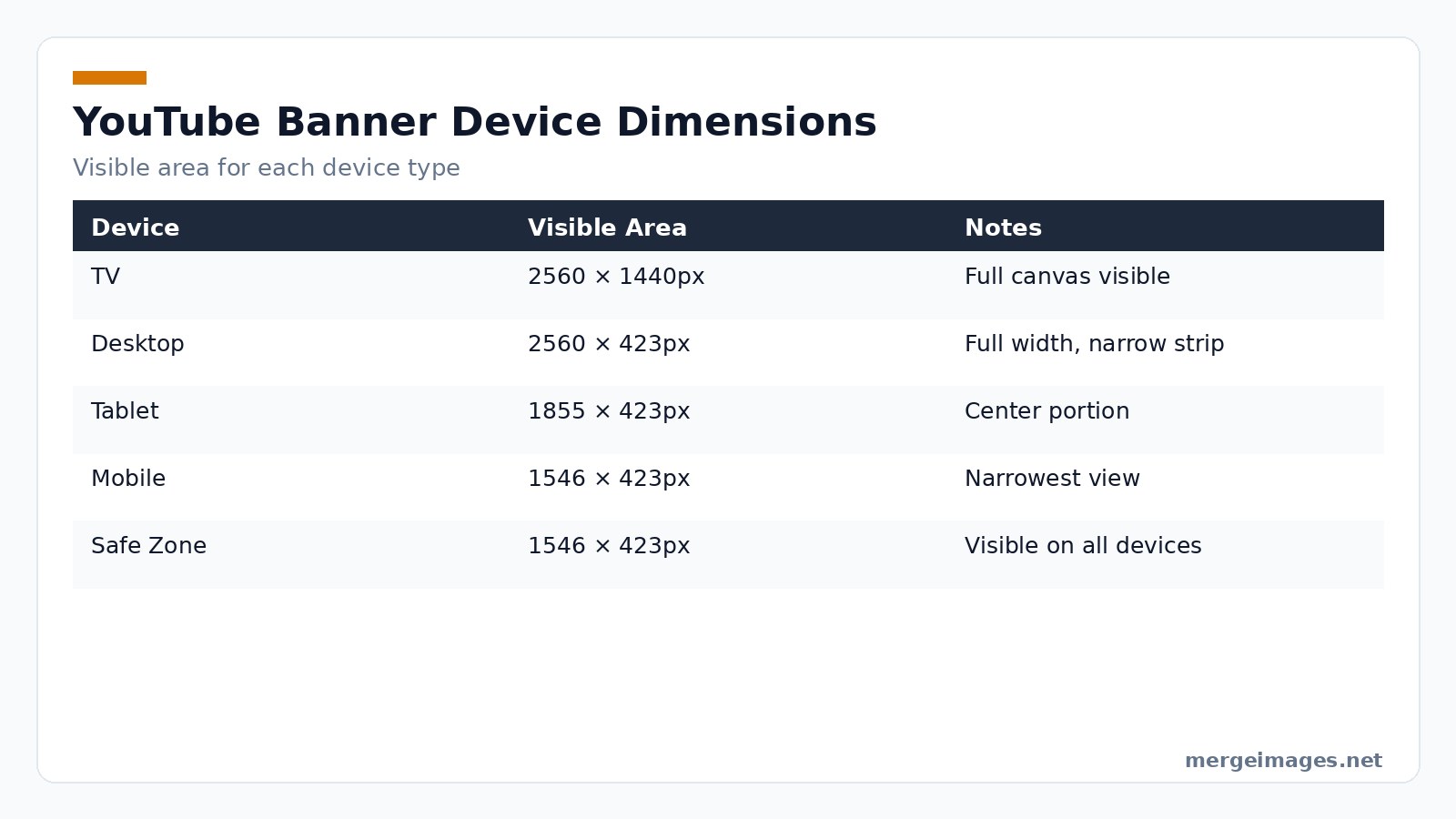
Photo: Jakub Zerdzicki via Pexels
Browser Only Design Workflow
Every creator can build a professional banner without installing software. Start by opening the Image Resizer to set your canvas to the exact 2560×1440px dimensions. Then use the Image Cropper to extract the safe zone portion for quick checks. Finally, the Background Remover helps isolate headshots or product images so they sit cleanly on your background.
The process stays entirely in the browser. It requires no signup and respects your privacy. Because the tools run locally, you retain full control over your assets while keeping the workflow fast and free.
Asset Preparation: Resizing and Cropping
When you bring photos, logos, or graphics into the banner, each element should match its intended display area. Resize a background photo to 2560×1440px. If the source is smaller, run it through the upscaler first, then trim any excess. For logos, aim for a square that fits comfortably inside the safe zone. Typically 300×300px works well.
After resizing, employ the cropper to generate a 1546×423px preview. This preview acts as a mobile mockup, letting you verify that all text remains legible. If the crop reveals clipping, adjust the original composition and crop again until the safe zone looks balanced.
Composition and Assembly
Combine the full canvas background with your cropped assets using any graphic editor you prefer. Place the most important elements like channel name, tagline, and upload schedule squarely inside the safe zone. Extend decorative motifs into the left and right expansion zones for desktop viewers. Add atmospheric imagery above and below the strip for TV audiences.
A subtle overlay, such as a 30% dark gradient, can improve text contrast without sacrificing visual impact. Keep the overall file size under 6 MB. The Image Resizer can compress the final PNG while preserving clarity.
Advanced Design Tips
- Color Harmony, Use a limited palette derived from your logo or thumbnail style. Consistent hues reinforce brand identity across videos and channel art.
- Typography Hierarchy, Reserve bold, large-weight fonts for the channel name and keep supporting text (e.g., upload schedule) in a lighter weight. This prevents visual clutter.
- Dynamic Elements, Consider adding a faint animated GIF overlay for the TV view; YouTube will display the first frame as a static image, but the motion cue can inspire future video intros.
- Negative Space, Leaving breathing room around text improves readability on smaller screens. Aim for at least 50 px padding inside the safe zone.
- Testing Across Devices, Use the YouTube Studio preview, but also open the image on a phone, tablet, and TV emulator to catch any unexpected cropping.
Upload and Verification
Navigate to YouTube Studio → Customization → Branding and click Upload under Banner image. The platform immediately shows three previews: TV, desktop/tablet, and mobile. Drag the image to reposition the mobile crop if needed, then hit Publish.
Always double check the mobile view. It is the most restrictive. If any essential element falls outside the safe zone, return to the cropper, adjust, and upload again. This quick loop ensures a consistent brand experience across all devices.
Mistakes to Avoid
Designing solely on a large monitor often leads to oversights. Text that looks spacious on a 2560px canvas can become illegible once the mobile crop shrinks it. Low resolution photos that pass on desktop become blurry on TV screens. Forgetting to compress the PNG may push the file over YouTube’s 6 MB limit, causing a failed upload.
Avoid these issues by testing each zone, using the upscaler for background images, and keeping the safe zone content crisp. A checklist can keep you on track before you hit publish.
Real-World Pitfalls and How to Fix Them
Overcrowded Safe Zone
When you cram too many elements inside the 1546×423px area, the result looks chaotic on mobile. The fix is to prioritize: keep the channel name and one supporting line inside the safe zone, and move decorative flourishes to the outer margins.
Color Bleed on TV
A gradient that spans the whole canvas may shift hue at the edges, making the banner look washed out on large screens. Counter this by adding a subtle vignette or a darker border that contains the color shift within the expansion zones.
File-type Mismatch
Saving a banner as a GIF will force YouTube to rasterize the first frame, often producing a grainy image. Stick with PNG for crisp text; use JPG only when the background is a photo and you need a smaller file size.
Ignoring Safe-zone Padding
Placing text flush against the safe-zone edge leaves no room for YouTube’s automatic scaling on very small phones. Add at least 30 px of inner padding so the text never touches the edge after the platform rescales.
Unchecked Font Weight
Heavy fonts can appear thicker on high-density screens, causing letters to merge. Test a light-weight version of the same font at the same size; if it remains readable, prefer it for the mobile view.
Frequently Asked Questions
What is the exact pixel size for YouTube channel art?
Upload at 2560×1440px. The safe zone that appears on every device is 1546×423px, so keep all critical information inside that rectangle.
Which file format yields the best quality?
PNG handles text and logos with the least compression artifacts. JPG works for photographic backgrounds, but stay under the 6 MB limit.
Why does my banner look different on my phone?
YouTube crops the image to the central 1546×423px area for mobile. Anything outside that area is trimmed, which is why designs that ignore the safe zone appear cut off.
How can I ensure my background looks sharp on TV?
Use a high resolution image that matches the full 2560×1440px canvas. If the source is smaller, run it through the AI upscaler before adding it to the banner.
Can I use a photo with a transparent subject in my banner?
Yes. Remove the background with the Background Remover, then place the cutout onto your brand-colored canvas for a clean, professional look.
Tool Links Access the Image Resizer, the Image Cropper, and the Background Remover to complete this process.

Bello builds useful software and writes thoughtful content to make sense of it all. He tests the tools himself and checks the facts before any of it goes in a guide.
Probieren Sie Unsere Kostenlosen Bildtools
Bereit es Auszuprobieren?
Setzen Sie diese Tipps mit unserem kostenlosen Online-Bildeditor in die Praxis um. Keine Anmeldung erforderlich.
Make your social images, free


