
Summarise this article with:
Take the subject from one stock photo and the background from another and you have a composite that exists in no library. Pexels and Unsplash both allow commercial use and modification with no attribution required, so the raw material costs nothing. The real work sits in 3 places: colour temperature, edge feathering and grain. Get any of them wrong and the composite reads as fake instantly.
The Stock-Looks-Like-Stock Problem
Generic stock makes a brand page look generic. Custom photography is the obvious answer, but for an early-stage product or a content site, stock is what you have and a shoot is not happening this quarter.

Photo: cottonbro studio via Pexels
The workable fix is to merge several stock images into one composition that exists in no library. Done well it reads as a shoot. Done carelessly it reads as a ransom note, and the difference is almost never which images you picked. It is whether the light, the colour and the grain agree.
What Stock Licensing Actually Allows
Read the licence before the tutorial. The two free libraries most people use are unusually permissive; the paid ones are not uniform.
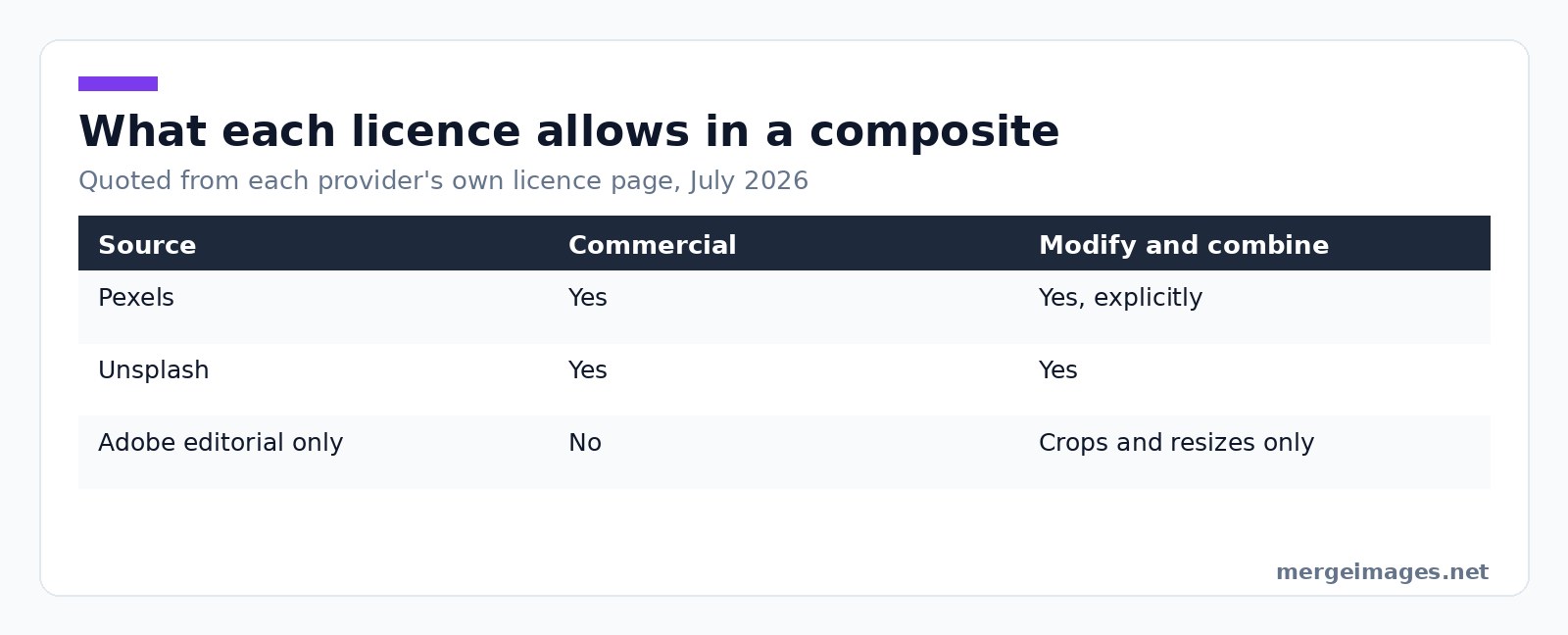
| Source | Commercial use | Modify and combine | The catch |
|---|---|---|---|
| Pexels | Yes | Yes, explicitly | No selling unaltered copies, no redistributing to other stock sites |
| Unsplash | Yes | Yes | No selling without significant modification, no compiling into a competing service |
| Adobe Stock, editorial only | No | No | "May not be modified, except for minor adjustments for technical quality or slight cropping or resizing", credit line required |
That last row catches people. An editorial-only asset is off limits for a composite by definition, because compositing is modification and the licence forbids it beyond a crop. If a file is marked editorial it does not go in the blend, however good it looks.
Pexels also carries a restriction about people rather than pixels: identifiable people may not appear in a bad light or in a way that is offensive, and you must not imply endorsement of your product by people or brands in the imagery. Dropping a recognisable face onto a page selling a medical or financial product is exactly the implication that rule exists to stop.
Three Blend Techniques That Look Custom
Technique 1: Subject Extraction Plus New Background
Pull a subject from one image, put it on a background from another. The result is unique by construction.
- Find a stock image with the subject you want
- Extract it with the background remover
- Find a second image for the background
- Composite the two with overlay images, which runs in your browser, so nothing is uploaded
- Grade the whole thing to one palette
The background remover runs on our servers, where files are deleted automatically within 7 days and never shared or used to train models. The overlay step never leaves your machine.
Technique 2: Multi-Subject Composition
Two or three subjects from separate photos in one scene, for a team mock-up or a product group. This is the hardest of the three and the likeliest to fail, because every subject now has to agree with every other on light direction, scale and shadow. Two subjects lit from opposite sides in one frame is the most obvious tell there is.
Technique 3: Texture and Colour Layering
One base photo, one texture (paper, fabric, an abstract pattern) at low opacity, one unifying grade. It gives depth flat stock does not have. This is closer to graphic design than photography, which is fine as long as you do not call the result a photograph.
Color Grading for Unified Look
Colour cast mismatch is the biggest single reason composites look wrong. A photo shot in overcast daylight sits near 6500K and reads blue; one shot under warm indoor light sits near 3000K and reads orange. Put them in one frame untouched and the eye catches it before the brain does.
Work in this order:
- Match white balance first. Find something in each image that should be neutral, a white shirt, a grey wall, a sheet of paper, and pull both to the same white point.
- Match exposure and contrast. Equalise highlights and shadows before touching colour again. A subject brighter than the room behind it does not look composited, it looks pasted.
- Grade the flattened image once. A single pass in image filters over the merged file unifies two sources far better than grading each layer separately, because both now share one curve.
Grain is the step everyone forgets. A clean modern stock photo has almost none, an older or high-ISO shot has plenty, and a grainless subject on a grainy background is as wrong as the colour mismatch. Match the grain or strip it from both.
Feathering the Edge, and Other Tells
A hard cut-out edge is the fastest way to announce a composite. Automatic extraction gives you a clean boundary, and a clean boundary is not what a lens produces: real edges carry a pixel or two of transition, and hair carries considerably more.
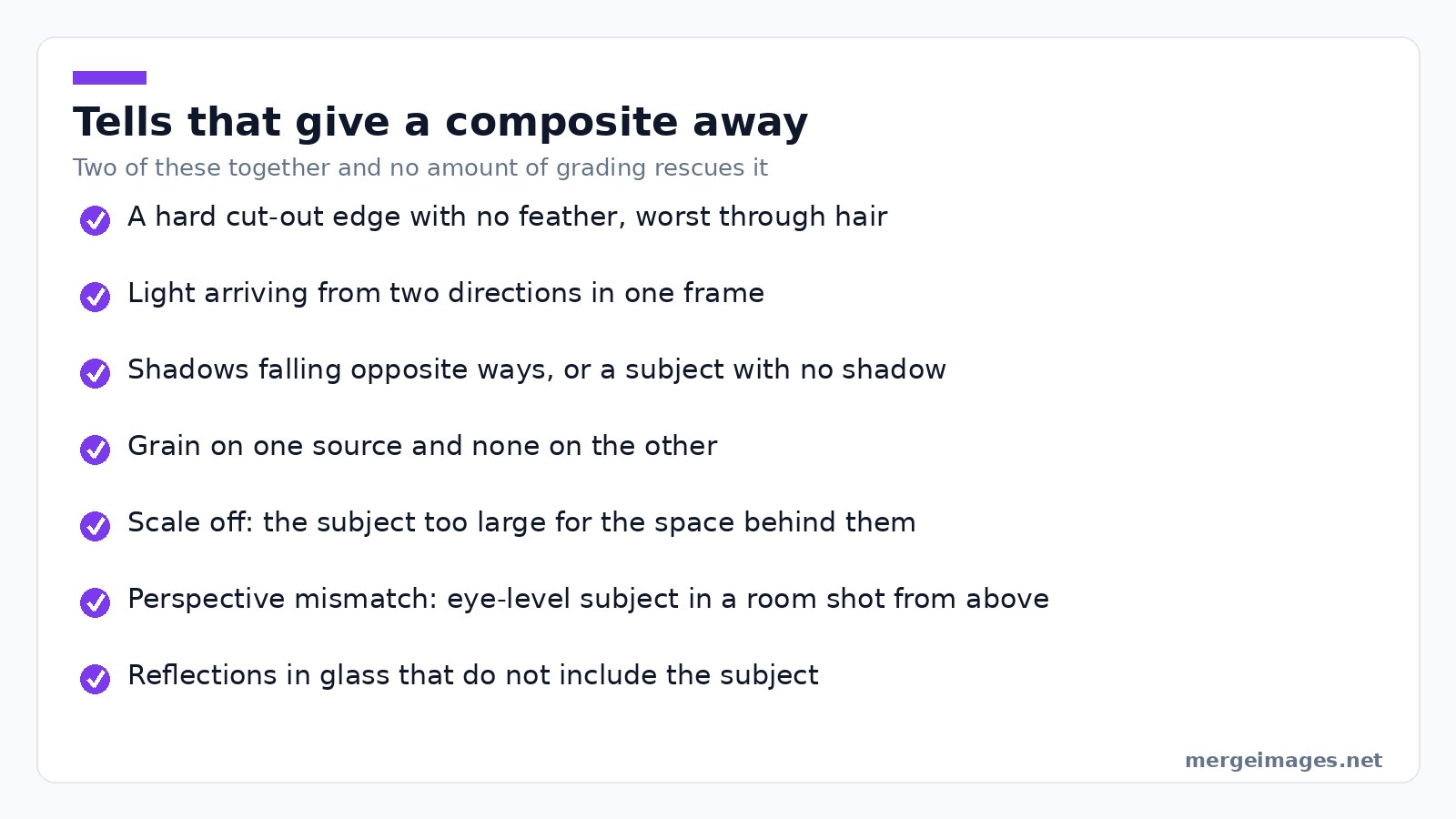
The hero image on this site took about 40 minutes end to end, and roughly half of that was the hairline. The body outline was fine in a couple of minutes. The hair was not: a two-pixel feather that looked generous at 100 percent zoom still read as cut out at full size.
The other tells, roughly in the order they give a composite away:
- Light arriving from two directions in one frame
- Shadows falling opposite ways, or a subject with no shadow in a room where everything else has one
- Scale slightly off, usually a subject too large for the space behind them
- Perspective mismatch, an eye-level subject dropped into a room shot from above
- Reflections that do not include the subject, which is why glass-heavy backgrounds are a bad pick
If two of those are present, no amount of grading rescues it. Choose a different background.
What NOT to Do
Don't combine images of identifiable people without rights
Model releases cover specific uses. Putting someone's face into a brand context they did not agree to, particularly a medical, political or financial one, is a personality rights problem no stock licence solves. Prefer stock where the model is not identifiable, shot from behind or with the face out of frame, when the composite is going anywhere sensitive.
Don't claim composites as photography
If the page says "photographed by us" and the image is two stock files stitched together, that is misrepresentation. "Visual composite" or "stock images, edited" costs nothing and is accurate.
Don't over-blend
Five stock layers, three textures and a heavy grade looks like a trade show banner. One subject, one background, one texture, one grade. When a composite is not working the fix is almost always removing a layer, not adding one.
Step-by-Step: Modern Tech Site Hero Image
- Find a stock photo of a person at a laptop, head down, face not identifiable
- Find a clean modern interior with no people in it
- Extract the person with the background remover
- Compare light direction in both before going further. If they disagree, pick a different interior
- Composite with overlay images, feathering generously through hair
- Grade the flattened image to one palette in image filters
- Match or remove grain across the whole frame
- Crop to hero proportions and export as WebP
The stock cost nothing because both frames came from Pexels. The editing took about 40 minutes, and steps 4 and 5 were the only ones that mattered.
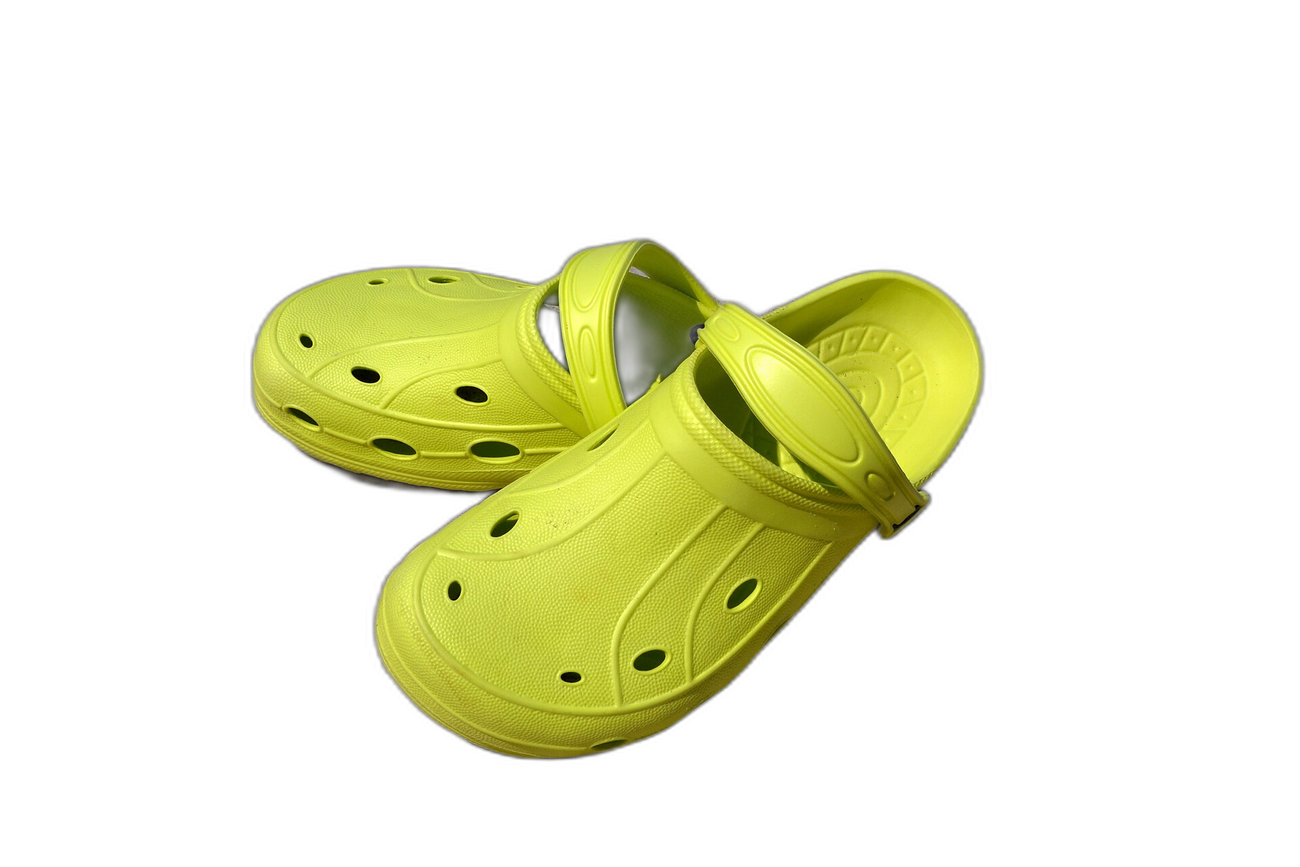
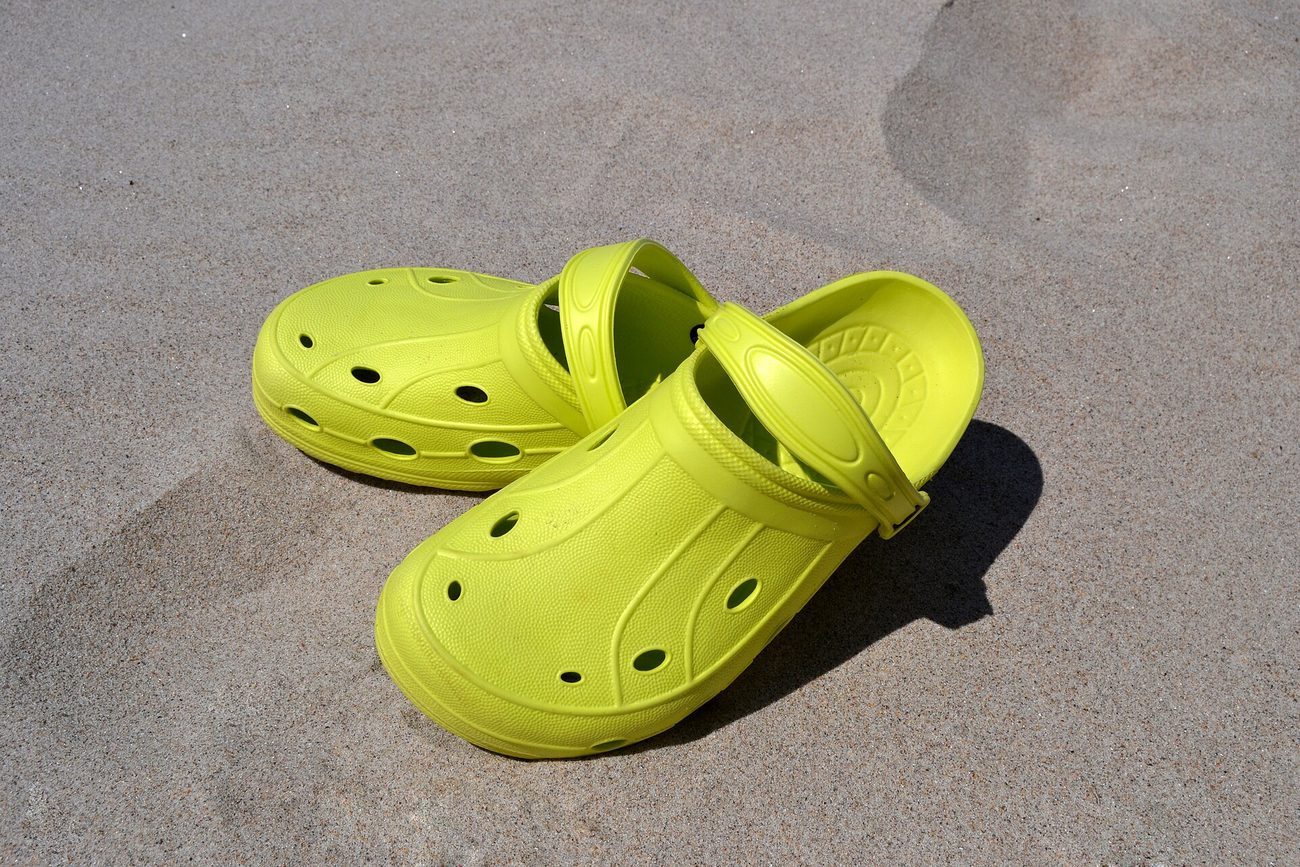
Try it hereOriginalBackground removedDrag the handle. This is the exact cutout you get, full resolution, no login.
Open the background remover
Frequently Asked Questions
Can I use Pexels and Unsplash for commercial work?
Yes, both. Pexels states its photos are free to use, that you can modify them, and that attribution is not required. Unsplash grants commercial and non-commercial use with no permission needed. Neither lets you sell an unaltered copy, and Unsplash bars compiling its library into a competing service.
What about Midjourney or DALL-E generated images?
These carry no stock licence restrictions, but they carry their own questions about commercial rights, and the answer varies by tool and by jurisdiction. Read the terms of the generator you used. Note too that in some jurisdictions purely machine-generated output may not be copyrightable, which affects what you can stop others doing with it rather than what you may do.
Should I worry about visual similarity to other brands using the same stock?
For a hero image, yes. Popular free photos turn up on hundreds of sites, and a visitor who has seen yours elsewhere reads the whole page as generic. Subject extraction is the cheapest way out, because the resulting frame is unique. For an in-article image it matters much less.
How do I find stock photos that aren't already overused?
Skip the first page of results. Search in specific phrases rather than nouns, so "freelance designer working from home morning sunlight" rather than "person at desk". Filter by recent uploads where the library allows it. And take the second-best composition on purpose, because everyone else takes the first.
What about Flickr Creative Commons?
Usable with care, because Creative Commons is a family of licences rather than one. CC0 is unrestricted, CC BY requires attribution, CC BY-SA requires attribution and that derivatives carry the same licence, which is a real complication for a brand composite. Anything with an NC clause is off limits commercially. Check each photo.
Related Reading
- How to Remove Image Backgrounds for Free Online
- Natural Color Grading for Photos: A Beginner's Complete Guide
- Color Theory for Photographers: Editing with Purpose
Bottom Line
Subject from one frame, background from another, one grade over the flattened result, a feather soft enough to survive being looked at. Check the licence first and skip anything marked editorial only. The technique is not difficult. The discipline is refusing to blend two images whose light disagrees, however much you like both.

Bello builds useful software and writes thoughtful content to make sense of it all. He tests the tools himself and checks the facts before any of it goes in a guide.
Probieren Sie Unsere Kostenlosen Bildtools
Bereit es Auszuprobieren?
Setzen Sie diese Tipps mit unserem kostenlosen Online-Bildeditor in die Praxis um. Keine Anmeldung erforderlich.
Design your visuals, free


