
Summarise this article with:
Email signature images work best at 300-400 px wide with source files sized at 2x the display dimensions for Retina sharpness. Keep each image under 50 KB, use JPG for headshots and PNG for logos, host them via HTTPS, and always include alt text. Three image types handle 95% of professional signatures: headshot, logo, and banner.
The Three Image Types and Their Dimensions
Most professional email signatures use one to three images. Each has a different shape, format, and size target.
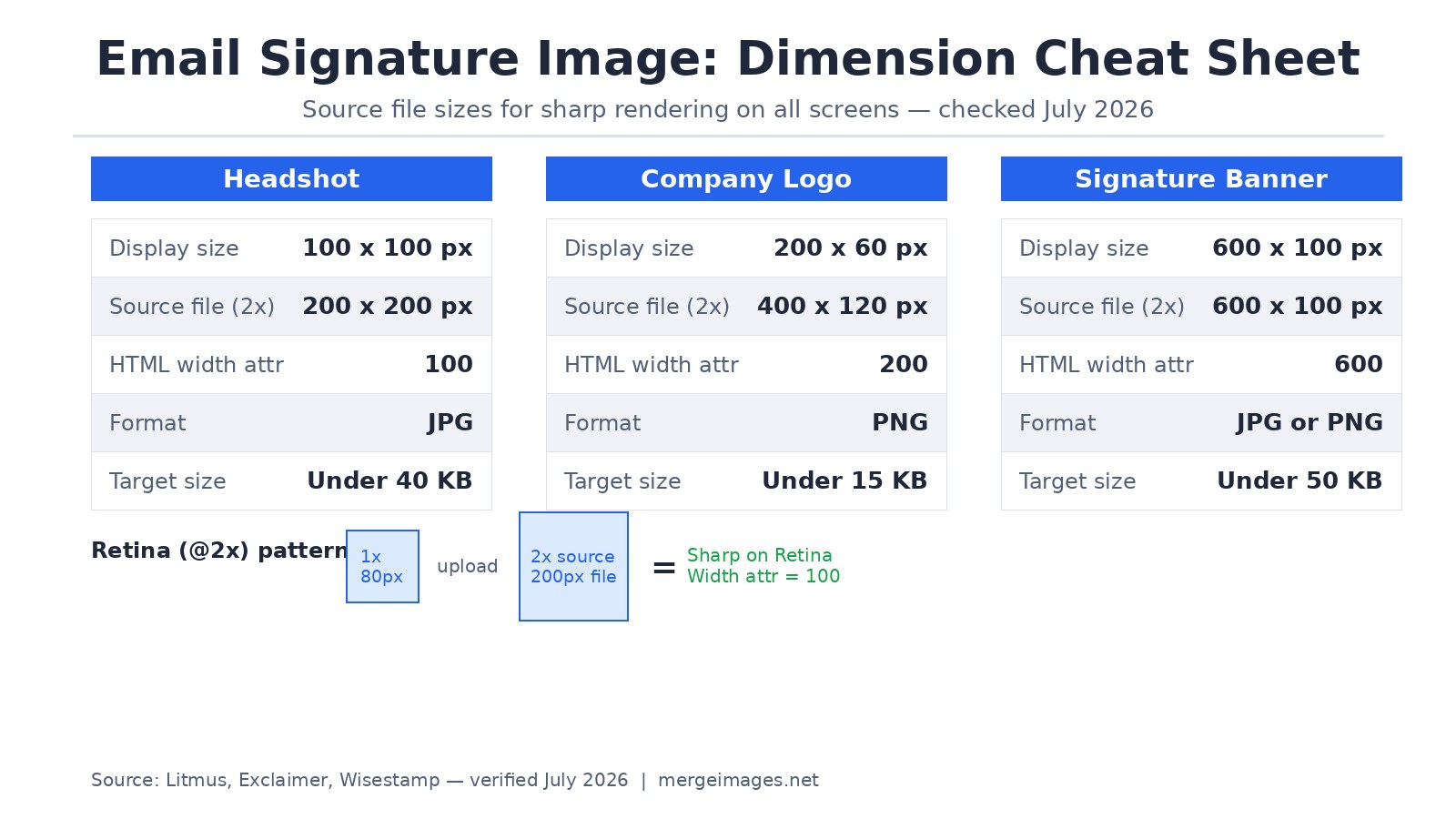
Headshots display small but carry high relationship value in client-facing roles. A good source file for a headshot displayed at 100 px wide is 200x200 px (or 400x400 for Retina sharpness). Use JPG at 80-85 quality. The same photo should appear in your email signature, LinkedIn profile, and company directory.
Logos reinforce brand recognition on every outbound email. Most logos display at 150-200 px wide in a signature. Keep the source file in PNG to preserve transparency and crisp edges. A 200x60 px PNG logo at proper compression stays well under 15 KB.
Signature banners are horizontal strips used for campaigns, events, or certifications. A 600x100 px banner fits the typical email viewport width without pushing the recipient to scroll. Keep banners under 50 KB.
| Image Type | Display Size | Source File (@2x) | Format | Target Size |
|---|---|---|---|---|
| Headshot | 100 x 100 px | 200 x 200 px | JPG | Under 35 KB |
| Company logo | 200 x 60 px | 400 x 120 px | PNG | Under 15 KB |
| Signature banner | 600 x 100 px | 600 x 100 px | JPG or PNG | Under 50 KB |
The @2x Pattern for Retina Sharpness
Standard displays show one pixel per screen pixel. Retina and high-DPI displays use two or more. An image uploaded at exactly 100x100 px will appear soft on a Retina screen because the display scales it up from insufficient source data.
The fix is straightforward: upload a source file at 2x your intended display size, then constrain the rendered size via the HTML width attribute. For a headshot you want displayed at 100 px, upload a 200x200 px file and set width="100" in your signature HTML. The display stays at 100 px on standard screens and resolves sharply on high-DPI screens.
When I exported a 400x400 JPG headshot at quality 85, it landed at 34 KB. The same subject at 200x200 came in at 9 KB. The 2x source is roughly 3-4x heavier, but 34 KB is still well within the recommended per-image budget. The size increase is worth the sharpness gain on modern laptops and phones.
The pattern for your signature HTML:
<img src="headshot.jpg" width="100" height="100" alt="Your Name, Job Title">
Do not set height if it fights your logo's aspect ratio. Width alone is enough for the browser to scale proportionally.
Produce exact pixel dimensions for both your 1x and 2x source files using an image resizer before embedding.
Hosted Images vs. Embedded Images
Hosted images (linked via HTTPS URL) live on a web server and your signature references them by URL. This is the standard choice for almost every professional context. The email stays small, the image can be updated centrally without resending anything, and all HTML-capable clients display it correctly.
Embedded (Base64-encoded) images pack the image data directly into the email's HTML. This sounds convenient but adds about 33% overhead to the encoded size: a 20 KB logo becomes roughly 27 KB of Base64 text inside the email body. Large blocks of encoded text also raise flags with some spam filters, and the email file itself grows by that amount for every recipient.
There is one narrow exception: if your primary audience is a locked-down corporate environment where external image URLs are routinely blocked, embedded images guarantee display. For everyone else, hosted HTTPS images are the right call.
Always use HTTPS URLs, never HTTP. Modern email clients flag mixed-content links, and some will actively suppress the image.
File Size Targets by Email Client
The practical ceiling for a single signature image is 50 KB. For your total set of signature images combined, stay under 150 KB. Beyond that, you risk slow rendering on mobile data connections and increased friction from spam filters.
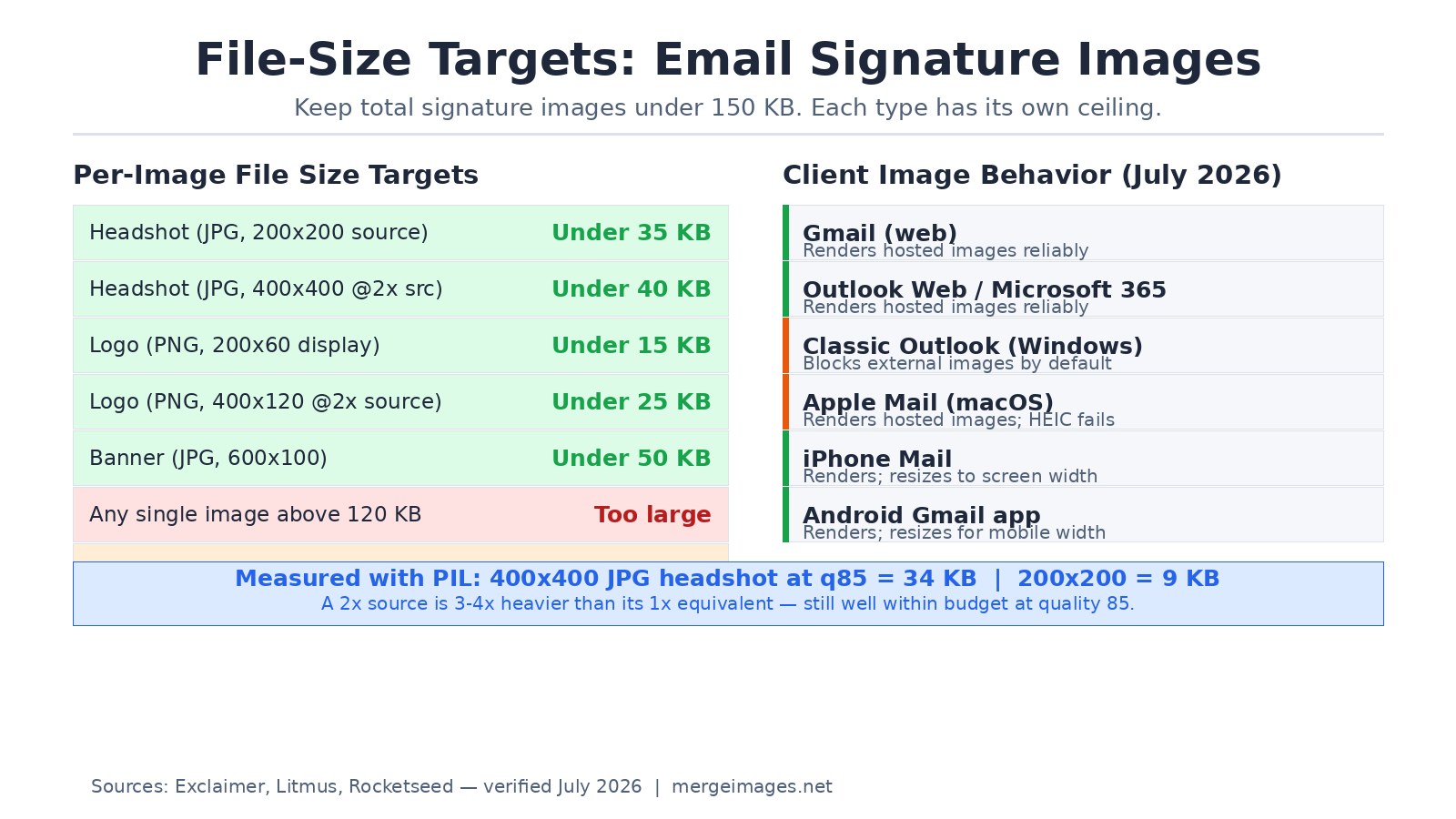
Classic Outlook on Windows blocks external images by default. Recipients see a broken image placeholder until they click "Download Images" or add your address to their safe senders list. This is not a bug you can fix on your end. What you can do is write descriptive alt text so the signature still communicates when images fail. "Jane Smith, Senior Account Manager" as alt text on a headshot does real work when the image does not load.
A Outlook-specific note from July 2026: the May 12 2026 Classic Outlook update introduced an image rendering bug affecting emails, newsletters, and signatures. Microsoft confirmed a fix in the June 9 2026 update cycle. If your team runs Classic Outlook with delayed update channels, this may still be affecting some recipients.
Apple Mail on macOS renders hosted images reliably, but fails on HEIC-format source files. If your headshot came from an iPhone and was never converted, it may not display. Convert it to JPG before embedding. See how to convert HEIC to JPG on iPhone for a straightforward process.
Use the image compressor to bring any image within budget. A headshot at a raw export size is usually 200-500 KB. Compressing to 85% JPEG quality at 200x200 px brings it to under 15 KB with no visible quality difference at signature display sizes.
Format Decisions
JPG is right for headshots and any photo with gradients, skin tones, or complex textures. JPEG compression is optimized for photographic content, and the artifacts it introduces are invisible at small display sizes.
PNG is right for logos and any image with flat color areas, hard edges, or transparency. PNG compression is lossless on flat colors, so a flat-color logo at 200x60 stays under 5 KB while looking perfectly sharp. If your logo appears on a dark-mode background and you need the background to disappear, PNG with transparency handles that; JPEG cannot.
SVG scales perfectly and produces tiny files for vector logos, but email client support is inconsistent, particularly in Outlook. Avoid SVG in email signatures unless you have confirmed support across your recipients' clients.
Animated GIF technically works in most clients: Apple Mail plays the full animation, Outlook shows only the first frame. Animated elements in signatures read as informal and can distract from your message. Use them only where the professional tone clearly supports it.
How to Build a Clean Headshot for Email
A headshot displayed at 80-100 px needs the face to fill most of the frame. A full-body or three-quarter shot at that size becomes unrecognizable. Crop tight around the face and upper shoulders.
Use a plain or neutral background. A busy background at 100 px display size reads as noise, not context. The background remover can replace a cluttered background with a clean solid color if you do not have access to a well-lit space.
Match the professional tone of your industry. Legal, financial, and corporate roles typically call for business formal. Technology, creative, and marketing roles support business casual. The goal is that the headshot does not create friction when a recipient eventually meets you in person or on video.
Cross-Client Testing Before You Deploy
Test your signature in at least these clients before rolling it out:
- Gmail web
- Outlook Classic (Windows) with images blocked, then unblocked
- Microsoft 365 Outlook web
- Apple Mail on macOS
- iPhone Mail
- Android Gmail app
The most common failures are: Outlook blocking the external image URL, images appearing oversized on mobile, and HEIC files failing in Apple Mail. Five minutes of testing against these covers the majority of professional email environments.
Common Mistakes That Are Easy to Miss
Source file too large. A 2 MB headshot uploaded as-is into a signature tool is not appropriate at any display size. Compress it first.
No alt text. When Outlook blocks your image, the alt text is all the recipient sees. Write something useful: your name and title, or the company name for a logo.
Linking the image is optional but underused. A headshot that links to your LinkedIn profile or your company page turns a static element into a low-friction navigation point. Most signature builders support this with a simple link wrapper.
Not updating after a job change. Stale signatures with old titles, old logos, or old headshots create confusion. Treat the signature as part of your professional profile maintenance.
Frequently Asked Questions
What dimensions should my email signature headshot be?
Upload a 200x200 px source file and set the HTML width attribute to 100. This displays the headshot at 100 px on all screens and at full resolution on Retina displays. Keep the JPG file under 35 KB.
Why does my signature image show as a broken icon in Outlook?
Classic Outlook blocks external image URLs by default. Recipients must click "Download Images" or add your address to their safe senders list. You cannot prevent this, but writing descriptive alt text ensures the signature still communicates when the image does not load.
Should I use PNG or JPG for email signature images?
Use JPG for headshots and photographs. Use PNG for logos, especially any logo with transparency or flat color areas. PNG keeps logos sharp at small sizes without introducing JPEG compression artifacts on hard edges.
How do I make my signature image sharp on Retina screens?
Upload a source file at 2x your intended display size, then set the HTML width attribute to the display size. For a 100 px display, upload 200x200 px and set width="100". This is the standard retina technique for HTML email.
Can I use an animated GIF in my email signature?
Most clients support GIF display. Apple Mail plays the full animation; Classic Outlook shows only the first frame. Animated GIFs in signatures typically read as informal. Use them only when the professional context clearly supports it.
Does image file size affect spam scoring?
Large images increase your email payload size, which can raise flags with some spam filters. Keep total signature images under 150 KB. Base64-embedded images add roughly 33% overhead versus hosted equivalents, so hosting via HTTPS is both smaller and safer from a deliverability standpoint.
Signature Image Build Checklist
Before deploying any signature image:
- Headshot: 200x200 px source (or 400x400 for @2x), JPG q80-85, under 35-40 KB
- Logo: PNG with transparent or white background, 200x60 display, under 15 KB
- Banner: JPG or PNG, 600x100, under 50 KB
- All hosted via HTTPS URL (not embedded, not HTTP)
- Alt text set for every image
- HTML
widthattribute set to display size (not source size) - Tested in Outlook Classic with images blocked
- HEIC source photos converted to JPG before use

Bello builds useful software and writes thoughtful content to make sense of it all. He tests the tools himself and checks the facts before any of it goes in a guide.
Try Our Free Image Tools
Ready to Try It?
Put these tips into practice with our free online image merger. No signup required.
Design your visuals, free


