
Summarise this article with:
Discord's 7 image surfaces each have different dimension requirements, and getting them wrong means blurry icons or cropped banners. Upload profile pictures and server icons at 512 x 512 px, server banners at 1920 x 1080 px (minimum 960 x 540), custom emojis at 128 x 128 px under 256 KB, and stickers at 320 x 320 px. All specs verified July 2026.
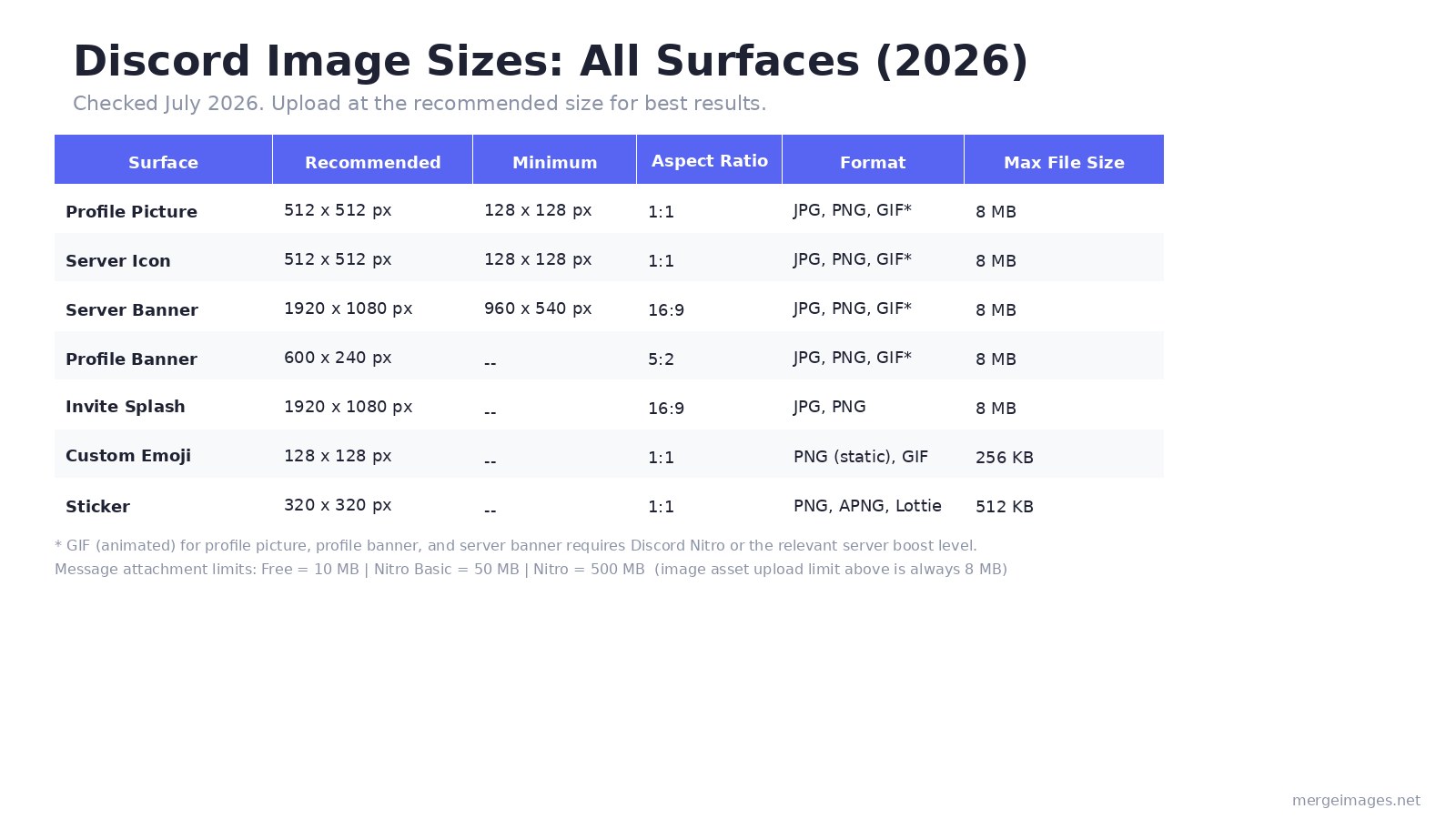
Discord Profile Picture and Server Icon
Both surfaces use the same spec: 512 x 512 px at a 1:1 ratio, max 8 MB. Discord accepts files as small as 128 x 128 px, but anything below 512 x 512 generates visible softness on high-DPI screens. Always start from a high-resolution source.
Both display as circles. Design with all important content centered, nothing in the outer 15% of the frame survives the circular crop. A logo placed near the edge of a square canvas will disappear entirely after Discord applies the mask.
Format choices:
- JPG or PNG for static images (PNG preferred for graphics with sharp edges or transparency)
- GIF for animated versions, requires Discord Nitro for profile pictures
I crop source photos to exact square dimensions before uploading with the image resizer, which lets me set a precise pixel output rather than eyeballing it.
Boost-Level Note on Icons
Server icons support animated GIF at Level 3 (14 boosts). Without the boost, Discord still accepts a GIF but displays only the first static frame.
Discord Server Banner
The recommended size is 1920 x 1080 px (16:9). Discord accepts a minimum of 960 x 540, but 1080p looks noticeably sharper on large monitors. This banner appears at the top of the channel list and requires Level 2 boost (7 boosts).
Animated GIF banners unlock at Level 3 (14 boosts).
The biggest mistake with server banners is forgetting what Discord draws on top: the server name and member count appear over the lower portion, and the server icon sits in the lower-left corner. Any artwork you place in those areas gets covered.
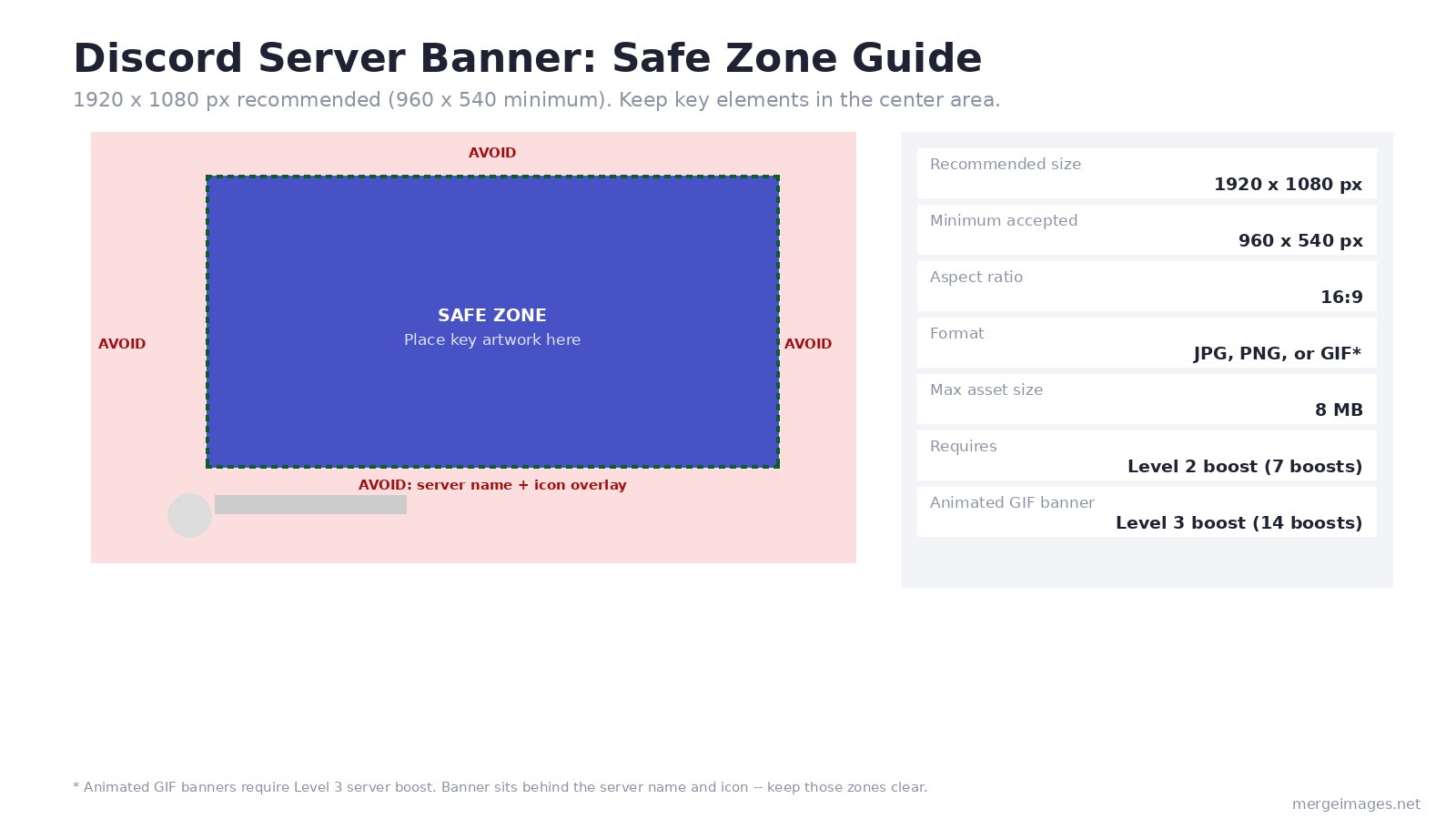
Keep all important design elements in the center 60-75% of the frame. Treat the outer edges as invisible margin. For help matching your banner to the exact dimensions, the image cropper lets you set a precise 16:9 output before you upload.
For detailed design craft on banners and emotes specifically, color treatment, typography choices, layout principles, see the Twitch and Discord banner and emote design guide. This post covers all Discord surfaces; that one covers the design layer.
Discord Profile Banner
Your personal profile banner is 600 x 240 px (5:2 ratio), max 8 MB, and requires Discord Nitro. Without Nitro you cannot set this banner; the field simply does not appear in profile settings.
This banner sits behind your avatar, username, and status badge in your profile card. The lower-left area is partially obscured by your circular profile picture, so avoid placing critical content there. Design your visual weight in the right half of the frame.
GIF profile banners (animated) also require Nitro.
Discord Invite Splash (Background)
The invite splash is 1920 x 1080 px, JPG or PNG only (no GIF), max 8 MB. It unlocks at Level 1 (2 boosts). This background image shows behind the invite modal when someone clicks your server's invite link.
Discord does not animate this surface. Keep the design simple, the invite card itself overlays the center of the image, so a clean, atmospheric background works better than anything detail-heavy.
Discord Emojis and Stickers
Custom Emojis
Upload custom emojis at 128 x 128 px. The file size limit is 256 KB for both static PNG and animated GIF. Discord accepts uploads up to 256 x 256 px and scales them down, but 128 x 128 is the exact render target so there is no advantage to uploading larger.
To put that limit in perspective: a simple 128 x 128 PNG with a transparent background and bold artwork (measured in Python with PIL, July 2026) comes in at around 1-2 KB. Even detailed emoji designs comfortably stay under 256 KB; the limit only becomes relevant with animated GIFs that have many frames.
Discord renders emojis at 22 x 22 px in chat. Anything that looks good at that size needs to be simple: a face, an object, a symbol. Intricate linework and text are invisible at chat render size.
Every server starts with 50 static and 50 animated emoji slots. Boosts raise those limits:
- Level 1 (2 boosts): 100 total slots per type
- Level 2 (7 boosts): 150 total slots per type
- Level 3 (14 boosts): 250 total slots per type
Stickers
Stickers are 320 x 320 px, max 512 KB. Accepted formats: PNG (static), APNG (animated PNG), or Lottie (vector animation). Stickers are larger than emojis both in file dimensions and in how they render in chat, which means you have more room for detail.
Discord Image Sizes Reference
| Surface | Recommended | Minimum | Format | Max Size |
|---|---|---|---|---|
| Profile picture | 512 x 512 px | 128 x 128 px | JPG, PNG, GIF* | 8 MB |
| Server icon | 512 x 512 px | 128 x 128 px | JPG, PNG, GIF* | 8 MB |
| Server banner | 1920 x 1080 px | 960 x 540 px | JPG, PNG, GIF* | 8 MB |
| Profile banner | 600 x 240 px | , | JPG, PNG, GIF* | 8 MB |
| Invite splash | 1920 x 1080 px | , | JPG, PNG | 8 MB |
| Custom emoji | 128 x 128 px | , | PNG, GIF | 256 KB |
| Sticker | 320 x 320 px | , | PNG, APNG, Lottie | 512 KB |
*Animated GIF profile pictures and profile banners require Discord Nitro. Animated server banners require Level 3 boost.
File attachment limits are separate from image asset limits. Profile pictures, icons, banners, and emojis are always capped at 8 MB regardless of account type. Message file attachments use a different system: free accounts = 10 MB, Nitro Basic = 50 MB, Nitro = 500 MB. Discord lowered the free attachment cap from 25 MB to 10 MB in late 2024, so older guides stating 25 MB are outdated.
Common Discord Image Mistakes
Uploading profile pictures below 512 x 512 px. Discord accepts smaller images without warning, but the result looks blurry on Retina and high-DPI screens. A 128 x 128 source looks acceptable on a standard monitor and noticeably soft on anything better.
Using JPG for emojis. JPG does not support transparency. An emoji with a JPG background renders with a white or black box visible around the image in chat. PNG is the required format for any emoji that needs a transparent background, which is almost every emoji.
Designing server banners without accounting for the overlay. Discord draws the server name and member count on top of your banner image. If your artwork has text, a logo, or a focal point in the lower portion of the frame, Discord's UI will cover it. Leave the bottom 20% visually neutral.
Confusing the 256 KB emoji limit with sticker limits. The 512 KB figure applies to stickers, not emojis. Animated emojis (GIF) are capped at 256 KB, the same as static PNG emojis.
Nitro Image Perks Worth Knowing
Discord Nitro unlocks several image capabilities that the free tier does not include:
- Animated profile picture (GIF)
- Animated profile banner (GIF)
- Higher message attachment limit (500 MB per file vs 10 MB free)
- Custom emoji usage from any server you belong to
These are personal account perks. Server-level image features (banners, splash backgrounds, animated server icons) unlock through server boosts, not individual Nitro status, though Nitro subscribers receive two monthly boosts they can apply to any server.
For sizing across every major platform in one place, the image sizes for every social media platform guide covers Discord alongside Instagram, Twitter, LinkedIn, TikTok, and more.
Frequently Asked Questions
What is the correct size for a Discord server icon?
512 x 512 px is the recommended size for a Discord server icon. Discord accepts images as small as 128 x 128 px, but higher resolution ensures sharp rendering on Retina displays. The icon always displays as a circle, so center your design and avoid placing anything important near the edges.
Does Discord server banner require a minimum boost level?
Yes. The server banner unlocks at Level 2 boost, which requires 7 boosts. Animated GIF banners require Level 3 (14 boosts). Discord Partner servers can access banners without boost requirements.
What file format should Discord custom emojis use?
Use PNG for static emojis and GIF for animated emojis. Both formats support transparent backgrounds, which is essential for emojis to look correct against Discord's various colored chat backgrounds. JPG does not support transparency and will produce a visible background box.
Why does my Discord server banner look blurry?
The source image is below the recommended 1920 x 1080 px. If you uploaded at the minimum 960 x 540, the banner looks soft on larger monitors because Discord upscales it. Always upload at 1920 x 1080 for best results.
What is the Discord emoji file size limit in 2026?
256 KB, for both static PNG and animated GIF emojis. Stickers have a higher limit of 512 KB. The 256 KB cap is generous for static emojis but can require optimization for animated GIFs with many frames, reduce frames or shorten the loop to fit.
How do I crop an image to the exact size Discord needs?
Open an image cropper tool, set precise output dimensions (for example, 512 x 512 for icons or 1920 x 1080 for banners), and crop to exactly the right ratio before downloading. This is faster than guessing the dimensions in a general photo editor.

Bello builds useful software and writes thoughtful content to make sense of it all. He tests the tools himself and checks the facts before any of it goes in a guide.
Experimente Nossas Ferramentas de Imagem Gratuitas
Pronto para Experimentar?
Coloque essas dicas em prática com nosso editor de imagens online gratuito. Sem cadastro.
Make your social images, free


