
Summarise this article with:
Instagram and Facebook both recommend 1440 x 1800 pixels at 4:5 for a feed image, Pinterest wants 1000 x 1500 at 2:3, and YouTube now asks for a 3840 x 2160 thumbnail. Every number below was re-checked against the platform's own help centre in July 2026, and three of the sizes still quoted everywhere turned out to be stale.
Why Image Optimization is Non-Negotiable
An image that is too small arrives pixelated. One built at the wrong ratio gets cropped by the platform, and the platform crops from the edges, which is where the faces and the logo usually sit. Neither problem is visible while you are uploading. Both are visible to everyone else.
Three practical reasons to get this right, none of them mystical algorithm behaviour:
- Legibility. A 4:5 portrait image occupies more vertical space in a phone feed than a square one, so it is simply on screen longer.
- Control. If you crop to the target ratio yourself, you decide what gets cut. If you do not, the platform decides.
- Weight. Every platform has a hard file-size ceiling, and hitting it means a failed upload or a re-encode you did not ask for.
General Best Practices for All Platforms
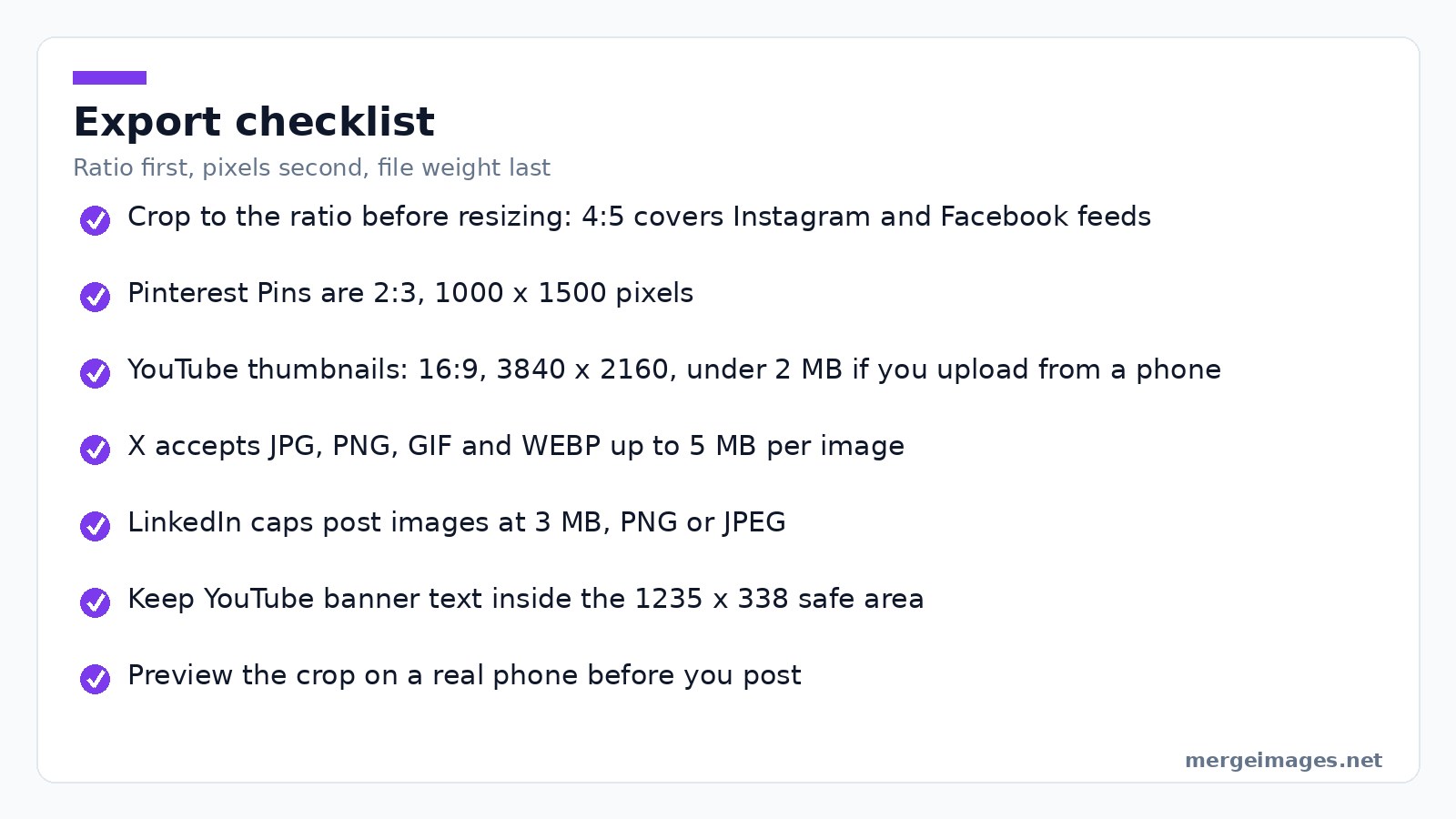
Get the ratio right before you worry about pixels. An aspect ratio (4:5, 16:9, 9:16, 2:3) is the proportional relationship between width and height, and it is what platforms enforce. Pixel counts are recommendations that move; ratios almost never do. Crop to the ratio in the image cropper first, then scale to the recommended width in the image resizer.

Photo: Miesha Renae Maiden via Pexels
Start from the largest original you have. Downsizing a sharp file looks lossless; enlarging a small one does not. An upscaler can only guess at detail that was never captured.
On formats the durable advice is short. JPEG for photographs, PNG for flat graphics, logos and anything with hard edges or transparency. LinkedIn is unusually direct and tells you to prefer a high-resolution JPEG so the image survives resizing, while Pinterest asks for PNG in sRGB because it re-encodes everything to 8-bit RGB JPEG anyway.
Then check the weight. If a file sits near a platform ceiling, run it through the image compressor rather than letting the platform re-encode it, because then you choose the quality trade-off instead of inheriting one.
Last, mind the safe zones. Banners and covers crop differently on phones, tablets and TVs, so keep text and logos in the middle. YouTube publishes an exact number for this that almost nobody uses.
Platform-Specific Social Media Image Size Guides
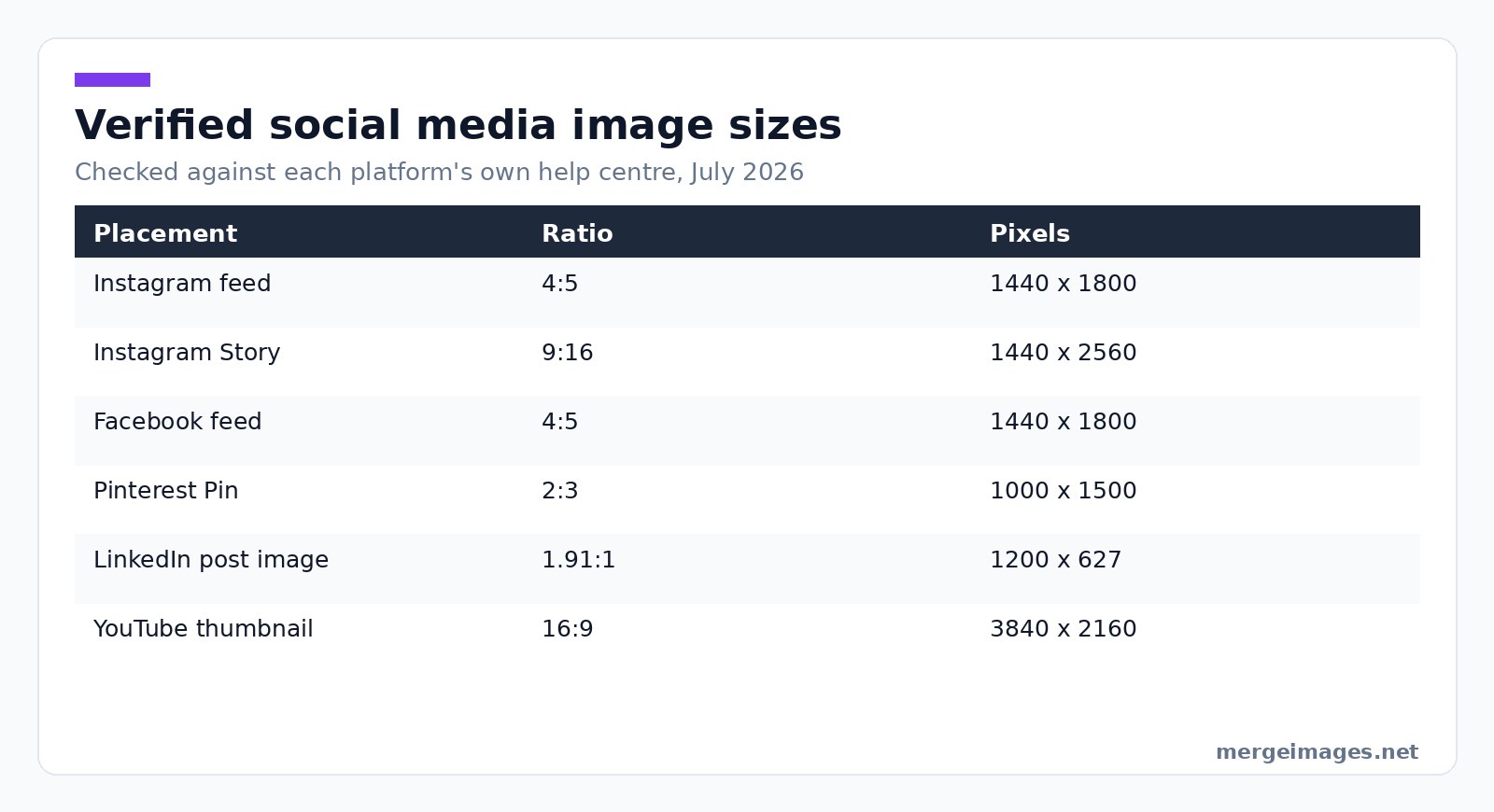
Here is the whole verified set in one place. Each row comes from the platform's own documentation, checked in July 2026.
| Placement | Aspect ratio | Recommended pixels | Stated limit |
|---|---|---|---|
| Instagram feed | 4:5 | 1440 x 1800 | Minimum width 500 px |
| Instagram Story | 9:16 | 1440 x 2560 | 30 MB |
| Facebook feed | 4:5 | 1440 x 1800 | Minimum 600 x 750 px |
| X post image | flexible | no published figure | 5 MB, 15 MB for GIF |
| LinkedIn post image | 1.91:1 | 1200 x 627 | 3 MB |
| Pinterest Pin | 2:3 | 1000 x 1500 | 20 MB desktop |
| YouTube thumbnail | 16:9 | 3840 x 2160 | 2 MB mobile, 50 MB desktop |
| YouTube banner | 16:9 | 2560 x 1440 | 6 MB |
Meta's placement guide gives the Instagram feed as 4:5 at 1440 x 1800 pixels, JPG or PNG, minimum width 500 pixels. Stories are 9:16 at 1440 x 2560, same formats, up to 30 MB. Note what is missing: Instagram's own help pages publish no organic-post pixel table at all, so 4:5 and 9:16 are the facts to lean on and the pixel counts are a recommendation, not a rule.
Meta's ads guide puts a Facebook feed image at 4:5, 1440 x 1800 pixels, JPG or PNG, with a floor of 600 x 750 and a 3 percent tolerance on the ratio. So one 4:5 export covers both Facebook and Instagram feeds, which is the biggest time saver here.
X
X publishes formats and weight rather than dimensions. Its media documentation lists JPG, PNG, GIF and WEBP as supported, an image ceiling of 5 MB, and 15 MB for an animated GIF. There is no official recommended pixel size, so anything quoting one is quoting a blog, not X.
LinkedIn's image specs page is the most detailed of the lot. Company logo: 268 x 268 minimum, 400 x 400 recommended. Company cover: 4200 x 700. Post images: 1.91:1, or 1200 x 627, minimum width above 200 pixels. All PNG or JPEG, capped at 3 MB.
Pinterest asks for a 2:3 Pin, stated as 1000 x 1500 pixels, PNG or JPEG, up to 20 MB on desktop and 32 MB in the app. This is the one place where taller-than-wide is the default rather than a stylistic choice, so a square export wastes half the space you get.
YouTube
Two numbers matter here and both moved. YouTube's thumbnail guidance now recommends 3840 x 2160 pixels at 16:9, minimum width 640, in JPG, GIF or PNG. The weight ceiling depends on where you upload from: 2 MB from a phone, 50 MB from a desktop. For the banner, YouTube's branding page sets a minimum of 2048 x 1152 at 16:9, recommends 2560 x 1440 so it fills a TV, caps the file at 6 MB, and gives the safe area for text and logos as 1235 x 338 pixels.
The Three Numbers Everyone Still Gets Wrong
Re-checking this took an afternoon, and three figures that appear in almost every sizes guide online no longer match the source.
The YouTube thumbnail is the loudest. 1280 x 720 is quoted everywhere; YouTube's own page now says 3840 x 2160, minimum width 640. A 1280 x 720 file still uploads and still works, so nothing breaks, but you are handing the encoder less than it asks for.
The YouTube banner safe area is 1235 x 338 pixels, not 1546 x 423, a gap big enough to push a logo off the edge on a phone.
LinkedIn is the one that cost me something. I built a company cover at 1128 x 191, the figure I had written down, uploaded it, and watched it render soft and cropped. The spec page asks for 4200 x 700. I now keep four export presets, 1440 x 1800, 1440 x 2560, 1000 x 1500 and 3840 x 2160, and about nine posts in ten come out of one of them.
Actionable Tips to Elevate Your Social Media Visuals
Work from one master file per post. Export the 4:5 for Instagram and Facebook, the 9:16 for Stories, the 2:3 for Pinterest, and crop each one deliberately in the image cropper instead of letting an auto-crop find the centre of the frame.
When one photo cannot carry the message, build the composition yourself rather than leaning on the platform's multi-image layout. The photo collage maker gives you a single file at whatever ratio you need, so the crop is decided before the upload.
Preview on a phone. Not a phone-sized browser window, an actual phone. Feed images are cropped by the client, and the desktop preview is not what your audience sees.
And accept that some of this is unknowable. TikTok was in an earlier version of this guide and is out of this one, because I could not reach a first-party TikTok page publishing image dimensions. Quoting an SEO blog and calling it official is how 1280 x 720 survived for years after it stopped being right.
Try it hereOpen the image resizerResize to exact dimensionsBatch-resize to any pixel size before you upload.
Frequently Asked Questions
Is 1280 x 720 still the correct YouTube thumbnail size?
No. YouTube's help page now recommends 3840 x 2160 pixels at 16:9, minimum width 640, in JPG, GIF or PNG. A 1280 x 720 image is still accepted and still displays, so old thumbnails are not broken, but export new ones larger. Watch the weight too: 2 MB is the ceiling when you upload from a phone.
Can I use one image size for every platform?
Not without giving something up. Instagram and Facebook share 4:5 at 1440 x 1800, so those two are genuinely one export. The rest diverge: Pinterest is 2:3, Stories 9:16, YouTube 16:9, LinkedIn posts 1.91:1. Three exports from one master file covers most of it, and cropping to each ratio yourself is what keeps faces in frame.
Which file size limits actually matter?
The ones you will actually hit are LinkedIn at 3 MB per image and YouTube at 2 MB for a thumbnail uploaded from a phone. X allows 5 MB per image and 15 MB for an animated GIF, Pinterest 20 MB on desktop, Instagram Stories 30 MB, so those rarely bite. Compress before you upload, not after.
Should I upload PNG or JPEG?
Photographs go out as JPEG, flat graphics and logos as PNG. The platforms disagree at the margins: LinkedIn tells you to prefer a high-resolution JPEG over a PNG so it survives resizing, while Pinterest asks for PNG in sRGB even though it converts everything to 8-bit RGB JPEG anyway. Both accept either, so it is a preference, not a gate.
How do I stop a platform cropping the important part out?
Crop to the destination ratio before you upload. A platform crops from the edges of whatever you give it, so an image already at 4:5 has nothing left to lose. For banners and covers keep text and logos central: YouTube publishes the exact safe area, 1235 x 338 pixels, and the same instinct works elsewhere.
Ready to Optimize Your Social Media Presence?
Underneath the sprawl this is a short list of ratios and a shorter list of file-size ceilings, worth twenty minutes to set up as presets once. Ratio first, pixels second, weight last. Keep the master file, and re-check numbers against the source rather than against another guide, because the guides copy each other and the platforms quietly move on.

Bello builds useful software and writes thoughtful content to make sense of it all. He tests the tools himself and checks the facts before any of it goes in a guide.
Probieren Sie Unsere Kostenlosen Bildtools
Bereit es Auszuprobieren?
Setzen Sie diese Tipps mit unserem kostenlosen Online-Bildeditor in die Praxis um. Keine Anmeldung erforderlich.
Bilder Jetzt Zusammenfügen


