
Summarise this article with:
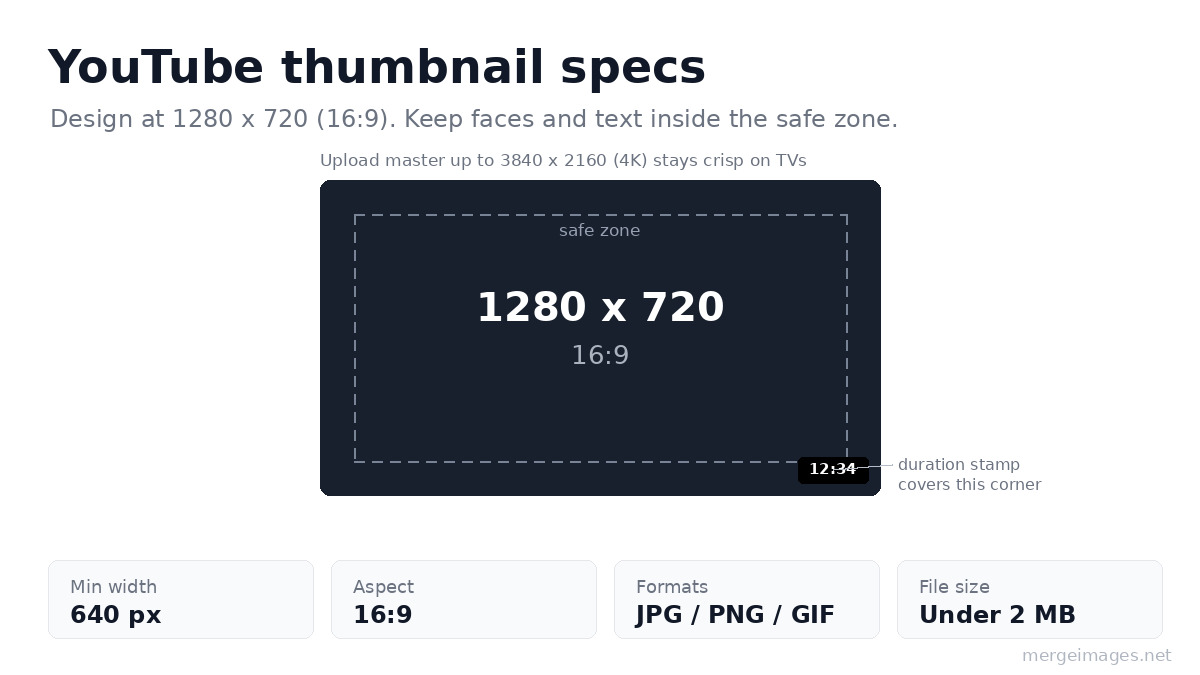
A YouTube thumbnail is a 16:9 image; YouTube's help page recommends 3840 x 2160 pixels, a minimum width of 640, and under 2 MB when you upload from a phone. Merging two photos into that single frame, a split screen or a before and after, gives the viewer a question to resolve instead of one static picture.
Split-screen comparisons, reaction shots next to the subject, and before/after reveals create visual tension that makes a viewer stop scrolling. A single photo shows one thing. A merged thumbnail poses a question, and the click is the answer.
This guide covers the exact specs YouTube wants, the four merge layouts that pull the most clicks, and the step-by-step way to build one without opening Photoshop.
YouTube Thumbnail Specs
Get the frame right first. Off-ratio images get letterboxed or auto-cropped in ways that look amateur and bury your subject.
| Requirement | Value |
|---|---|
| Recommended resolution | 3840 x 2160 px |
| Aspect ratio | 16:9 |
| Minimum width | 640 px |
| Common build size | 1280 x 720 px |
| Format | JPG, PNG, GIF |
| File size, mobile upload | 2 MB |
| File size, desktop upload | 50 MB |
Those come straight from YouTube's help page on custom thumbnails. Two details the bare table misses:
- The duration stamp covers the bottom-right corner. YouTube prints the video length over that corner on the watch feed and search, so never put your key face or text there. Keep the important stuff in the center and upper two-thirds.
- A vertical video will not keep your 16:9 thumbnail everywhere. YouTube's own note is that vertical videos with 16:9 custom thumbnails get replaced by an auto-generated 4:5 thumbnail on the home, explore and subscription pages, while your custom thumbnail still appears on the watch feed, in watch history and on non-mobile platforms.
The file-size ceiling depends on the device you upload from, not on where the thumbnail is seen: 2 MB from mobile, 50 MB from desktop. So 1280 x 720 kept under 2 MB is still the safe build if you post from your phone, and there is no reason not to export the full 3840 x 2160 when you are uploading from a computer and the source is sharp enough to be worth it.
High-CTR Thumbnail Layouts
These four layouts do the heavy lifting. Each one is a single 16:9 frame holding two or more merged images.
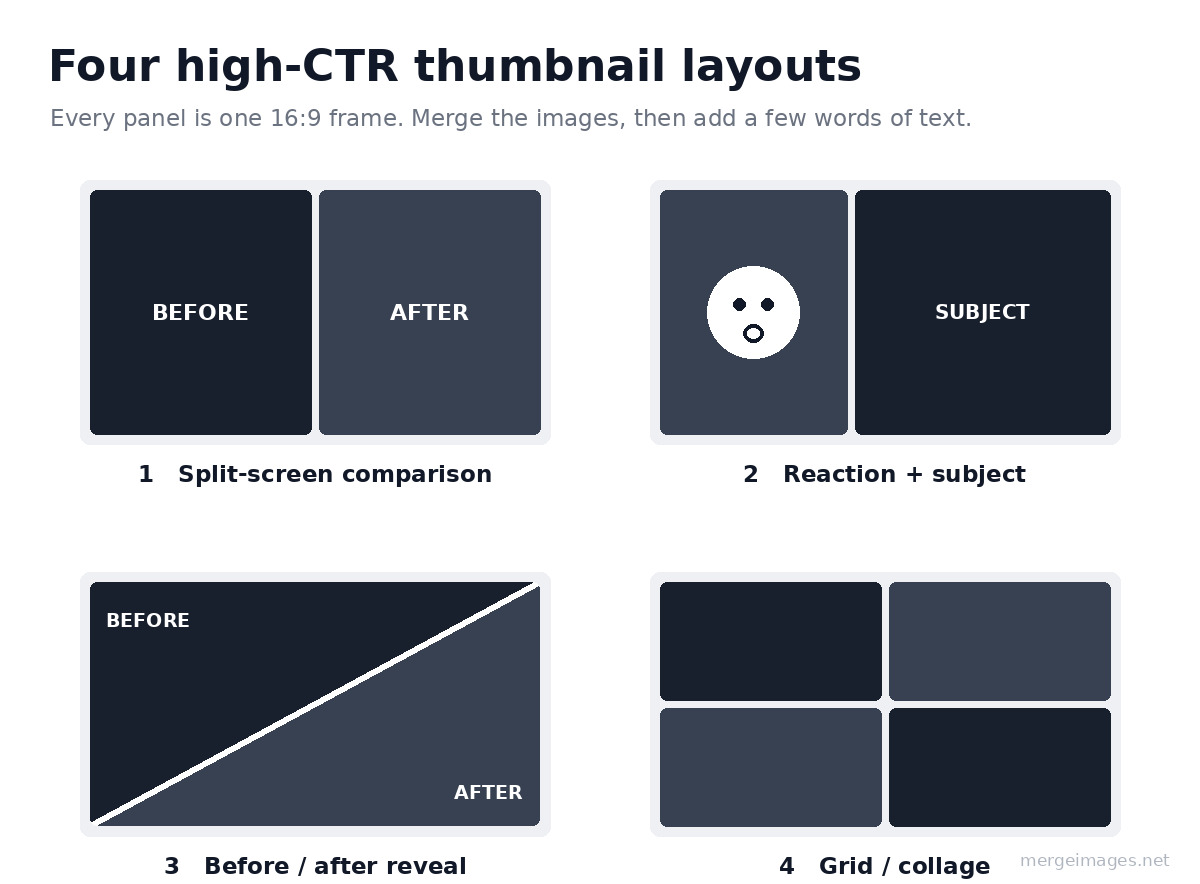
1. Split-Screen Comparison
Two images side by side: before/after, old vs new, cheap vs expensive. This layout works for:
- Product reviews and comparisons
- Transformation videos (fitness, home renovation)
- Tech comparisons (iPhone vs Android)
How to build it: Upload both images to the Image Merger, choose "Horizontal", and set spacing to 3 to 5 px with a white or black separator so the two sides read as two distinct things.
2. Reaction + Subject
Your face reacting on one side, the subject on the other. The expression carries the curiosity; the subject tells viewers what they will see. This layout works for:
- Reaction videos
- Commentary channels
- Review content
How to build it: Remove the background from your reaction photo so your head sits cleanly on the frame, then merge it with the subject image. A clean cutout always beats a rectangular photo-in-photo box.
3. Before/After Reveal
One image flowing into another, usually with a diagonal split or an arrow pointing from old to new. The diagonal reads as motion, which is why renovation and glow-up channels lean on it.
How to build it: Merge two images side by side, then drop a diagonal divider or an arrow on top in any basic editor. A bright divider line sells the "two states" idea instantly.
4. Grid / Collage
Four to six images in a grid showing variety, a tier list, or a progression. Works for:
- "Top 10" and ranking videos
- Collection and haul showcases
- Travel and recap compilations
How to build it: Use the Photo Collage Maker with a 2x2 or 3x2 grid. Keep the gutters thin and uniform so the grid looks deliberate rather than busy.
Step-by-Step: Build a Split-Screen Thumbnail
Here is the whole flow for the most reliable layout, start to finish.
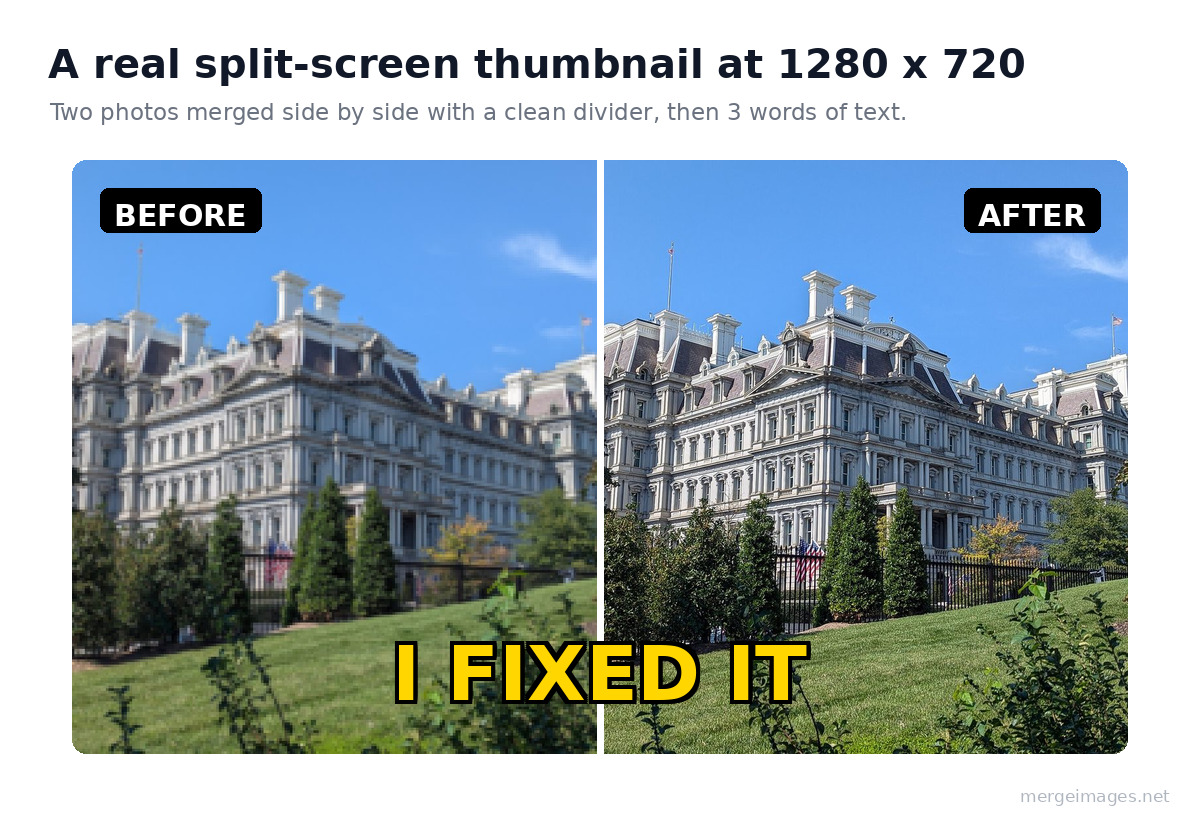
- Prepare both images. Crop them to the same height so the two halves line up. Square-ish crops sit better in a split than tall portrait shots.
- Upload to the Image Merger. Drop both files in.
- Choose "Horizontal". This stacks them left and right for a true split-screen.
- Set spacing to 3 to 5 px. A thin white or black divider keeps the two sides from blurring into one image.
- Export as PNG at maximum quality. PNG keeps edges crisp before YouTube re-compresses the file.
- Resize to 1280 x 720. Use the Image Resizer to hit the exact frame if your merged file came out a different size.
Add three words of text and one bright accent color, and you have a thumbnail that reads in under a second on a phone.
Platform-Specific Merge Tools
Building for more than one platform? Each of these is pre-set to the right aspect ratio:
Resolution Tips
- Always work at 1280 x 720 or larger. Scaling up from a small file gives you soft, blocky text.
- If your source images are low resolution, upscale them with AI first, then merge. A sharp small photo beats a stretched large one.
- YouTube compresses thumbnails hard, so start from the highest quality you can and export PNG before the final save.
- If you upload from your phone the cap is 2 MB, so run the file through the Image Compressor to get under it without a visible quality drop.
What Makes a Thumbnail Click-Worthy
The frame and the merge get you in the game. These four habits win the click:
Photo: MENG MEDIA via Pexels
- High contrast. Bright colors against dark backgrounds, or a lit subject against a darkened scene. Contrast is what survives a tiny mobile preview.
- Readable text. If you add words, keep it to 3 to 5, set large, with a contrasting outline. Most views happen on phones where the thumbnail is barely a thumbnail.
- Emotional faces. A surprised, delighted, or shocked expression pulls the eye and hints at a payoff. This is why the reaction + subject layout works so well.
- Visual tension. Two contrasting things in one frame, before vs after, this vs that, makes the viewer want to resolve the gap by clicking.
- A centered subject. Remember the duration stamp and the mobile crop. Anything you put in the corners can get covered or cut.
Frequently Asked Questions
What size should a YouTube thumbnail be?
YouTube's help page recommends a resolution of 3840 x 2160 pixels with a minimum width of 640, in a 16:9 aspect ratio. In practice 1280 x 720 is the size most creators build at, because it is 16:9, comfortably above the minimum, and easy to keep small. Either one is fine. What matters is that the frame is 16:9.
What is the maximum file size for a YouTube thumbnail?
It depends on the device you upload from. YouTube lists 2 MB for video thumbnails uploaded on mobile and 50 MB on desktop, with a separate 10 MB mobile allowance for podcast thumbnails. If you build on a phone, treat 2 MB as the ceiling and compress before uploading. From a computer you have far more room than a merged JPEG will ever need.
Can I use a custom thumbnail on a Short?
No. YouTube states that you cannot upload a custom thumbnail for Shorts the way you can for long-form videos. You can select a frame from the Short itself to act as the thumbnail in search results, on hashtag and audio pivot pages, and on your channel page, but once the video is uploaded that choice cannot be changed.
Why is YouTube showing a different image instead of my thumbnail?
Usually because the video is vertical. YouTube replaces a 16:9 custom thumbnail on a vertical video with an auto-generated 4:5 image on the home, explore and subscription pages, while your thumbnail still appears on the watch feed, in watch history and on non-mobile platforms. The other common cause is the daily custom-thumbnail upload limit, which frees up again after 24 hours.
Do I need Photoshop to merge two photos into a thumbnail?
No. A split-screen thumbnail is two cropped images placed side by side in a 16:9 frame, which any merge tool will do. The steps that actually decide the result are cropping both sources to the same height with the image cropper, putting a thin divider between them so the two sides read as two things, and exporting at 16:9.
Conclusion
The most clicked thumbnails on YouTube use merged images to tell a story in one frame: a split that begs a comparison, a reaction that promises a payoff, a before and after that shows the transformation. Build them free with the Image Merger and the Photo Collage Maker, size to 1280 x 720, and keep your subject centered and high-contrast. No Photoshop, no subscription, done in a couple of minutes.

Bello builds useful software and writes thoughtful content to make sense of it all. He tests the tools himself and checks the facts before any of it goes in a guide.
Probieren Sie Unsere Kostenlosen Bildtools
Bereit es Auszuprobieren?
Setzen Sie diese Tipps mit unserem kostenlosen Online-Bildeditor in die Praxis um. Keine Anmeldung erforderlich.
Bilder Jetzt Zusammenfügen


