
Summarise this article with:
The quickest way to merge photos on an iPhone is by using Safari to visit MergeImages.net. This free web tool combines 2 to 10 images with a single tap, keeping all files local on your device and completing the merge in seconds.
You can merge photos on iPhone instantly using Safari tools or a custom Shortcuts workflow. Both methods keep your images local. The fastest route is the free MergeImages.net site, which handles 2 to 10 pictures in a single tap.
Photo: Philbert Pembani via Pexels
Open Safari. Navigate to mergeimages.net and tap Choose Images. The picker lets you scroll through your Camera Roll and select the pictures you need. Because the Select Multiple option is enabled by default, you can grab a whole burst in one go. After confirming, pick the layout. For side-by-side merges use the /horizontal-image-merge tool. For top-to-bottom stacks choose /vertical-image-merge. If you want a grid collage, the /photo-collage-maker gives you templates ranging from 2×2 to 4×4.
The interface shows a live preview. Tweak spacing and background colour before committing. I tried a 10-pixel gap on a set of travel shots. The result looked clean and the gap was exactly what I expected. When you are satisfied, hit Merge and the combined file appears in the preview pane. Tap Save and the image lands in your Camera Roll, ready to share.
Processing happens in the browser. Nothing ever leaves your device. This satisfies privacy-concerned users and works even without a data connection after the page has loaded. For even quicker access, use Safari's Add to Home Screen option. The shortcut icon behaves like a native app, opening the merge page with a single tap.
Touch-Optimized Safari Benefits
The UI elements are touch optimized. Sliders respond to a fingertip. You face no app-store permissions to manage. You stay in control of your photo library. The site automatically adapts to portrait or landscape orientation, matching the way you hold the phone.
Build a Reusable Shortcuts Merge (Offline Power)
Apple's Shortcuts app lets you create a custom action chain that lives on the device. Once built, the shortcut runs without internet, making it ideal for on-the-go editing or batch jobs.
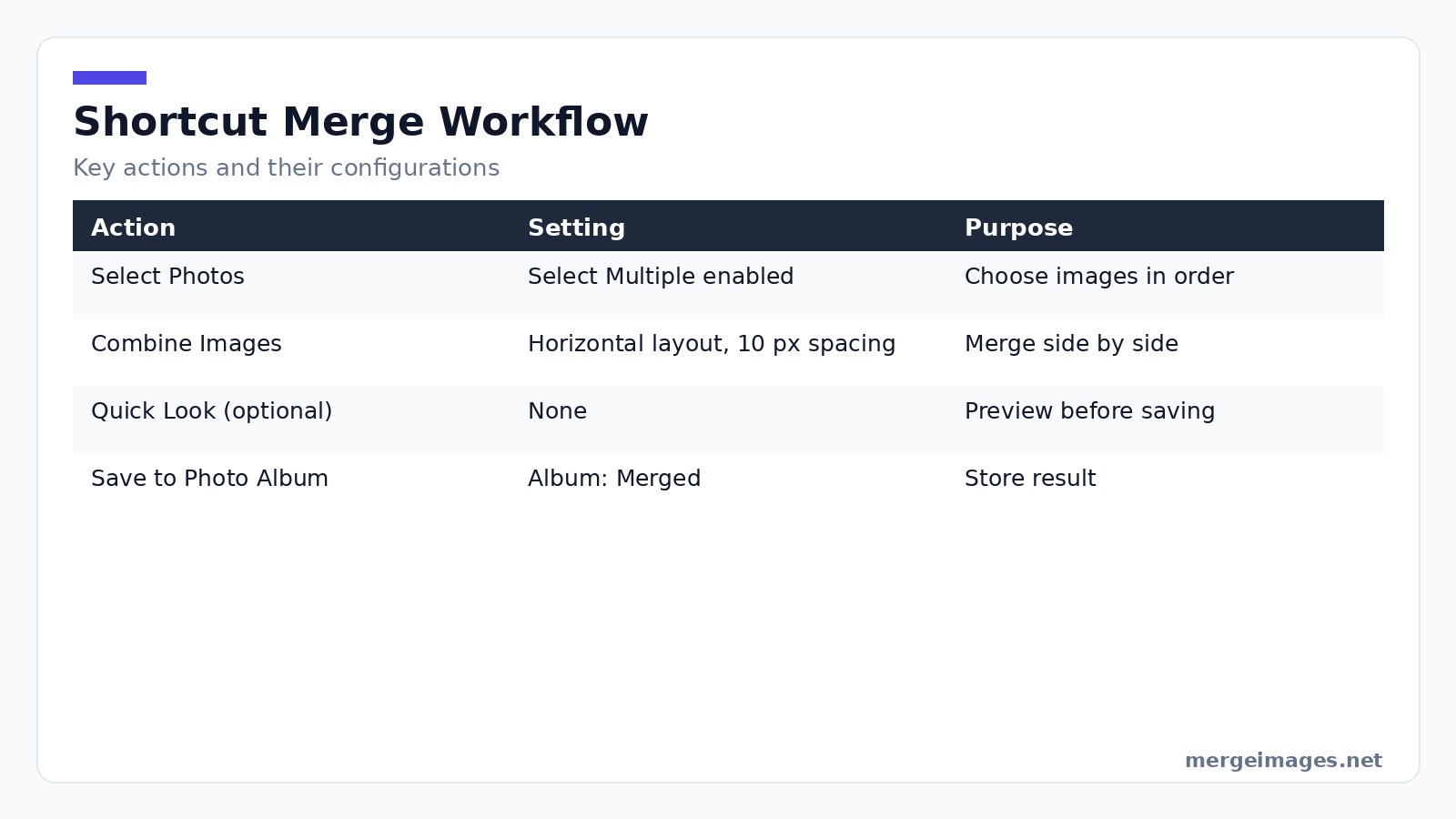
Start by opening Shortcuts and tapping the + button. Add the Select Photos action and toggle Select Multiple. This mirrors the Safari picker but stays inside the Shortcuts sandbox, so the shortcut can only see the albums you grant access to. Next, drop in Combine Images. Tap the layout selector and choose Horizontal, Vertical, or Grid. I prefer Horizontal for side-by-side product shots because the default spacing of 10px gives a subtle border without extra work.
After the combine step, attach Save to Photo Album and pick an album like Merged. Give the shortcut a clear name such as Merge Photos Horizontal. The name appears in the Share Sheet, letting you invoke it from any photo app. To make it truly reusable, open the shortcut's Details, enable Show in Share Sheet, and turn on Add to Home Screen. Now you have a one-tap icon that launches the picker, merges, and saves without ever opening the Shortcuts UI.
A couple of nuances matter. The shortcut preserves the order you select the images. If you need a specific left-to-right sequence, tap the photos in that order before confirming. Also, the combine action does not let you resize individual pictures. They are scaled uniformly to match the tallest (for horizontal) or widest (for vertical) image. If you need different dimensions, run each photo through the /image-resizer tool first.
On-the-Fly Edits
While the shortcut lacks a preview, you can add a Quick Look action after the combine step. This pops up the merged image for a second, giving you a chance to cancel if something looks off. I once merged a portrait and a landscape image. The preview showed the portrait being squashed, so I added a Resize action to the portrait beforehand and the final result looked balanced.
When to Reach for a Dedicated App (Advanced Needs)
If you merge photos daily and crave features like text overlays, stickers, or AI-driven background removal, a dedicated app still has merit. Free options such as Layout from Instagram and PicCollage provide smart layout suggestions and quick sharing to social platforms. They also let you drag and drop images into custom frames, something the browser tool cannot do.
However, apps consume storage and often ask for broad photo library permissions. For occasional merges, the Safari method or Shortcuts workflow is lighter and respects your privacy. Choose an app only when you need batch processing of more than twenty images. You might also need precise control over each cell's size and aspect ratio.
Choosing the Right Image Size for Your Destination
Different platforms have preferred dimensions. Instagram squares work best at 1080×1080px, while Stories favor 1080×1920. For iMessage, any width under 1500px sends quickly, and email attachments stay safe under 5MB. When you know the target size, resize beforehand using the /image-resizer tool or the iPhone's native edit, crop, and dimensions feature.
If you start with a low-resolution picture, the merge can look blurry. I tried merging three 800×600 photos horizontally. The output retained sharpness because the combined width stayed under 2400px, well within the iPhone's GPU limits. When the total exceeds about 3000px, the device may pause briefly as it renders, but the result remains crisp.
Practical Tips for Cleaner Merges
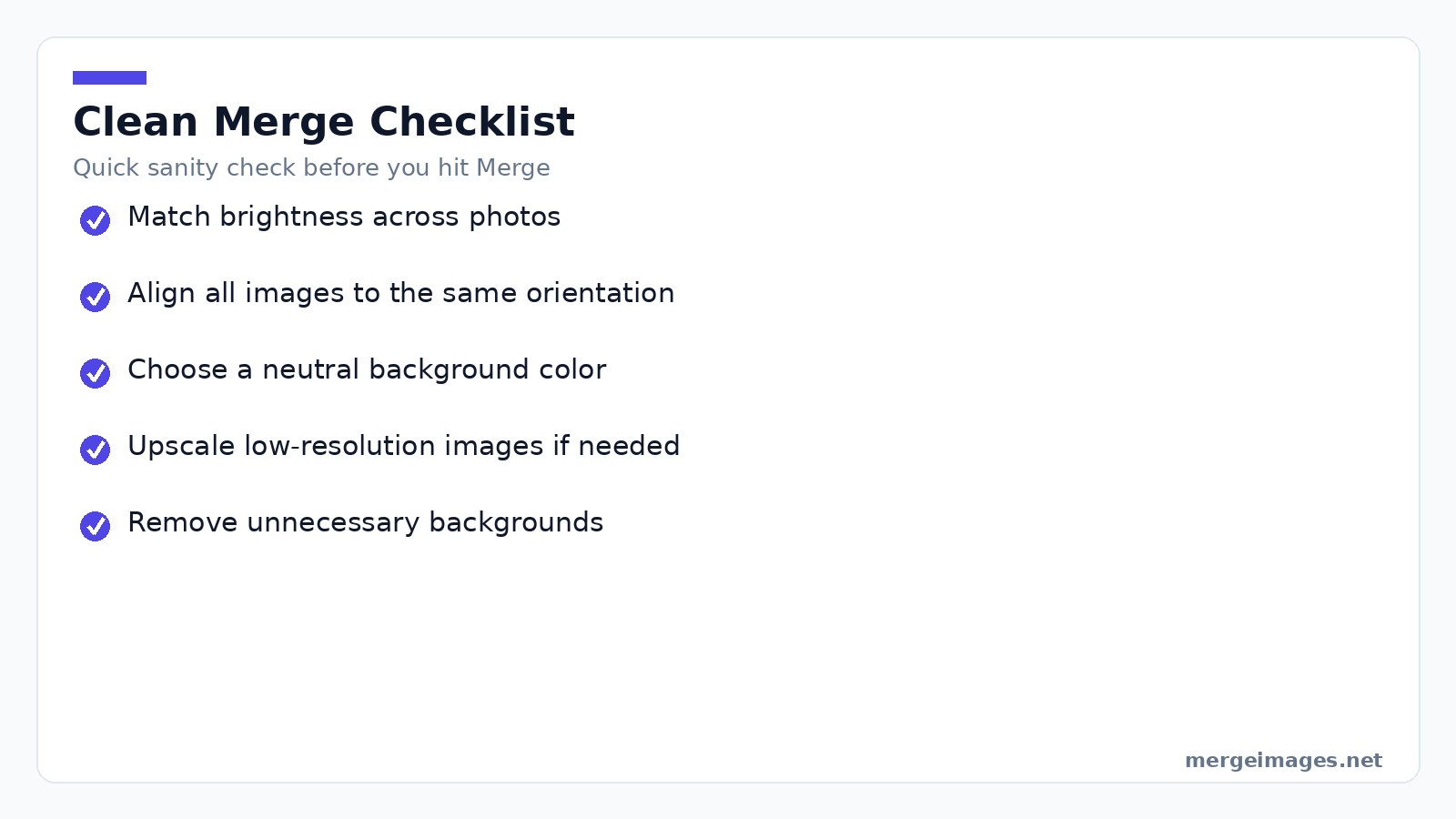
- Match brightness. Photos taken under different lighting create harsh edges. Use the built-in exposure slider before merging.
- Align orientation. Keep all images in portrait or all in landscape. Otherwise you will get uneven gaps.
- Pick a neutral background. A light gray or white background makes the collage feel unified.
- Upscale low-res shots. A quick pass through the /image-resizer (conceptual) can add detail before you combine.
- Remove unwanted backgrounds. For product or profile collages, the /background-remover clears distractions, letting the merged canvas shine.
Troubleshooting Common Issues
Blurry output. The source files are likely small. Upscale them first or choose a vertical layout that reduces the overall width.
Color mismatch. Apply the same filter to each photo before merging. The iPhone's filter library works uniformly across images.
File too large to share. Export as JPEG instead of PNG, then lower the quality slider to around 80%. JPEG files shrink dramatically while retaining visual fidelity.
Unable to select many photos. Some apps cap the selection at nine images. MergeImages.net imposes no hard limit. Simply scroll and tap all you need.
Shortcut fails after iOS update. Reopen the shortcut, tap the Select Photos action, and regrant access to your library. The sandbox resets permissions after major updates.
Frequently Asked Questions
Can I use MergeImages without an internet connection?
Partly. The browser-only tools, like the cropper, resizer and rotator, keep working in Safari once the page has loaded. The merge itself runs on our servers, so it needs a connection. Images sent there are deleted automatically within 7 days and never shared or used to train models.
Does the Shortcuts method keep my photos private?
Absolutely. Shortcuts runs inside the iOS sandbox and never uploads images unless you add a cloud action yourself.
How many photos can I merge at once in Safari?
There is no fixed limit. The tool will handle as many images as your device's memory allows, typically up to a dozen comfortably.
Will the merged image retain EXIF data?
The browser tool strips EXIF to protect privacy, so the output contains only basic metadata like dimensions.
Is there a way to add a border around each photo?
Not with the free browser tool. You would need a dedicated app or add a border in an image editor before merging.

Bello builds useful software and writes thoughtful content to make sense of it all. He tests the tools himself and checks the facts before any of it goes in a guide.
Probieren Sie Unsere Kostenlosen Bildtools
Bereit es Auszuprobieren?
Setzen Sie diese Tipps mit unserem kostenlosen Online-Bildeditor in die Praxis um. Keine Anmeldung erforderlich.
Bilder Jetzt Zusammenfügen


