
Summarise this article with:
Pinterest operates as a visual search engine. The most reliable way to win its algorithm is to serve pins at the exact 2:3 ratio of 1000 × 1500 px. This size grabs maximum feed space. It loads quickly on mobile and signals compliance to the platform’s distribution filter. Getting it right boosts impressions without extra spend.
The 2:3 Rule Explained
Pinterest arranges pins in a masonry layout. Taller images occupy more vertical real estate.
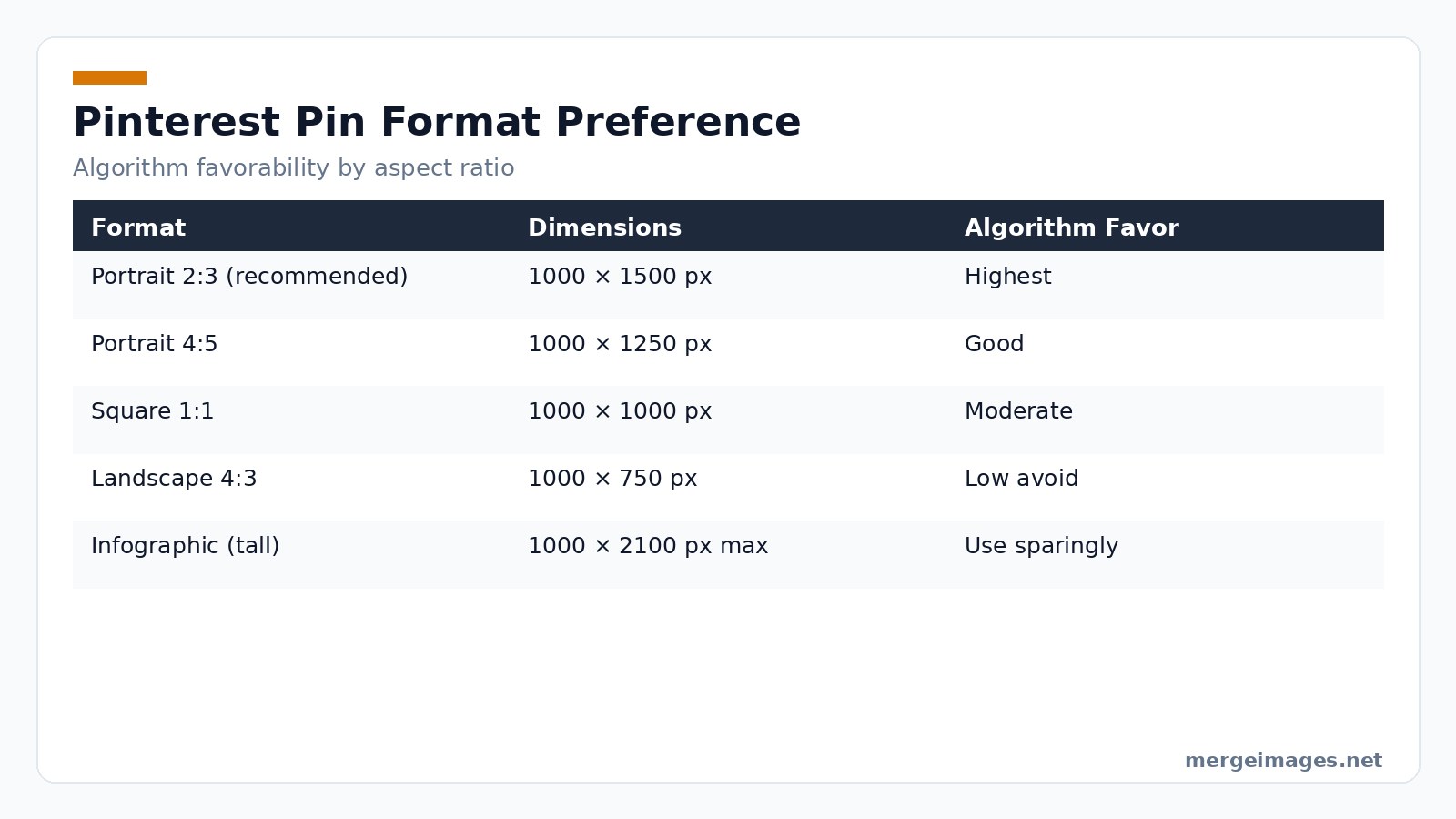
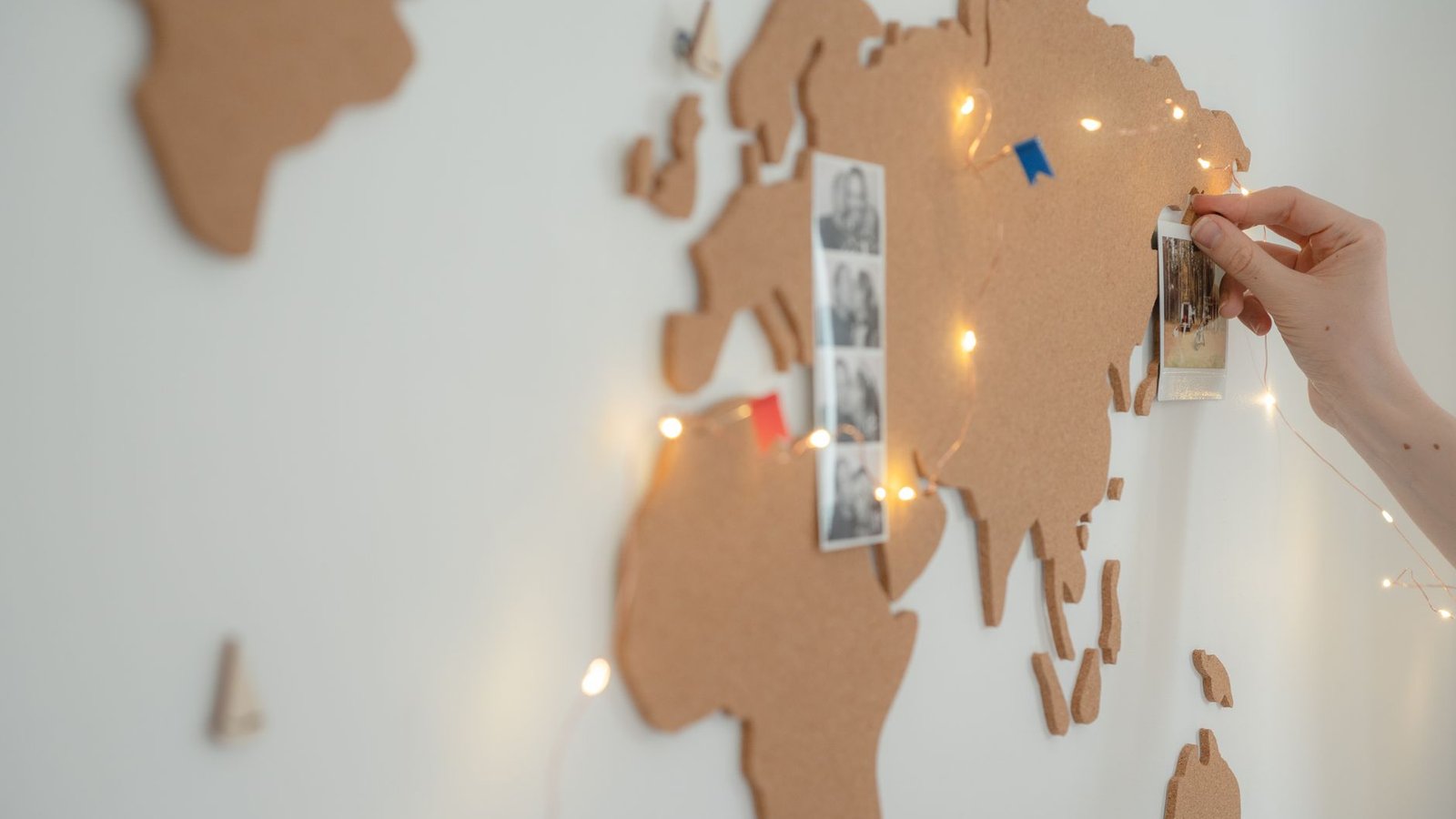
Photo: Patrick via Pexels
Why the algorithm prefers the ratio
Behind the scenes, Pinterest’s recommendation engine assigns a “space value” to each pin based on its pixel height. A 1000 × 1500 pin receives roughly 1.5 × the space value of a 1000 × 1000 square. That extra value translates into a higher probability of being placed in the “home feed” and “related pins” sections. The trade-off is that the engine also checks file size; a tall image that is too heavy can be demoted for loading slowly.
Resizing and Compressing Images
Upload a 2500 × 3750 raw photo to the Image Resizer. Type the target dimensions 1000 × 1500 and hit Resize. The tool recalculates the canvas instantly. It preserves the aspect ratio and displays the new file size before you download. Use this instant feedback to decide if you need to trim pixels or accept the result.
Common pitfalls when resizing
- Over-cropping: If the original subject is centered, a blind crop can cut off essential details. Always preview the crop in the resizer’s preview window and adjust the focal point manually.
- Stretching: Some designers force a non-portrait image into 2:3 by stretching it, which creates distortion and a negative user experience. Instead, consider adding a background blur or a subtle gradient to fill the empty space.
- Resolution loss: Dropping from 2500 × 3750 to 1000 × 1500 reduces pixel count dramatically. If the original image contains fine patterns (e.g., lace, intricate typography), you may need to sharpen the resized version using a modest unsharp mask.
Shrink the file next. The Image Compressor reduces JPEG and PNG weights by analyzing visual complexity and applying smart quantization. A typical 1.2 MB portrait drops to under 250 KB. That loads instantly on a 3G connection. Keeping the file under 300 KB is a sweet spot for Pinterest’s mobile performance metrics. Sometimes you lose fine texture on detailed fabrics. Raise the quality setting by a few points in those cases. Accept a larger file because visual fidelity matters more than the last kilobyte.
When compression backfires
- Banding in gradients: Aggressive quantization can create visible steps in smooth color transitions. If you notice banding in a sky or background, dial the compression back or switch to PNG-8 for that region.
- Loss of brand colors: Some brand palettes rely on exact hex values. Over-compression can shift those values slightly, leading to brand inconsistency. Use the compressor’s “preserve palette” option if available.
- File-size ceiling: Pins that exceed ~500 KB may be throttled by Pinterest’s CDN, resulting in slower load times and a drop in the save rate. Always verify the final size in the analytics tab of the compressor.
Building Collages for Rich Pins
One image tells only part of a story. Drop your originals into the Photo Collage Maker to showcase four product angles. Select a 2-column, 2-row grid. The tool aligns each picture automatically. Export a single 1000 × 1500 PNG. The collage retains the exact ratio, so you never re-crop afterwards. This eliminates manual layering in design software. It guarantees the final pin meets Pinterest’s specs. Busy collages trigger the platform’s duplicate detection. Space each element with a thin margin so the algorithm treats the pin as unique.
Design tricks for collages
- Consistent lighting: If one corner of the collage is dramatically brighter, the algorithm may flag it as low-quality. Use a quick exposure match before importing.
- Border vs. margin: A 2-pixel white border around each sub-image helps the AI separate the elements, reducing the chance of being flagged as a duplicate of a single-image pin.
- Call-to-action placement: Add a subtle “Tap for details” badge in the lower-right corner of the collage. Keep it under 10 % of the total canvas area to avoid penalizing the visual hierarchy.
Timing Pins for Seasonal Peaks
Pinterest users plan ahead. Research shows that 45 % of them start looking for seasonal ideas at least 60 days before the event. Publish pins well before the calendar flips to capture holiday traffic. Start Valentine’s Day pins in late December. Begin Spring and Easter content in late January. Launch summer pins by early April. Go live with back-to-school content in June. Post Halloween pins by early August. Upload Christmas pins by October 1. Aligning image production with these windows ensures every pin lands when search demand spikes. Pins posted within the first 20 days of the window generate 30 % more saves than those posted later.
What can go wrong with timing
- Late uploads: If you wait until the last week of a seasonal window, the algorithm treats your pin as “new” but the audience is already saturated, leading to low save rates.
- Early overload: Posting a flood of pins too early can cause audience fatigue; the algorithm may lower the distribution weight for each subsequent pin.
- Missing trend signals: Pinterest’s trend dashboard updates weekly. Ignoring those updates can cause you to miss emerging sub-themes (e.g., “eco-friendly Valentine’s gifts”) that could boost relevance.
Text Overlays That Convert
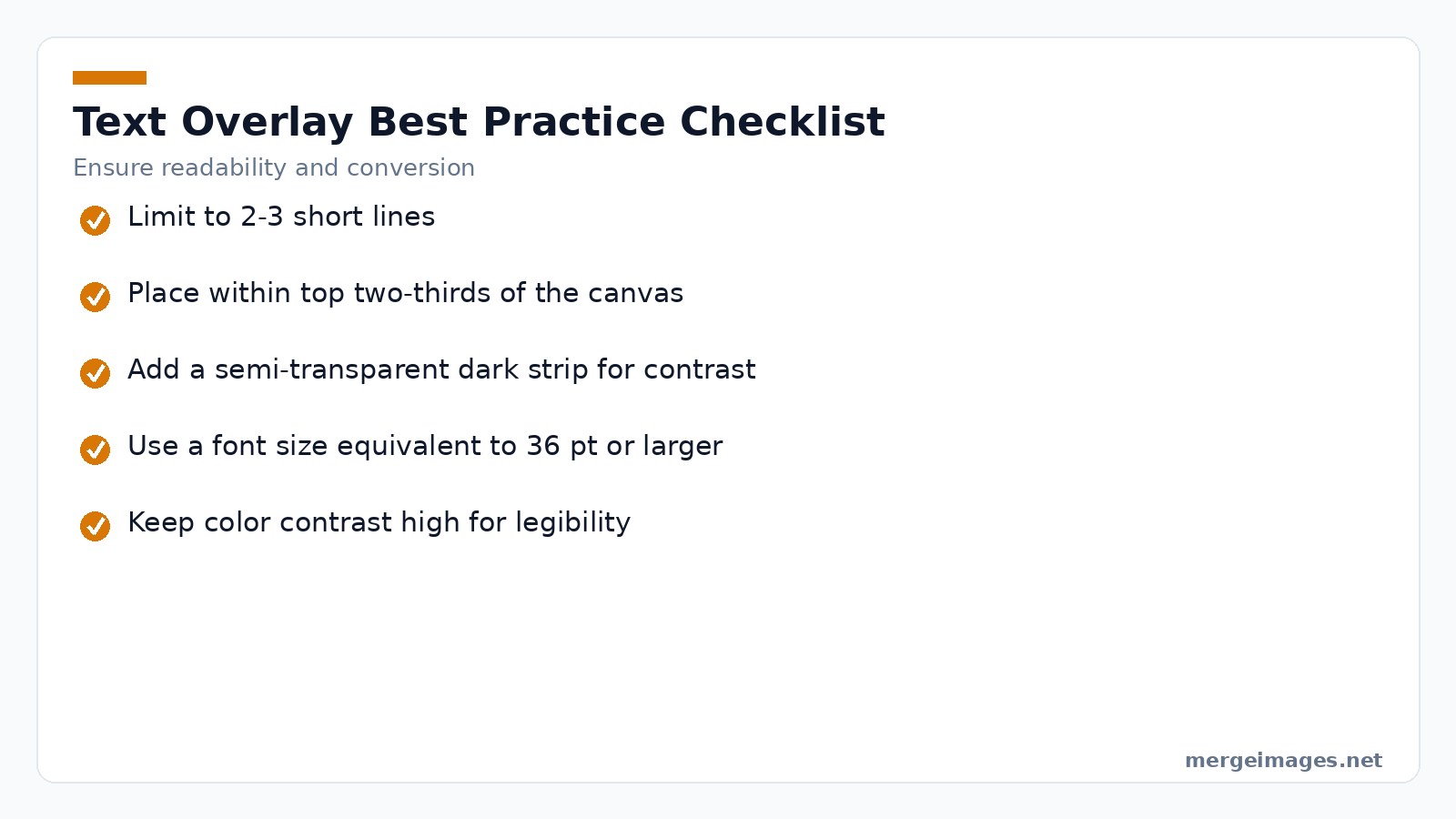
A well-placed caption turns a curious scroll into a click. Keep text to two or three short lines. Position it in the top two-thirds of the canvas. Add a semi-transparent dark strip for contrast. Fonts must be legible at roughly 36 pt size or larger on a 1000 × 1500 canvas. Avoid clutter. A clean overlay lets the visual story breathe while communicating the value proposition. Test a single line of bold text against a two-line version. The single line often yields a higher click-through rate because it reduces visual fatigue.
Practical overlay mistakes
- Tiny font on mobile: Even if 36 pt looks fine on desktop, on a 320-pixel wide phone screen it can shrink below readable size. Use the preview mode in the Pin Designer to simulate mobile.
- Low-contrast text: White text on a light background without a dark strip will blend into the image, causing the algorithm to deem the pin “low value.”
- Keyword stuffing: Overloading the overlay with multiple keywords looks spammy and can trigger Pinterest’s spam filter, reducing reach.
SEO Essentials: Boards, Descriptions, Alt Text
Pinterest’s search engine treats pin metadata like a web crawler treats HTML. Board titles with clear keyword phrases rank higher than clever but vague names. Pin descriptions should read like a short paragraph. Naturally weave in target keywords and end with two to five relevant hashtags. Alt text is not optional. It feeds both accessibility tools and Pinterest’s internal image-recognition engine. Write it as a concise sentence describing the visual content and any on-image text. Overly generic alt text such as “image” will be ignored by the algorithm.
Limits of keyword reliance
- Keyword cannibalization: Using the exact same phrase in every board title can cause Pinterest to view them as duplicate topics, spreading authority thin.
- Hashtag overuse: More than five hashtags can be treated as spam, especially if they are unrelated to the pin’s visual.
- Alt-text length: Pinterest truncates alt text longer than 125 characters. Focus on the most important descriptors first.
Measuring Success in Pinterest Analytics
Analytics on Pinterest break down performance into four core signals:
- Impressions measure how many times the pin appeared in feeds.
- Saves act as the strongest engagement metric. Each save tells the algorithm the pin is worth resurfacing.
- Link clicks send direct traffic to your site.
- Closeups are zoom interactions that indicate visual interest even without a click.
Focus on the save rate. A pin that earns a high proportion of saves relative to impressions will continue to receive distribution for weeks, sometimes months. If you notice a drop in saves after the first week, refresh the text overlay or add a new board tag to re-energize the pin.
Interpreting the data
- High impressions, low saves: The image is being shown but not resonating. Re-evaluate the visual hook or the relevance of the board.
- High saves, low clicks: Users love the pin but the call-to-action may be weak. Strengthen the landing-page headline or add a clearer “Shop now” cue.
- Spike in closeups: Indicates curiosity but perhaps a mismatch between the pin and the linked content. Align the landing page visuals with the pin’s style.
Frequently Asked Questions
How often should I pin to stay active on Pinterest?
Consistency beats volume. Aim for at least one fresh pin each day, which translates to five-to-ten new pins per week for most small businesses.
Can I reuse the same image for multiple pins?
You can point several pins to the same URL, but each pin must look distinct. Change the color palette, crop differently, or add a new text overlay to avoid the platform’s near duplicate detection.
Does Pinterest penalize landscape images?
Landscape pins receive less vertical space in the feed, so they generally see lower engagement. They work for niche categories like panoramic travel photography, but for most content the 2:3 portrait is safest.
How long does a pin’s traffic last?
Pins have a long tail; a well-optimized pin can keep driving traffic for months or even years, far outlasting posts on other social platforms.
Should I always compress my pins?
Yes. Compressing to under 300 KB preserves mobile load speed without sacrificing visual quality, and it aligns with Pinterest’s performance recommendations.
Putting It All Together: A Workflow Checklist
- Shoot in high resolution (minimum 2500 × 3750) to retain detail after resizing.
- Select the 2:3 portrait as the primary format; reserve landscape for specialty boards.
- Resize using the Image Resizer, double-checking the focal point and avoiding over-cropping.
- Compress with the Image Compressor; aim for 250-300 KB, then verify visual fidelity on a mobile preview.
- Add a text overlay that follows the font-size and contrast rules; test single-line vs. two-line copy.
- Write SEO-rich metadata: board title, description, alt text, and 2-5 hashtags.
- Schedule the pin according to the seasonal calendar, leaving at least 45-60 days before the event.
- Monitor analytics daily for the first week; if saves dip, iterate on overlay or board tagging.
- Refresh after 30 days with a subtle variation (different background hue or updated CTA) to re-activate the algorithm.
By following the ratio rule, compressing wisely, and using collages to pack more information into a single pin, you set your content up for sustained visibility. Start with high-resolution originals, resize and compress with the free browser tools, and let Pinterest’s algorithm do the heavy lifting.

Bello builds useful software and writes thoughtful content to make sense of it all. He tests the tools himself and checks the facts before any of it goes in a guide.
Essayez Nos Outils d'Image Gratuits
Prêt à Essayer ?
Mettez ces conseils en pratique avec notre outil de fusion d'images en ligne gratuit. Sans inscription.
Make your social images, free


